

3 Ways To Customize LG TV webOS
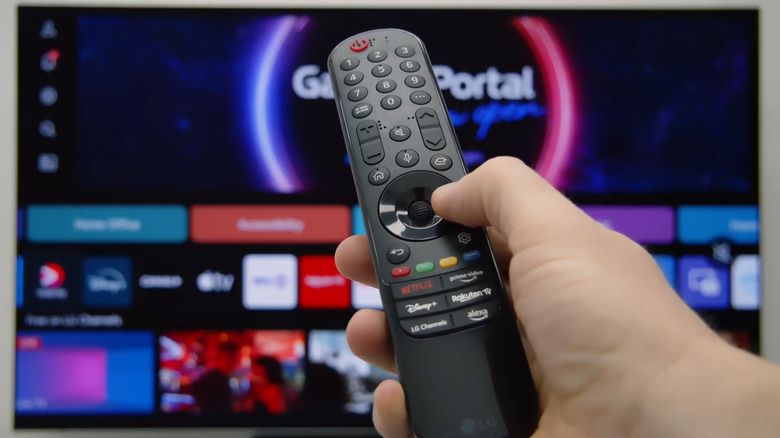
While customization isn't generally a strong suit of smart TVs, LG TVs offer some surprisingly useful personalization options to make your TV work the way you want. For one, you can program your LG TV remote for quick access to your favorite apps, TV inputs, and settings. The old LG TV remotes with the colored buttons let you use the number keys from 1 to 8 as shortcuts to an app or TV input. Meanwhile, the recent Magic Remote comes with a heart button that you can bind to different settings like muting the TV, bringing up the Accessibility Shortcuts panel, and opening the Live TV interface.
Beyond the remote, there are also different ways to customize the webOS UI itself on your LG TV. Out of the box, this interface already looks clean and intuitive. But you're free to change the layout and edit the menus to further improve your TV experience, so below, we'll walk you through a few customization options you can try with your LG TV's webOS interface.
Organize the home screen
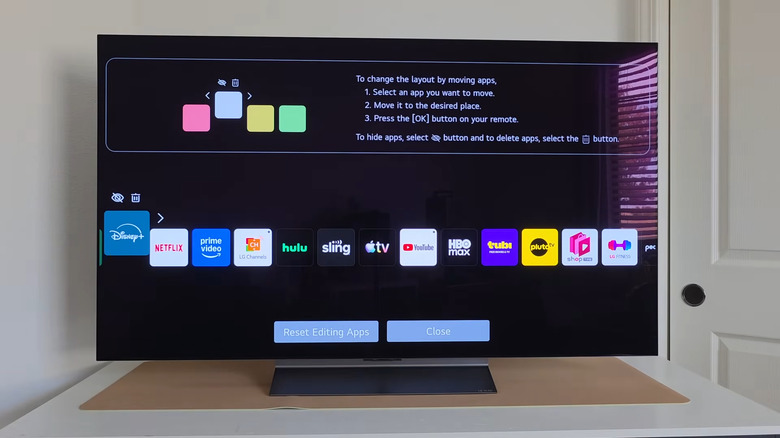
Like with many other smart TV brands, LG lets you customize your webOS home screen to fit your needs better. There are several details you can change here, but you'll probably go for the app list first. You have the option to rearrange this list, hide the apps you don't want to see on your home screen, or uninstall the apps you no longer need.
To rearrange your app list, choose one app on your home screen and long-press the scroll wheel on your remote. When the Edit App List screen appears, select the app you want to move and drag it to the left or right. To hide certain apps from the home screen list, hover over the app icon and click the eye icon that pops up on top. This can come in handy for built-in LG apps that you don't use but can't uninstall. You can always add back the hidden apps from the same Edit App List screen. If you want to completely delete a third-party app from the system, head over to the app and select the trash icon. When prompted, choose Yes to confirm.
The Cards list (the rectangular tiles above the app list) can be customized too, using the same process. Hold down on one tile to enter the Edit Cards List screen, then move the tiles to your desired spot or hide the tiles you don't use that often.
Another thing you can customize on the LG webOS home screen is the Content list that appears below the Trending Now list. To do so, simply scroll down to the very bottom of the home screen and press the pen icon. From here, you can then choose which content to move and drag it with your remote.
Use your personal photos for the idle and standby modes
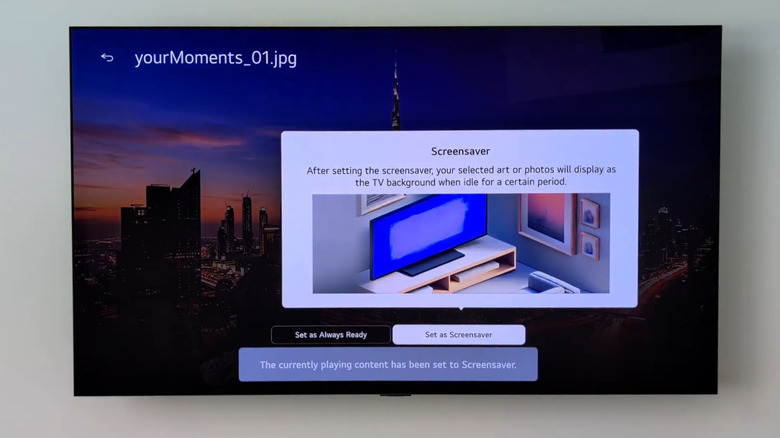
Your LG TV comes with idle and standby modes that allow you to quickly access your TV after you step away from it for a few minutes or a couple of hours. Idle mode automatically kicks in when your TV becomes inactive for a specific amount of time, while the standby mode activates when you press the power button.
When your LG TV goes into idle mode, it may show some ads or turn black and display a white analog clock. On the other hand, with standby mode (also called Always Ready), you may see an information screen featuring the weather and date, or potentially photos of art, moving wallpapers, or a collection of buttons to play relaxing sounds.
If you prefer to have your personal photos on both modes instead, follow these steps:
- Enable Always Ready if it isn't already on:
- Hold down the Settings button on your remote.
- Click on General.
- Open Always Ready.
- Toggle on Enable the function.
- Launch LG Gallery+ from the home screen.
- Click on Photos.
- With your phone, scan the QR code.
- In the LG ThinQ app, open the connected TV.
- Scroll down to Always Ready.
- Tap Use my photos.
- Upload the pictures you'd like to use.
Your photos should now be accessible from the LG Gallery+ app on your TV. Simply choose the image you want and select Set as Always Ready or Set as Screensaver. To view your changes, you can press once on the power button to turn on Always Ready or wait until idle mode automatically activates. If the idle mode wait time is too long, you can always edit it from the Settings. You'll find the Screen Saver Settings under General > System > Additional Settings.
Access your menu and settings faster
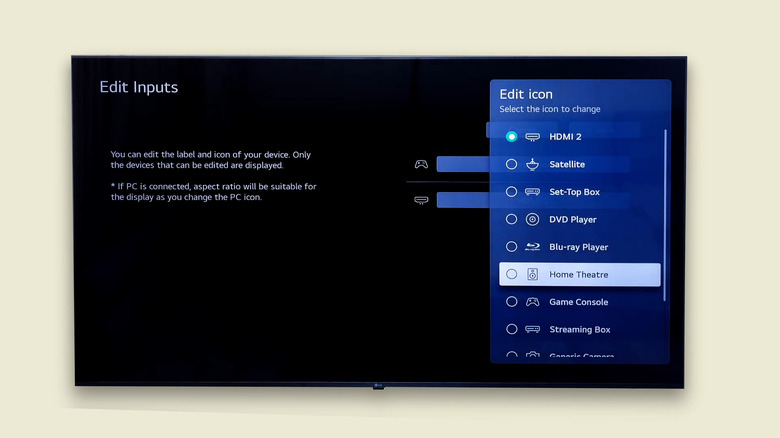
LG's webOS already simplifies the navigation experience with quicker access to menus and settings. But to make these shortcuts work better for you, you can customize two more features: your HDMI input name and the Quick Settings panel.
To rename your HDMI inputs on your LG TV, follow these steps:
- Go to the Home Hub via the button on your remote. If you're unfamiliar with the symbols on the LG TV remote, it's the button with a home icon inside a circle (press it once) or the button with the plug icon (long-press it).
- Click the three dots in the top-right corner.
- Choose Edit Inputs.
- Go to the icon next to the input you want to rename.
- Pick a new icon.
- Select the field next to the new icon.
- Delete the current name.
- Type a new name.
- Hit Enter.
- Save your changes.
Now, when you open the Inputs panel (by either holding down the home icon with a circle or pressing once on the plug icon on your remote), you should see the HDMI input with your preferred name. Meanwhile, here's how to customize your Quick Settings:
- Press once on the gear button on your remote.
- In the Quick Settings panel that opens, go to the pen icon.
- To remove a tile, click it and select Delete.
- To move a tile, choose the tile, press Move, and drag it to your desired position.
- To add more tiles, navigate to the plus icon and pick the tile you want to add to Quick Settings. You can then move it to where you want to pin it.
- Save the changes by pressing the return button on your remote.
When you press the gear icon again, your Quick Settings panel will now display your favorite settings.