

How To Turn Off Gemini In Gmail In Your Google Account
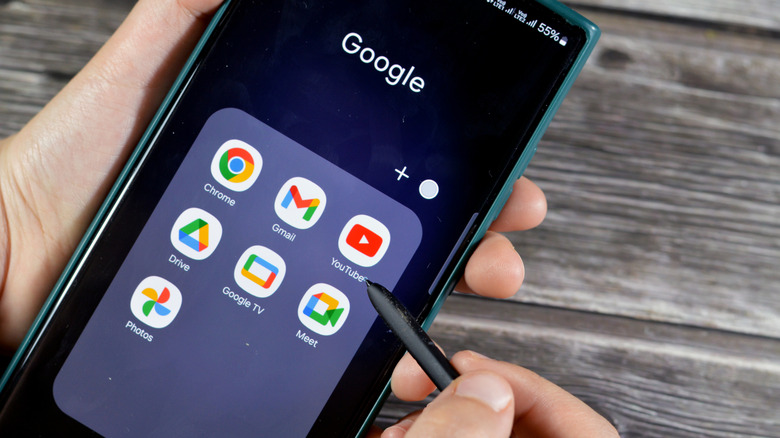
Google Gemini has seeped its way into nearly all Google services, including Gmail. Some find the tools useful, others rarely use them, and some would prefer to disable them whenever possible. If you're in that last group, you'll be pleased to know there is a way to turn off Gemini across your Google account — it applies to Gmail, Google Drive, and Google Docs. Do note, you will also have to turn Gemini off separately in Google Photos and in Google Chrome, as well. Now's a good time to mention you can also stop Google Gemini from training on your personal chats and web data.
It's best to use the web interface for this, so you'll want to use a browser on your laptop or desktop, or a mobile browser on your phone. Sign into Gmail and make sure you're using a web access point, not an app. Navigate to Settings (the gear icon in the top right), then choose See All Settings. In the "General" tab, scroll down to the section labeled "Google Workspace smart features." Select the only option there labeled Manage Workspace smart feature settings. A pop-up will appear showing options for Gemini assistance. The first toggle controls Gemini in Google Workspace apps like Gmail, Google Docs, and so on. Disable that one to remove Gemini from Gmail. The other toggle controls Gemini assistance in other Google products like Maps, Google Wallet, and Google Assistant. Disable that toggle if you want full deactivation almost everywhere else.
The Gemini icons, prompts, and tooltips may still appear across Google Workspace products with the toggle disabled. You can effectively ignore them. Trying to interact with them will prompt you to turn the smart features back on; however, Gemini won't be doing anything in the background.
You may also want to turn off Gemini elsewhere

Gemini isn't just integrated with Google's Workspace applications. It will eventually take over much of your Android Phone, your Chrome browser, and even cloud services like Google Photos. A recent Google Photos feature will actually train AI on your personal photos, if you don't disable it. You can easily turn off Gemini in Photos by opening the app, tapping your profile icon in the top right, and going to Photos Settings > Preferences > Gemini features and disabling Use Gemini in Photos. Granted, that also turns off the AI-powered search in Photos, but for some, it might be worth the trade-off.
Disabling Gemini in Chrome is your next stop. With Chrome open, select the three dots and go to Settings > AI innovations > Gemini in Chrome. Disable all options. After, back up one menu to AI innovations and disable two options: History search and Help me write. Under Settings > System toggle off the On device AI feature. That should stop the 4 GB AI model that might have silently installed on your device.
Finally, if you don't want to use Gemini on your phone as the default assistant, you can switch back to the standard Google Assistant — at least for now. Find or open the Gemini app on your device, tap the menu button in the top left (two vertical lines), then select your profile picture at the bottom. Scroll through the settings until you see Switch to Google Assistant. Tap that and choose Google Assistant. You'll also want to change your default assistant app if you have Gemini set as a shortcut for anything. You can uninstall the Gemini app afterward, but Google says that won't disable everything if it's still your default assistant.