

What Is Hardware-Accelerated GPU Scheduling In Windows 11 And Should It Be On Or Off?
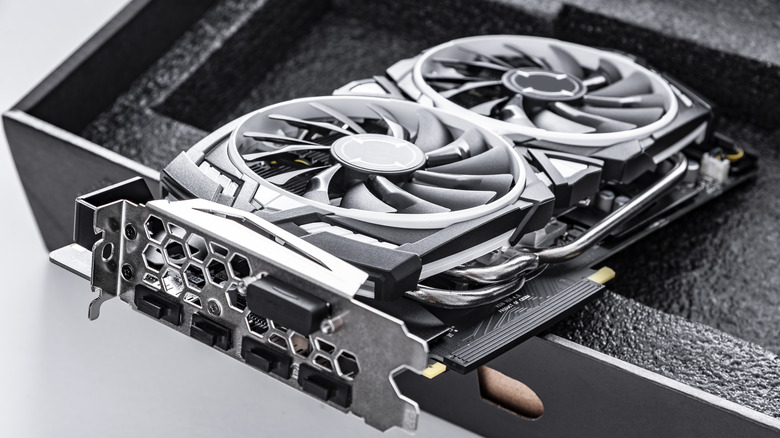
Scheduling refers to how requests are handled and scheduled by your computer. Without any scheduling algorithm, it'll process whatever request comes first before any other, which can lead to severe instability and performance issues. To ensure this doesn't happen, Windows has been using a software scheduler for decades, which lets the CPU decide the priority of tasks and allocate different CPU cores to them, ensuring important processes don't get backlogged.
Hardware-Accelerated GPU Scheduling (HAGS) works in a similar way. When a game requests to generate new frames, your CPU decides the request's priority and then forwards it to your GPU for rendering. With HAGS, the CPU offloads this process to the GPU, which now handles both the scheduling and rendering of anything to do with graphics. This gives your CPU more room to handle other processes. This works differently than most other features from Nvidia and AMD that boost gaming performance. Instead of tweaking specific settings to configure your PC for gaming, HAGS changes how scheduling works at the OS level. It doesn't result in huge improvements in FPS figures, but it streamlines your experience for more stable frame rates.
HAGS is enabled by default on Windows 11, and you can toggle it on or off from inside Windows' settings. Open Settings by right-clicking the Windows icon in your taskbar and clicking on Settings. From here, select System from the side menu, choose Display, and then select Graphics. Here, you can click on the Advanced Graphics Settings option to toggle Hardware-Accelerated GPU Scheduling on or off. Do note that changing from one state to another requires you to restart your computer before the change takes effect.
Should you turn Hardware-Accelerated GPU Scheduling on or off?

For most people with modern setups, it's recommended to have HAGS turned on. Hardware-Accelerated GPU Scheduling provides improved latency and stability while also resulting in higher FPS numbers for games that benefit from it. The feature is also required if you want to use certain Frame Generation protocols, such as Nvidia's DLSS Frame Generation, while AMD recommends turning it on for its FSR Frame Generation as well — though it isn't a requirement. How much of a benefit you get by having HAGS turned on depends on your particular setup and what you're trying to do. Some games barely see any improvement in terms of frame rate, whereas others can perform up to 20% better. However, even if you don't gain any additional frames, Hardware-Accelerated GPU Scheduling is known to provide more stability in FPS, making gameplay feel smoother and more seamless.
That said, there are cases where not only do you not get any improvement, but having HAGS turned on actively worsens your computer's performance. If you're already running graphics-intensive games that max out your GPU usage, having the feature turned on can overload your GPU, resulting in a loss in average FPS. This is especially true for older GPUs that aren't optimized for the feature. Similarly, GPUs with limited VRAM are more likely to benefit from turning HAGS off, as the feature allocates up to 1 GB of VRAM for scheduling. If you only have 8 GB of VRAM and are playing a GPU-heavy game, letting HAGS consume valuable VRAM can result in instability and micro-stuttering. There are also certain kinds of games that simply work much better without HAGS, such as VR titles like "VRChat" or older games like "Counter-Strike: Global Offensive."