

If Your LG TV Keeps Disconnecting From The Internet, Try This
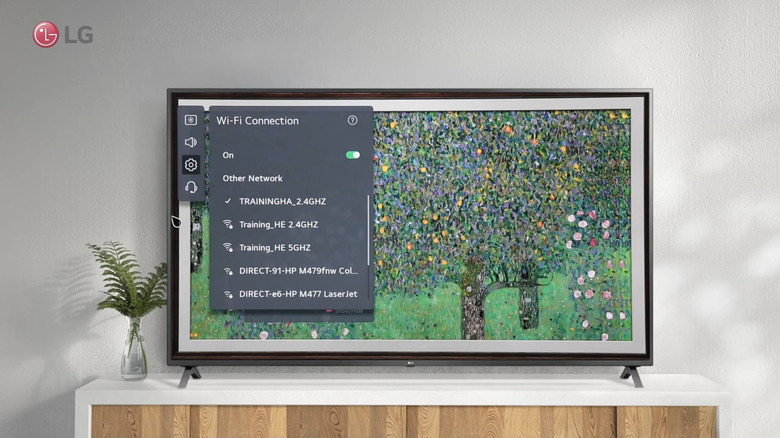
An internet connection is integral to smart TVs. Without one, you lose access to most of what the TV offers. That's why many users get frustrated when their smart TVs have slow internet speeds, a weak Wi-Fi signal, or flat-out refuse to connect to Wi-Fi. For LG TV owners, though, one of the more common LG TV problems involving internet connectivity is frequent Wi-Fi dropouts. LG TVs are known to keep disconnecting from the internet, which disrupts the viewing experience.
Thankfully, there are several fixes. The first thing to do when your LG TV suddenly disconnects from Wi-Fi is confirm whether the issue is with the TV or your home network. To start, disconnect from the Wi-Fi and connect the LG TV to your phone's hotspot. Then, watch some videos on YouTube for a couple of minutes. If the connection doesn't drop, the issue may be your home router. Try power-cycling it, updating the firmware, and calling your service provider to see whether a new router solves the problem.
If your LG TV still keeps disconnecting from your phone hotspot, the issue is likely with the TV. In that case, proceed with the following troubleshooting steps instead.
Adjust the TV and router settings
User reports mentioned that changing some settings on the LG TV and router helped stop the annoying Wi-Fi dropouts. One easy TV tweak is the good old turn-off-and-on-again method. If your LG TV disconnects from the internet now and again, just turn the Wi-Fi off and on. In Settings, open the Network section under the General tab. Click Wi-Fi connection and disable the Wi-Fi toggle, then turn it back on after a few seconds. Sometimes, this is all it takes to resolve the connectivity problem.
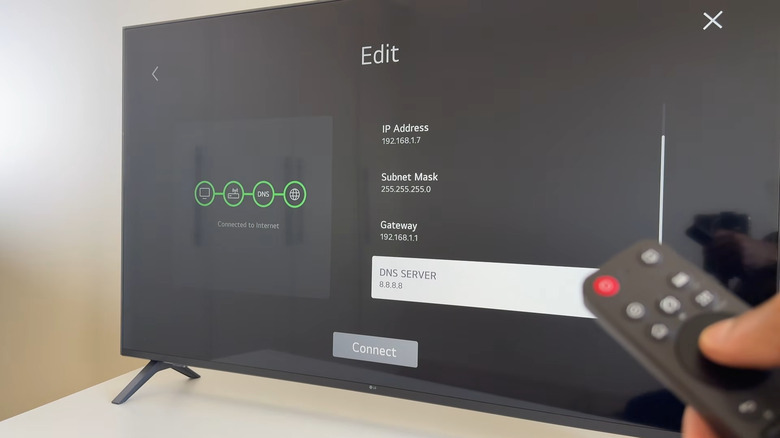
The other smart TV settings you can try adjusting include disabling IPv6, changing the LG TV's location, and setting the DNS server to 8.8.8.8. Here's what you need to do to change these on your LG TV:
- Press and hold the gear icon on your LG TV remote.
- Navigate to General > System > Location.
- Change Broadcast Country and LG Services Country to the country you currently live in.
- Return to the General panel.
- Select Network.
- Click on Wi-Fi Connection.
- Go to Advanced Settings.
- Toggle off IPv6.
- Press the Edit button at the bottom.
- Turn off Set Automatically.
- Scroll down to DNS SERVER.
- Set the DNS Server to 8.8.8.8.
- Click Enter on the on-screen keyboard.
- Hit Connect.
For your router, some Reddit users reported that turning off band steering fixed the LG TV's connectivity issue. Go into your router's admin portal and look for the band steering setting. If it isn't immediately obvious, consult your router's manual. You can also try switching the TV from 5GHz to 2.4GHz and ensure you're using WPA2-AES or WPA-AES as the encryption method in the router admin portal. If nothing else works, try a factory reset on the LG TV as a last step.
Inspect the Wi-Fi module on your LG TV
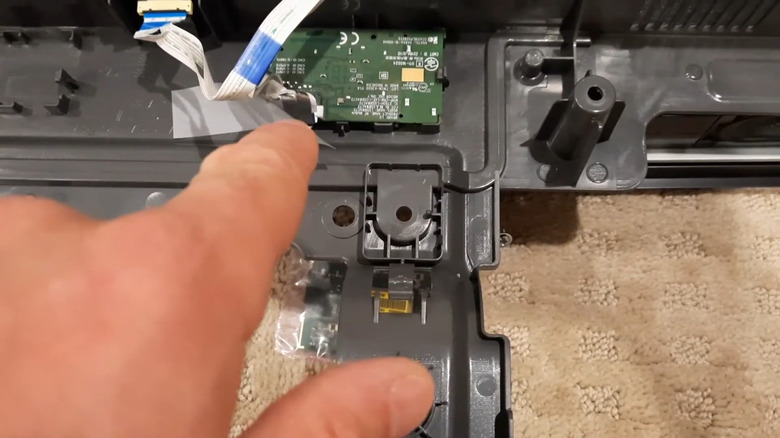
Besides settings and software issues, another potential reason why your LG TV keeps disconnecting from the internet is the Wi-Fi module. It could either be loosely connected to the main board, have bent cables, or have simply failed altogether. If you're comfortable disassembling electronics, you can check the Wi-Fi module on the back of the TV.
There are several disassembly tutorials available on YouTube and iFixit, and all you generally need is a Phillips screwdriver and a pry tool to remove the back panel on the TV. Once you remove the panel, you'll usually find the Wi-Fi module at the bottom of the TV. It looks like a small green board connected to the main board via ribbon cables.
Try unplugging the cables on the Wi-Fi module and plugging them back in, making sure they're securely seated in the port. If the cables look bent, straighten them out. Kinked cables can degrade the Wi-Fi module's performance. If the LG TV still drops its internet connection after you fix the cable connection, the Wi-Fi module may be malfunctioning. In that case, it's best to take the TV to a service center to confirm and have it replaced.
Connect your LG TV to the internet via alternative ways
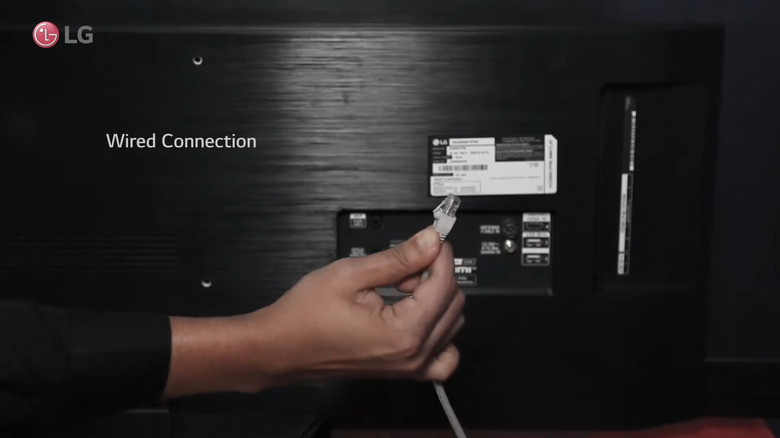
If your LG TV's Wi-Fi still keeps dropping out, then it's time to use alternative ways to connect to the internet. The quickest method is to switch from Wi-Fi to an Ethernet connection. Run an Ethernet cable from the router to the TV and plug it into the Ethernet port on the back of your LG TV. A wired connection is generally more reliable than wireless, and this fix can solve the LG TV's frequent disconnection issues for some users.
If this doesn't solve the problem or you simply don't like the sight of cables cluttering your TV setup, third-party streaming devices are the way to go. They bypass the LG TV webOS and essentially let you avoid the Wi-Fi problems associated with the built-in software. Dozens of clutter-free streaming devices are out there, including Roku and Amazon Fire streaming sticks, which you can easily hide behind the TV. They generally have the same core functionality, so it pretty much comes down to price and specific standout features that matter to you, such as custom remote shortcuts, voice assistant, and smart home controls.