

Here's How Often You Should Really Be Cleaning Your GPU
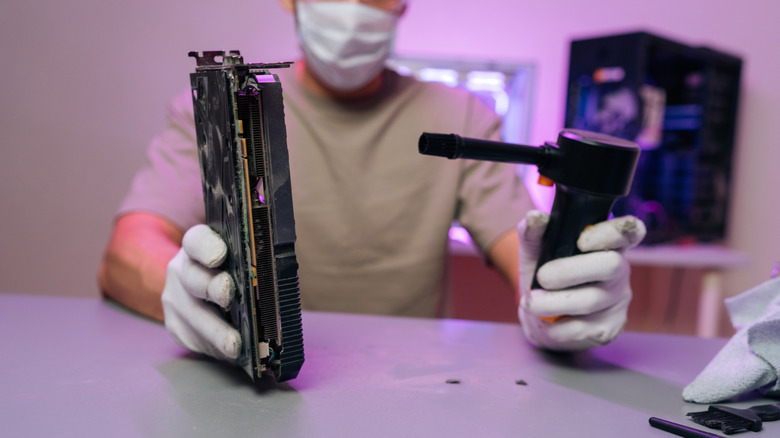
By now, most PC owners understand it's important to clean their computers both inside and out. You'll want to wipe down the outside of the case, removing dust and debris, then open it up and carefully clean out the components inside. Experts say you should clean your computer more often than you'd probably think — every six months, at the least. But what about your GPU, specifically? Given the exorbitant costs of GPUs in the current climate, you'll want your current card to last as long as possible. Proper maintenance should help prolong that lifespan, which means cleaning at proper intervals. The answer for GPUs is pretty much the same as the PC itself: every three to six months is smart, but the cadence is going to depend on the environment where your computer is located.
If you have a consistently dusty room or home, have multiple pets, smoke indoors, or spend a lot of time vacuuming carpets and rugs, you may have to clean more often. These things all cause dust and debris to build up faster than normal (or spread it out after disturbances), which means it can accumulate inside your PC faster, as well.
Dust alone can be harmful to components inside your PC, especially when it builds up in large amounts. This is particularly true for GPUs since it can block or divert airflow for fans and cooling, and dust buildup in certain areas can cause electrical shorts and other performance issues, like overheating. Moreover, contaminants in dust can cause corrosion and catalyze the wear of various components and materials. Altogether, it means that leaving dust to build up inside the chassis of your computer and collect on components, including your GPU and its fans, is not a good idea.
Methods for cleaning a dirty graphics card
Before cleaning any electronics, always make sure they're powered off, and if possible, unplugged from the outlet. It's also best practice to wear anti-static gloves to protect your PC components from static shocks. A static wrist strap is an affordable tool that can save your computer from a catastrophic shock. If you have neither, tapping the frame or a grounded piece of metal before working inside the case can discharge your body.
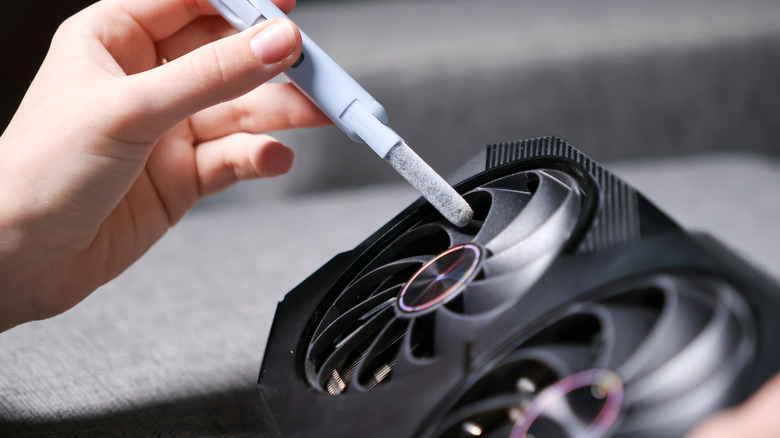
Remove the GPU by disconnecting data and power cables, unscrewing the card from the rear chassis port, and then detaching it from the PCIe lock and the motherboard. Use a small air blower on the lowest setting or a can of compressed air to blow dust and debris off the surface of the card and out of the internal fans. You can also use a soft microfiber cloth to wipe down the outside of the card, taking care not to press hard or scratch any surfaces. Avoid abrasive materials like paper towels or textured wash cloths. If the fans need more work, you can gently wipe the surface of the blades with cotton swabs or a soft brush, but be extra careful not to jam them inside.
If you encounter a stubborn stain or blemish, you can use 70% to 75% isopropyl alcohol solutions. Dampen a cloth (don't soak it) and gently wipe the area until the stain or residue is gone. Allow wet or damp areas to dry naturally before reinstalling the card. Always remember, you are responsible for any damage that occurs to your PC or card, so take it slowly — and if you're not comfortable doing the work, you should hire a professional or take it to a repair shop.
Additional considerations after a thorough cleaning
In addition to cleaning the card by removing dust and debris, some experts also recommend changing the thermal paste at regular intervals. Bear in mind, this is not a requirement, and reliable thermal paste can last for years, anyway, so it may not be necessary. If you clean your card and notice it's still experiencing some performance or overheating issues, that might be a sign it's time to change the paste. Some of the same signs your GPU is about to fail are also indications that the card may need a thorough cleaning, especially if it's been a long while since your last one.
Other issues may occur after cleaning your card, as well. For example, loosened dust that makes its way into other crevices or areas of the card, like inside the thermal module, can cause the same kinds of performance issues as dust building up naturally. You might consider doing more than one round of air blowouts to mitigate this. Moreover, if you used isopropyl alcohol solution to clean part of the card, and it doesn't fully dry before the PC is powered back on, that can cause issues as well.
Again, take your time throughout the process, be as gentle as possible, and allow ample drying time — or even allow the card to rest for a bit so that any loose debris can come free, before giving it a final pass and installing it back in the PC. A regular cleaning is one of the more important ways to stop your GPU from degrading faster than usual. You should also monitor temps during use, consider under-volting, and keep all drivers and software up-to-date.