

What Does The Triangle Symbol Mean On Your Samsung Phone?
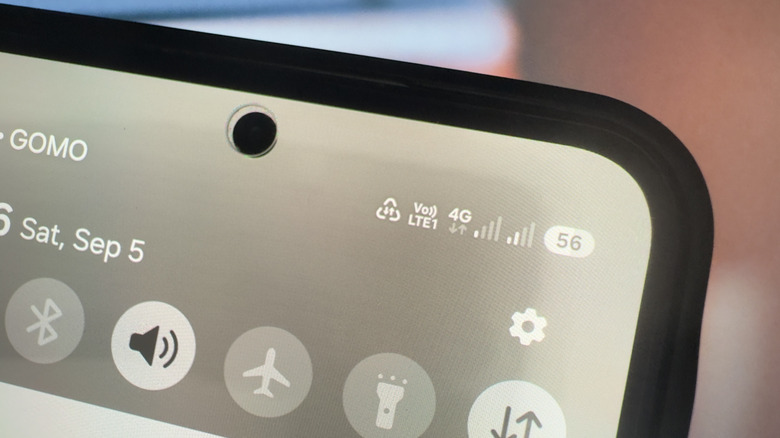
If you've ever noticed a little triangle in the status bar of your Samsung phone and wondered what that is, don't worry — it just means that the Data Saver feature is enabled. If you're primarily on a Wi-Fi network, feel free to deactivate it. But if you're solely relying on your mobile data most of the time, this is one of the secret Samsung features you might want to leave turned on. That's because, unlike Wi-Fi networks that usually have no caps, mobile data plans are often limited by a data allowance. Without Data Saver on, you'd need to keep an eye on your mobile data usage to make sure you don't run out of data faster than you realize.
But how exactly does Samsung's Data Saver help? True to its name, the Data Saver feature conserves your mobile data by allowing apps to consume data only while you're actively using them. As soon as you close an app, it will no longer have access to your data even while it's still running in the background. You'd have to launch it again to reconnect it to the internet. More than limiting how much mobile data your device uses, though, Data Saver on your Samsung phone also extends the life of your battery. Since the apps aren't constantly using your phone's resources to communicate with online servers, your battery doesn't need to work too hard.
Data Saver is one of the Samsung Galaxy features you have to enable yourself. If you already see the triangle symbol on your phone's status bar, then the feature is on and ready for use. The default setup should work fine in most cases, but you can also tweak its settings to make sure the feature suits your needs even better.
How to customize your Samsung phone's Data Saver feature
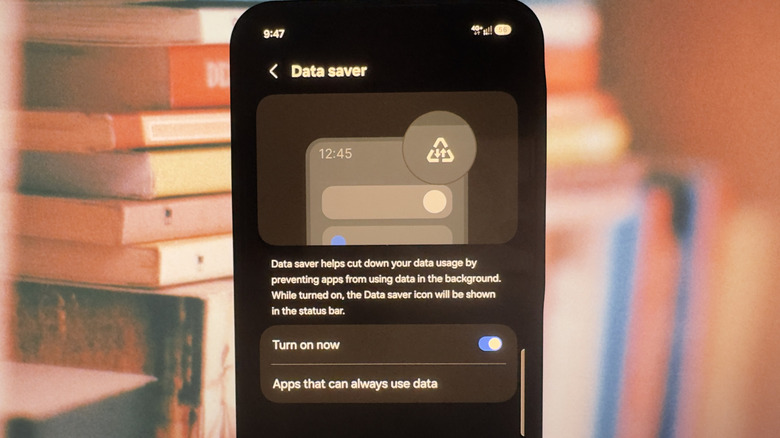
By default, Data Saver affects most apps on your device. However, there might be instances when you need specific apps to consume data even while you're not using them. Maybe you're uploading a video to YouTube. Or perhaps you're syncing your local files to your cloud storage. It's also a good idea to let online messaging apps use data in the background if you're experiencing notification delays from those apps.
In those cases, you can simply exclude your apps of choice from Data Saver to allow them to function without interruption. Here's how to do so:
- Launch the Settings app.
- Open Connections.
- Tap on Data usage.
- Choose Data saver at the top.
- Go to Apps that can always use data.
- Turn on the apps you're allowing to use data in the background. Some native Samsung apps are already excluded from the effects of Data Saver out of the box.
From here, just exit Settings, and you're good to go. If you're done using Data Saver and want to turn it off, all you have to do is press and hold the mobile data icon in the Quick Settings panel, select Data saver, and switch off "Turn on now." If you can't see the option to deactivate Data Saver, though, you might need to reset your mobile network settings first. You can find this option in the Settings app, under Reset in the General Management section.