

5 Common Problems Owners Have With Google Nest (And How To Fix Them)
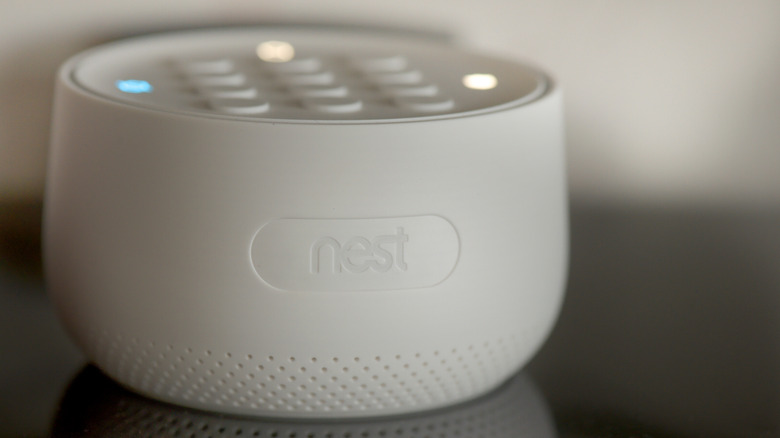
Google Nest is one of the most popular smart-home ecosystems around. But that doesn't mean things can't go wrong with a user's smart home setup, mine included. I've been in the Google Home and Nest ecosystem for over five years now, and there are definitely issues that crop up from time to time. That's just the nature of the smart home beast, but most of the time they can be fixed by the user; it's just about knowing how.
Nest covers smart thermostats, cameras, doorbells, speakers, displays, and locks, and there are plenty of common problems owners have with Google Nest that are easy fixes. Google Nest products are smart on paper, but when a heating routine doesn't kick in during the winter, it's really annoying. Most issues trace back to Wi-Fi issues, power and wiring issues, software, routines, or setup and privacy steps. Seven in 10 people experience common problems with Google smart home products, so I've come up with five of the most common Google Nest issues and how to fix them based on my own experience over the years. The problem I see most regularly is when one Nest speaker listens, but one in another room answers, which is so much fun to deal with when it's time to get the kids sorted for the school run at 6:30 a.m.
Nest thermostat that won't power up, shows a delayed message, or drops its connection
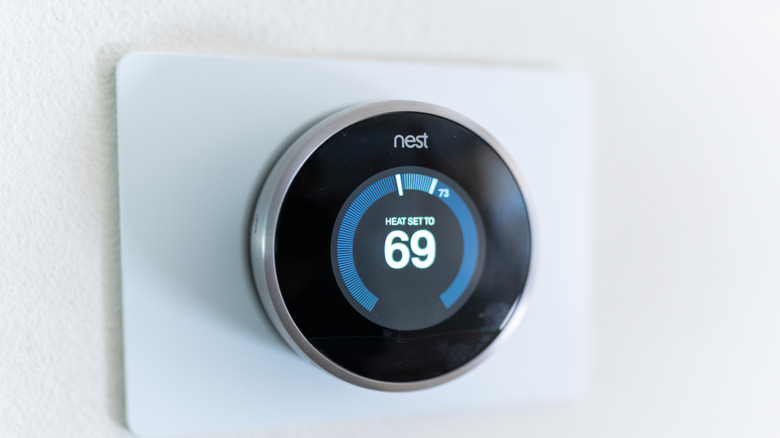
I swear by my Google Nest Thermostat. It learns when I manually turn it on and off, then automatically sets the right temperature schedules to control the heating. There are times when I tweak it a little and set it manually, but for the most part I rarely have to touch it. Plus, it's handy to use voice commands to turn the heating up in the home from the comfort of my warm bed when the temperature randomly drops. The issues I've encountered with it are usually related to the power supply, mostly down to a tripped breaker in my fuse panel.
If it stops working, check whether other electronics on the same wall outlet work. Then check that there are no obvious signs of safety concerns like overheating or a bloated battery, and flip the fuse at the fuse box. I 3D printed a stand for mine to sit on a side table in my living room, but if I've been cleaning around it or swapping out some TV equipment, it's easy to catch the charging cable and unplug the Nest Thermostat. Try another cable to see if that resolves the issue too. For those using a different cable, it might not be delivering enough power, prompting a delayed message to appear. So make sure the cable and power supply deliver the exact amount of power the Nest needs.
Nest products offline or won't reconnect
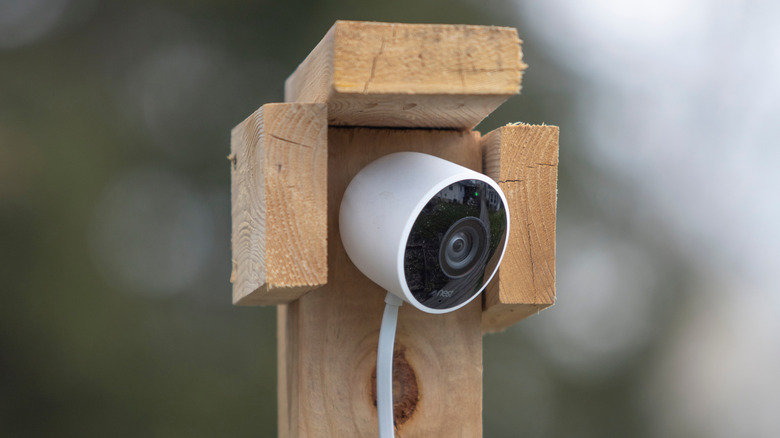
It's annoying when checking back on camera footage to find it was offline or waiting for a delivery that seemingly never comes because of a faulty doorbell, but it might be caused by a router or home network issue. Google Nest devices auto reconnect periodically, which matters if the Wi-Fi signal is weak or patchy when it tries. If a few devices or the whole home is offline, this is likely due to the router or Wi-Fi access points.
Start troubleshooting by turning off and unplugging your router for 30 seconds, then plugging the power back in and turn it back on. This will provide your home network with a fresh connection. Then check the Google Home and Nest apps for any available updates in the App Store or Google Play Store, depending on your smartphone brand. If the problem persists, it could be an internet service provider outage or a problem with Nest services, which you can check on the brand's status page.
A new router or Wi-Fi password can also cause this, so make sure all devices are connected to the right Wi-Fi network, double-check the password, and reconnect devices if necessary. It might also be down to too many devices being connected at once, resulting in too much load going through the Wi-Fi bands. Spread out devices' connections across 2.4 GHz and 5 GHz bands to resolve this, or invest in a Wi-Fi mesh system for larger homes. I usually just reboot my router, as I've already noticed streaming services are also down.
Routines that fire halfway and the wrong speaker answering
Automated routines are only as good as their triggers, which sometimes can get in the way when they're needed the most. Routines fail when triggers don't link, like saying "Good morning" to a smart speaker that doesn't turn on every smart switch and light that it should. Smart automations are region- and language-locked while relying on complex triggers, which can lead to communication issues.
Start troubleshooting by checking the activity feed to see when and why a routine last ran, and making sure it's actually enabled usually helps. If everything looks good so far, double-check all the smart devices that should be in the routine to rule out another easy fix. Failing this, make sure the Home and Nest apps don't need an update and smart devices' firmware is up to date where applicable, which is a very important bit of advice when using third-party brands, as they usually have their own apps and update processes.
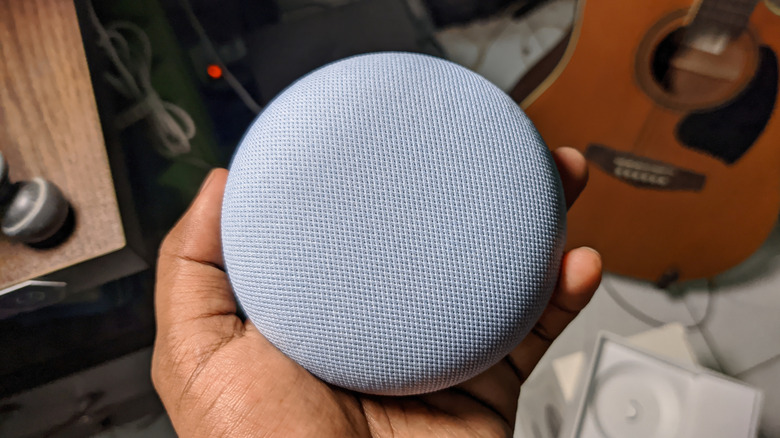
The bane of my Google smart home existence is the wrong speaker answering my request. The first port of call is to check the speaker isn't muted, then make sure the speaker isn't placed in a noisy environment, such as near washing machines and dishwashers, which could interfere with smart assistant requests. I had to move my kitchen speaker for this very reason.
App freezes, dropped device links, and stopping-and-starting media
Sometimes, Google Home freezes, loses devices, and needs cache clears or reinstalls to pick up new gear. When in doubt, check for Google Home and Nest app updates, or delete the apps and reinstall them. It doesn't help that older Google Home and Nest smart home equipment goes for long periods of time without any firmware updates, with Google Gemini support patchy at best on them. In fact, that's exactly why we questioned whether the Nest Hub is still worth buying in 2026.
Music and podcasts can sometimes have issues playing on Google and Nest branded speakers, or won't stop at all — which is a sticking point with my smart home setup. Some quick solutions here include turning off or unplugging the affected speaker to drop any temporary files and reset the voice assistant. Next, check the volume, mute, and microphone functionality to make sure they're turned on and up; it's an easy mistake to make to have a speaker muted in a family home, especially when the kids have been messing around with it. Relinking third-party apps like Spotify may help with functionality too.
Issues like this have always been around, but these instances have become more frequent since the deprecation of its Conversational Actions framework in 2023. A June 2026 update with Gemini in mind introduced richer weather forecasts, conversational volume control, and better noise rejection, but the Google Nest ecosystem still has a long way to go.
A used Nest Cam could keep sharing with its old owner unless it's properly wiped
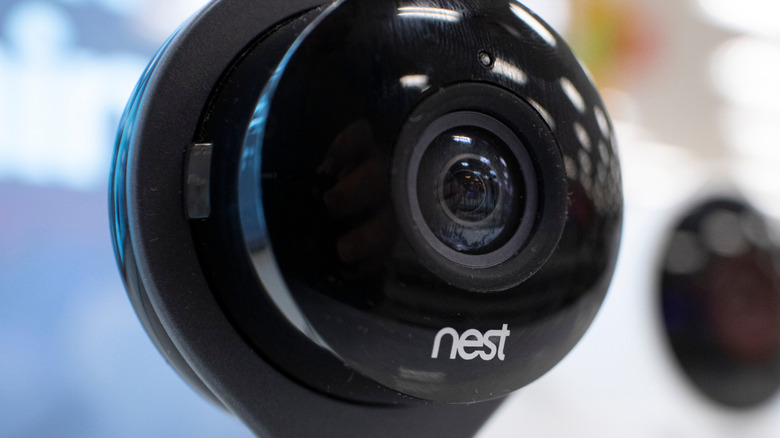
This hasn't happened to me personally, but a reported case allowed a person to carry on viewing their Nest Cam footage after it was sold and added to another person's Google Home ecosystem, with further issues occurring with third-party hubs like Wink that operate through the Nest app. The most disturbing fact here is this was possible even after a factory reset, although Google has since rolled out a fix.
Before buying or selling used smart home equipment in general, make sure to remove it from an account properly and carry out a full factory reset. Just deleting the hardware from the Google Home or Nest app isn't enough, so when adding second-hand products to a smart home, ensure the only account associated with the hardware is the user's by checking in the specific hardware menu in-app. Of course, this can be an innocent mistake, but it's another common problem owners have with Google Nest and how to fix and avoid the issue entirely.
My routine when picking up second-hand equipment is to check with the seller that it's been removed from their account and factory reset. It's also a good idea to take a contact phone number or email from the seller in case there's an issue during setup and they need to remove it from their account.