

You Should Make Android Auto Less Distracting While Driving - Here's How

Without sounding like an old Public Service Announcement (PSA) you would see during a driver's education class, distracted driving can make someone a threat on the road. Of course, modern tech like Android Auto can make for a handy assistant, but considering it still involves a touchscreen and looking away from the road periodically, it may still serve as a distraction as you drive. If safety is your concern, there are a number of ways to make Android Auto less distracting.
Though it may involve rooting around your smartphone or Android Auto settings, small things like enabling Do Not Disturb or eliminating notification sounds can help reduce distractions. There is also an option to make a small adjustment to the display to help potentially keep your eyes on the road. The Android Auto app also allows users to set up certain tasks automatically, and the inclusion of Google's artificial intelligence Gemini assistant provides additional options that keep you focused on the wheel.
Even if some cars may be getting rid of Android Auto, it's not necessarily due to any inherent dangers or risks. Nonetheless, staying diligent about safety when on the road is critical, which is also why it can be important to look at some Android Auto features that make long drives easier. Of course, remember that one of the best ways to stay safe is to do your best to only use Android Auto when the vehicle is stopped and you know it is safe to interact with your vehicle's infotainment screen.
Do Not Disturb and notification sounds
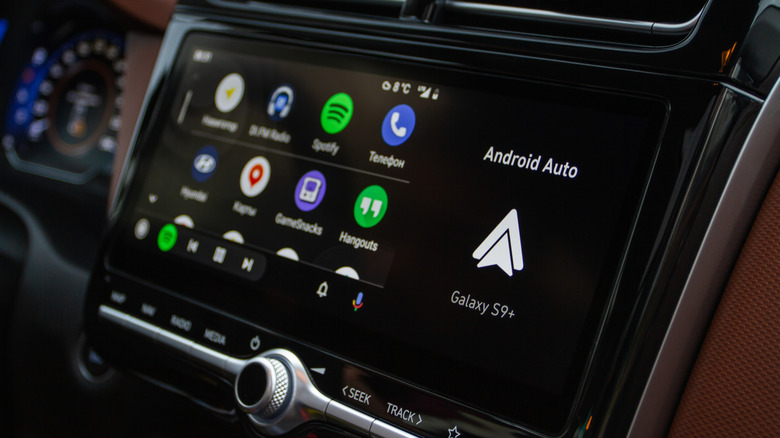
One of the quickest ways to limit distractions from Android Auto is by setting up Do Not Disturb, which can eliminate notifications while driving. This can be as simple as swiping down from the top of your smartphone's screen and selecting Do Not Disturb from the panel, but some Android devices may offer additional controls. For example, you can search for "Driving" from your phone's settings to look for the Do Not Disturb mode that only engages when your device connects to your vehicle's Bluetooth. A similar feature may also be found on devices such as the Pixel 10 Pro under Settings > Safety & Emergency > Silence notifications while driving.
Of course, you can also just eliminate notification sounds in Android Auto, which some may find to be even less of a distraction. On a Galaxy S25 Ultra, for example, you can navigate to Settings > Connected Devices > Android Auto > Play message chime. Disabling this will get rid of notification sounds whenever you receive a text. It's worth exploring the Android Auto section of Settings, as there may be some additional options worth tweaking, including items such as just disabling group message notifications.
Should you find Google Maps's voice navigation distracting, you can disable it directly from Google Maps. Open the app from your smartphone and tap your profile icon. Then go to Settings > Navigation settings. Under Sound & voice, select Muted. You can also adjust the guidance volume from this menu, with the three options being softer, normal, and louder. It's also worth knowing that there may be some other Android Auto settings ruining your experience.
Additional ways to be less distracted with Android Auto
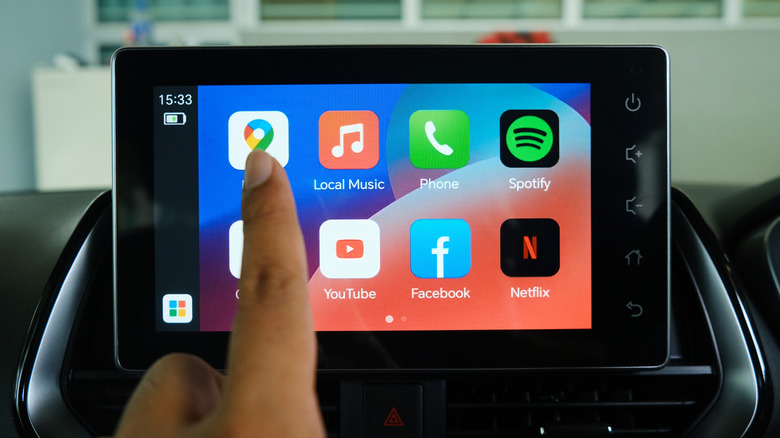
It's also worth mentioning that you can stop Android Auto from automatically switching between light and dark mode. By navigating to the Android Auto app from your phone and going to Maps > Day/Night mode for maps, you can choose between Day, Night, and Automatic. Feel free to experiment to see which appearance works best for you.
To make connecting your device easier, it's also worth remembering that you can have Android Auto start automatically. From your phone, navigate to Settings > Connected Devices > Connection Preferences > Android Auto > Start Android Auto Automatically. You should have three options: Default (Set By Vehicle), Always, and If Used On The Last Drive. Choose whatever works best for you, but remember there may be some settings you need to enable in your car's settings or infotainment system, as well. While you're in the Android Auto settings screen, you can also enable Start Music Automatically. This setting will automatically play whatever you were listening to last.
Lastly, something to remember is that you can always rely on Google Gemini if you want to ensure you're not taking your eyes off the road. You can always activate the assistant by saying "Hey Google" or pressing your steering-wheel button, and the assistant is capable of completing a variety of tasks just by asking. There are actually a number of ways to use Gemini with Android Auto, so be sure to experiment with Google's voice assistant.