

These 4 Things Could Be Killing Your Gaming FPS
Aside from escort missions and mandatory stealth sections, very few things in gaming are more annoying than an inconsistent framerate. These are measured in frames per second (FPS), with most games targeting either a steady 30 or 60 FPS. At best, FPS drops take you out of the action, and at worst, they can cause you to unfairly lose progress or die to enemies that may not even have been visible onscreen.
A choppy framerate doesn't always mean you have to give up or upgrade your hardware, though. In fact, sometimes resolving the issue is as simple as closing a few programs. Games can be quite resource-intensive, meaning your graphics card and processor have to work hard to deliver the expected performance. Asking them to do other things at the same time means compromises have to be made somewhere, with the result often being low in-game FPS. That's why, to get the most stable framerates while gaming, it's a good idea to limit the number of apps running in the background.
If closing unnecessary apps didn't help, don't panic. There are several other ways to improve your experience and most don't involve replacing parts. Let's start by rectifying a common mistake that can have a huge impact on your FPS.
Plug your monitor into your graphics card, not the motherboard
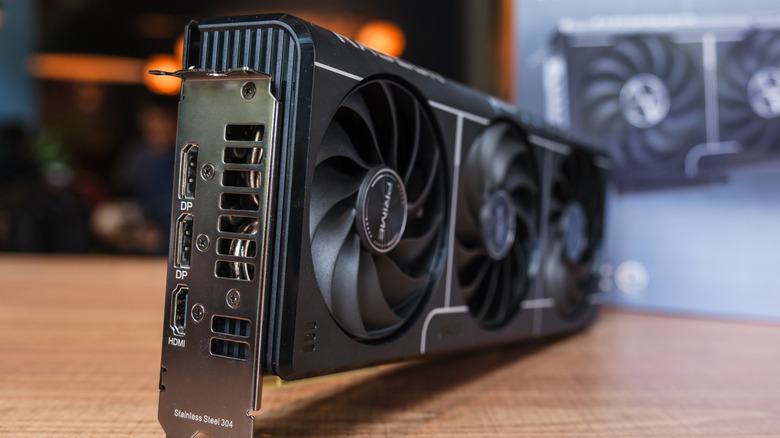
Take a look at the back of your PC and you'll likely notice something interesting: two sets of video ports. This allows you to connect your monitor to either the GPU or the motherboard, but choosing correctly can be the difference between smooth gameplay and what's effectively an interactive slideshow. Remember: you should always plug your monitor into the GPU.
The reasoning behind this is straightforward: connecting the monitor to the motherboard means that your CPU's integrated graphics will be used instead of the main GPU. While this is usually fine for low-stakes tasks like general web browsing, onboard graphics lack the raw power offered by a larger, dedicated GPU. This may manifest as stuttering, especially when lots of objects or visual effects are onscreen.
Now, onboard graphics have come a long way, especially with the advent of AI-powered upscaling. You may not even notice any issues until it's time to game, which is why it's a good idea to double-check what your monitor is connected to if framerate drops are a recurring issue.
Give your PC or game console room to breathe
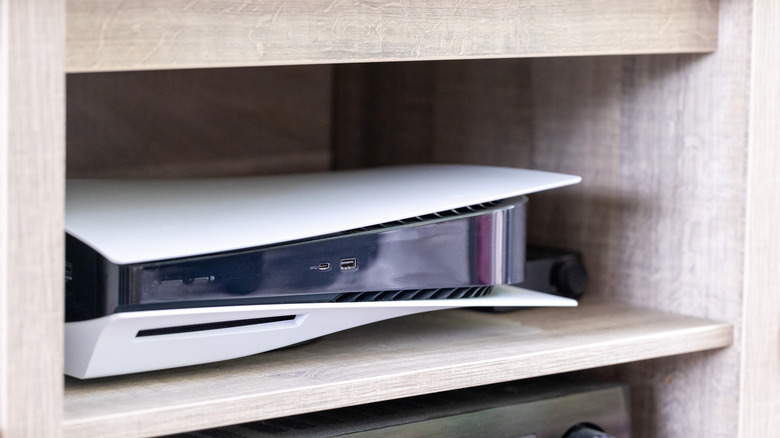
The harder your device works, the hotter it gets. With a suitable cooling system, this shouldn't be a major issue since all of the heat is ejected from the case (though you'll likely notice the fans get louder since they're working overtime as well). When excess heat isn't being properly dispersed, modern systems typically trigger thermal throttling. Essentially, it'll intentionally slow itself down to prevent damage to its components, which in turn lowers your in-game framerate.
There are various reasons for heat buildup but one that often goes overlooked is your device's position. Game consoles (especially modern ones with atypical shapes like the PS5) are often slotted wherever they fit on a TV stand, which doesn't always allow them to circulate air correctly. Ideally, you should ensure four inches of space on each side for optimal airflow.
If you're still noticing unusually high temperatures after repositioning your device, it's possible that the CPU's thermal paste needs to be reapplied. Don't overthink it: how you apply the paste makes minimal difference so long as you have a thin and even layer on the CPU. It's also possible that your device's cooler isn't powerful enough or that some of your case fans are installed backwards.
Take a closer look at your settings
It's no secret that reducing graphics quality can boost framerates. However, sometimes the game itself overestimates what your device is capable of, leaving you scratching your head when things don't work. A quick solution is to lower your graphics one level at a time (from ultra to high, for instance) and see if that improves your experience. If so, you can find the sweet spot by disabling features like ray tracing and adjusting anti-aliasing or draw distance settings.
Most modern systems provide a way to quickly swap between prioritizing performance and quality. On PlayStation, you can set a global preference in the system settings, but Xbox users have to change it from within each game individually (assuming this option is available).
PC users have more flexibility, but that occasionally makes things more complicated. You'll have to make sure that both your operating system and graphics card software are set to high-performance mode instead of limiting your own potential by gaming in power-saving mode. It's a good idea to verify that your GPU drivers are up-to-date too, as updates often include optimizations for specific games.
Consider upgrading your hardware
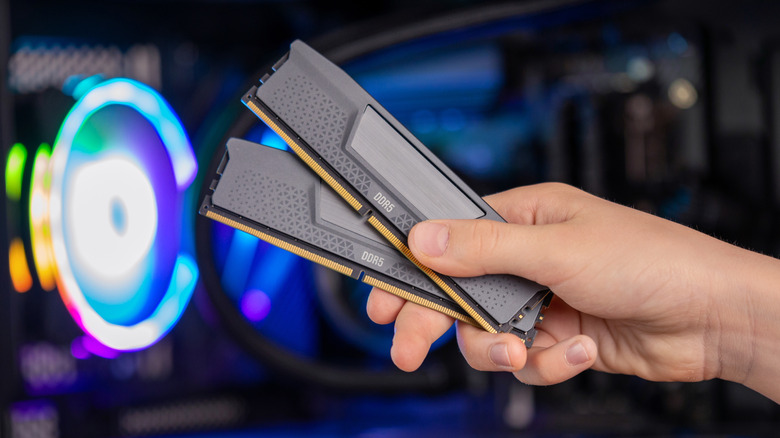
It's unfortunate, but every computer component has a shelf life. If nothing else has helped, it may be that your parts just can't handle the game you're trying to play. Provided your CPU and GPU are reasonably new, the obvious candidate for an upgrade is RAM. It's not uncommon for modern games to require 16 GB or more, and you'll quickly notice problems if you run out. For the best results, purchase two identical sticks of RAM. Mixing different types means the faster stick is bottlenecked by the slower one, resulting in you paying more for no reason.
While less likely to be the root cause of your problems, a failing or underpowered power supply can also cause poor gaming performance. Warning signs include unusual buzzing or cracking noise and unexpected shutdowns. It's imperative to replace an aging PSU as soon as possible since it can fail suddenly and violently, damaging other components and even starting fires. Low framerates when gaming are frustrating but usually fairly easy to resolve. You can usually achieve stable FPS with just a few quick settings changes. If not, it may be time for a hardware upgrade.