

5 Android Auto Mistakes That Could Be Ruining Your Driving Experience
Android Auto can be useful for expanding your vehicle's head unit or infotainment display, but certain mistakes can keep you from getting the most out of it. Google's response to Apple CarPlay can be great for jamming tunes or using Google Maps, but users can miss key features or even degrade their experience if they're unfamiliar with certain settings or details.
Hardware issues can include using the wrong cable, but software issues can also create problems for users. Whether it's forgetting to update your software, not using third-party apps, not managing notifications or even ignoring a hands-free option, any of these can put a damper on your Android Auto experience. We can offer remedies for many of these situations, most of which involve choosing the right accessory or navigating the right settings menu.
While some Android Auto problems are common (and we can show you how to fix those, too), many of the solutions below focus on making sure the platform fits your needs rather than assuming something is wrong. It's also worth mentioning that if you're really looking to tweak Android Auto, you may want to learn about its secret menu and what you can do once you access it. However, before you do, make sure you avoid these simple mistakes.
Ignoring Updates
Like any other app on your smartphone, make sure Android Auto is always up to date. Software updates not only provide the latest security patches, but also give you access to new and exciting features. Newer vehicles may also need updates for compatibility. Also remember that your smartphone needs to run Android 9.0 or later for Android Auto to work properly (Android 11.0 if using Wi-Fi).
As an example, Google potentially teased the release of a major visual overhaul by slightly changing Android Auto's app icon. The update brings support for video apps, widgets, and even Dolby Atmos, and Google's open-source design system, Material 3, is doing the legwork for new visuals. All of this is to say that it can be easy to miss out on accessing new features and content if you're not keeping your system updated.
On the bright side, checking for an update to Android Auto is just a matter of opening the Google Play Store on your smartphone, searching for Android Auto, and then hitting "Update" if one is available. However, it's also important to remember that your vehicle's infotainment system may also need software or firmware updates. You will need to consult your vehicle's manual for more information.
Avoiding the Google Play Store
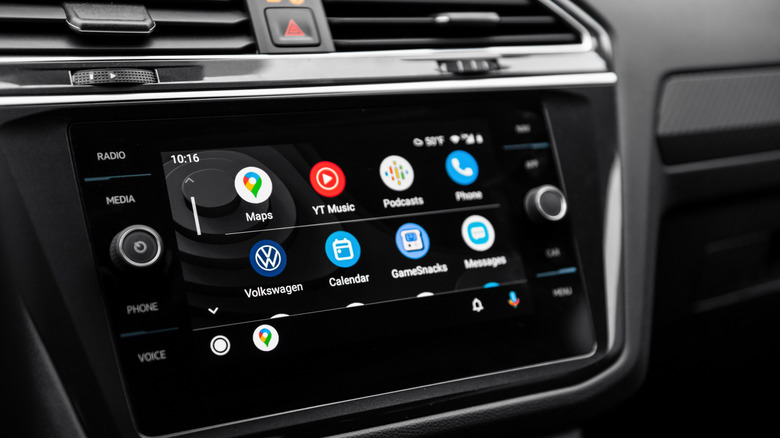
Just as you can download third-party apps for your smartphone, the same holds true for Android Auto. It gives users some flexibility in what they use, and any app on your smartphone can work with Android Auto so long as it's compatible. If it is, users can access the app directly from the vehicle's home screen as long as it's downloaded to their smartphone.
Users may want to do their own research when searching for apps, such as going to the Google Play Store and typing "Android Auto" to see what's available. However, we also know of several Android Auto apps that may surprise some by actually working in a vehicle, and you may be surprised at what's available. Apps can range from offering an entirely new experience to simply replacing one of the stock options.
For example, you could download Waze instead of relying on Google Maps for navigation, and an app like SpotHero can help you find available parking, even though it likely isn't a stock app on your smartphone. These examples show what's available, but remember you can also customize your app launcher in Android Auto if you prefer a particular app. From your phone, navigate to Settings > Connected devices > Connection preferences > Android Auto. From there, choose Customize launcher to begin editing.
Using the wrong cable
While we can dive deeper into why you may be using the wrong USB cable for Android Auto, it's still important to understand the basics of why a cable may be the preferred connection method. Android Auto does offer wireless connections through Bluetooth and Wi-Fi, of course, but even the app description in the Google Play Store says, "use a high-quality USB cable to connect your phone to your car."
One reason to consider a wired connection is that it puts less strain on your connected cellphone. If you're going the wireless route, your phone will need to run both Bluetooth and Wi-Fi constantly, which can affect battery use. This may not be an issue if you use a single app while driving, but for multiple apps or longer trips, it's worth considering.
Don't get us wrong: a wireless connection can be more convenient, but some apps may work better with a wired connection. In these cases, apps that use a lot of bandwidth or need to sync at startup may work better with a wired connection. Music streaming services would be a good example. Essentially, choose a quality cable with a good length (3 to 6 feet) that can transfer data and power. Keep vehicle compatibility in mind as you search.
Letting notifications overtake your drive
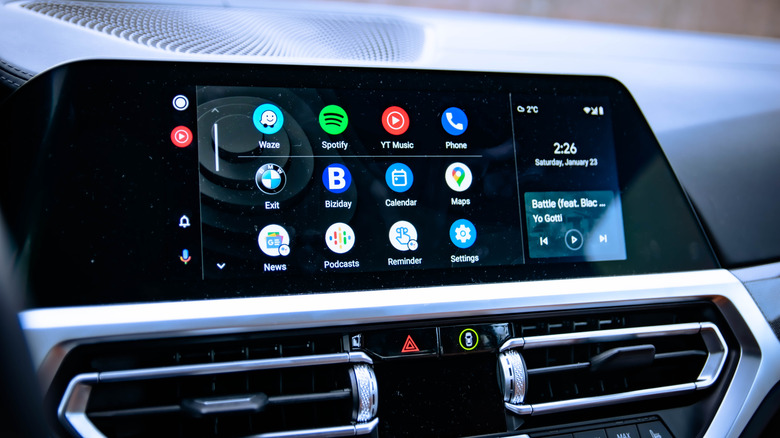
Depending on the amount and the type you receive, it's already possible for notifications to become overwhelming on your smartphone, let alone while you're trying to operate a vehicle safely. While it can be convenient to send, listen to, or reply to messages by voice (more on that later) or directly through the display, you may want to limit the types of message notifications you receive.
To manage your message notifications, just open the Android Auto app from your smartphone, select your profile icon or three dots, and tap Settings. There, look for Messaging options, and you should see several options. Disabling Show message notifications removes visual notifications, and you can also disable Show group conversations to stop notifications from group chats. You can also play a chime with messages or send notifications to your Google Assistant.
If you have Google Gemini, for example, it can summarize messages 40 words or longer, which also applies if you receive several messages from the same person that collectively exceed that limit. It's one feature that can make a long drive easier, but it may also help when someone at work sends you too much information. More often than not, it's useful to explore the Messages settings menu to see whether you can customize Android Auto to your specific needs.
Forgetting about voice controls
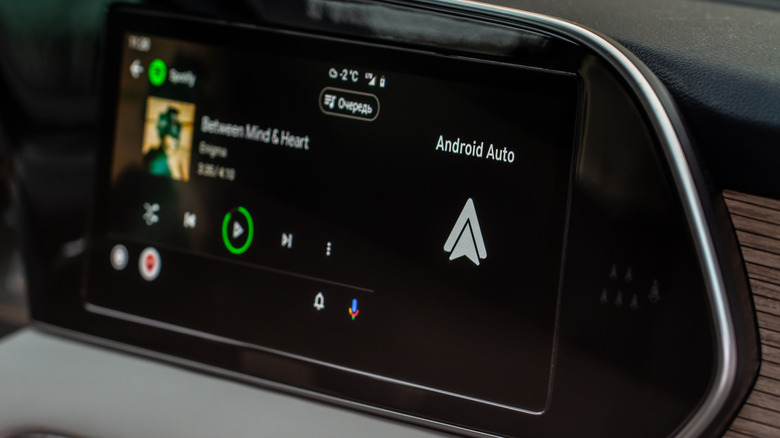
As useful as Android Auto can be, it can still distract you while you're driving. Sure, it can technically be safer than interacting with your smartphone behind the wheel, but between live navigation, answering calls and messages, and even just finding the right song to play, the potential for issues is still very much present. It's why a vehicle needs to be parked during video playback, but voice controls can help eliminate distractions.
If you have the Google Gemini app on your smartphone or have seen a tooltip on your vehicle's display saying it's available, you have access to Google Gemini for voice interactions. Otherwise, Google Assistant will guide you. Gemini lets you speak more naturally for commands (and we know some clever ways to do so), while Google Assistant may require more traditional prompts.
Getting started with voice commands is as simple as tapping the microphone on your infotainment screen, saying "Hey Google," or pressing and holding the voice button within your vehicle (if available). You'll hear a tone, and then you can state your command. Google Assistant or Gemini can help with directions, changing music, or even making calls and sending messages, which can be useful if you're trying to stay focused. Additionally, Gemini can go a bit further with commands, such as providing information about a particular city. If you have it available, you may find it a solid companion on solo drives.