

5 Google Account Features You Should Change Now
Setting up a Google account is pretty straightforward: just enter your personal information, write down a unique email address, set a password, and you're done. As long as the account is up and running, you would think there isn't much reason to check any more settings — which is fine until you realize how many options Google provides that can make your user experience either as personalized or as private as you want it to be.
It's important to know that your Google account controls far more than your Gmail inbox. In fact, you should know that your account handles activity across different services like Google Play and YouTube, along with security and privacy configurations, account recovery options, advertising preferences, information sharing, and options to manage how your data can be accessed or deleted.
Depending on how you use your account, some of these settings are worth changing, while others are simply worth knowing about. Either way, they give you more control over an account that probably holds years' worth of emails, photos, files, searches, and other personal information. Several useful features are easy to miss, and most of them are not buried within advanced developer menus — either way, exploring these settings is a practical step to take to safeguard yourself from making mistakes that could cost you all your data.
Run a privacy checkup for your Google account
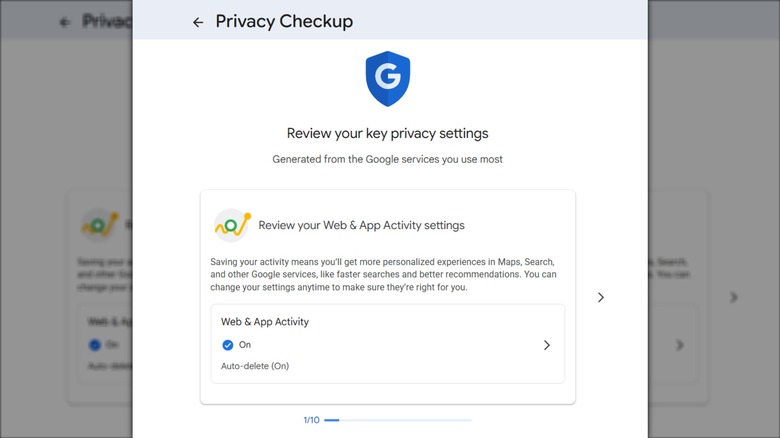
If you're not sure you've covered all the bases in terms of protecting your account's data, Google's Privacy Checkup is a quick and easy starting point to check how your account's personalization settings are configured, and what information about you can be made publicly available. You can find this feature by clicking on your Google account icon in the top-right corner of most Google apps and sites, then heading to Manage your Google account > Data & Privacy. The privacy checkup will usually appear as the first option in this page, potentially labeled Privacy suggestions available, and selecting it will take you through a checklist of settings users tend to overlook.
In the privacy checkup, you'll find controls related to your website and app activity, histories, and personalization. Make sure to review each section carefully and ensure that each setting matches your preferences, whether you want to share more data to fully personalize your account, or keep your information a little more private. Furthermore, it is recommended to run privacy check-ups regularly to double-check any account or app permissions that can help prevent your smartphone from spying on you.
Add trusted people as your account's recovery contacts

Losing access to your Google account can be a nightmare. In most cases, forgetting your email or password can usually be resolved with answering your security questions correctly, or using two-factor verification together with a different device you're also signed into. However, in the event that you fail to recall your account's username, password, or even the answers to your own security questions, Google lets you recover access to your account with the help of a friend.
You can access this setting by selecting your Google account icon in the top-right corner of most Google apps and websites, then heading to Manage your Google account > Security & sign-in > Recovery contacts. As long as they have an active Google account they're signed in to, you can enlist up to 10 recovery contacts that can help you get your account back. However, there are some restrictions to keep in mind: You cannot add any accounts enrolled in the Advanced Protection Program or those in Google Workspace. If you cannot access the option to add a recovery contact in your own settings page, this means your account is not eligible; but you can still act as recovery contacts for other users.
Google One subscribers can set up family sharing

If you live with a household that keeps lots of photos and documents, then you understand how cloud storage can fill up rather quickly. But instead of everyone in the house paying for their own individual Google One plan, you can have a singular subscriber invite the rest of the family members to use a hidden Google One perk that can save everyone a bit of cash.
Anyone subscribed to a Google One plan with 100 GB or more in cloud storage can be the designated "Family Manager" and add up to five users who can share the benefits that come with the subscription. To set this up, open the Google One app and head to Settings > Manage family settings > Manage family group. Anyone assigned as the household's subscription manager should know that they can only add members who are aged 13 and above and live in the same country as them. Moreover, it is also possible to create a supervised account should there be a need to include someone younger than 13 into the family account.
Pick topics to personalize future ads (or disable ad personalization entirely)
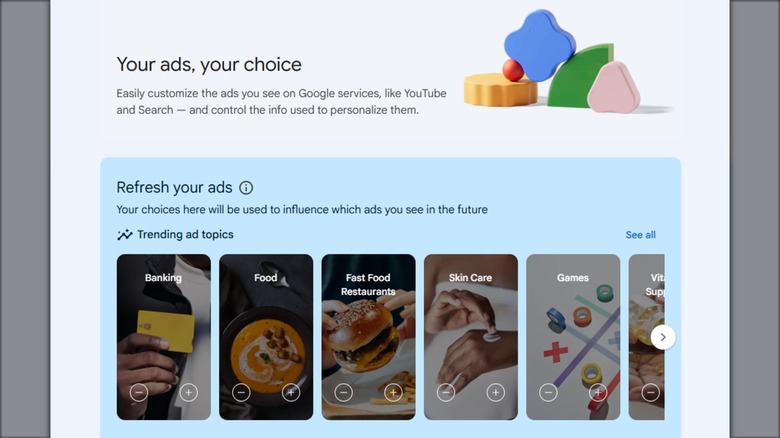
Google's personalized ad settings can be simply toggled on or off, but the My Ad Center platform offers more control than that. Developed by Google in 2022, it provides an overview of your ad personalization settings, along with the topics and even brands that Google may use to personalize the ads you see in the future.
It is up to you to adjust these preferences based on what you would rather see — or see less of. Moreover, it's worth noting that the list of topics shown isn't static; Google can surface different topics and brands over time based on what's relevant or trending, so the section is worth revisiting occasionally if personalized ads are enabled. If personalization is turned off, there's less to fine-tune, but My Ad Center can still be useful for understanding the data and advertising controls available on your account.
Decide what happens to your Google account when you're gone

True enough, this is one of the more morbid settings to see under your Google account, but it's necessary despite being easily overlooked. Because when it comes to deleting your personal info from the internet, you would want to do it in a way that your digital footprint won't re-emerge and become a zombie account.
While you are here — happy, healthy, and online — it is best to check out your digital legacy settings, found by selecting your Google account icon in the top-right corner of most Google apps and websites, then heading to Manage your Google account > Data & Privacy > Make a plan for your digital legacy. Here, you can select trusted contacts who can receive a copy of your account's information, decide what data they can access, and set a period of inactivity before Google takes action and deletes your account. Once you've configured these settings, Google will send notifications to your enlisted contacts, and regular reminders regarding your settings in its Inactive Account Manager.