

7 Common Mistakes That Could Cost You All Your Data
In the modern digital age, where people have all manner of sensitive files and information stored on their computers, it has become more important than ever before to safeguard their data from harm. Some people are lackadaisical in this department, which can have grievous repercussions when an unforeseen issue leads to a massive chunk of your data going down the drain. If you don't have a backup handy, then say goodbye to all the important information you'd spent years gathering.
Instead of blaming any external problem for this data loss, you're better off taking preventive measures and avoiding the common data mistakes many people make. We highly recommend that you back up your PC often and check if it's protected from any debilitating attacks or incidents.
Never use data backup and cloud storage plans

Given the many ways you can store your data on the cloud, it would be a huge misstep if you decide to ignore this crucial service and choose to either keep your data backed up offline only... or not at all. This puts your data at risk if an unforeseen issue causes your PC to lose everything.
While you can always rely on free plans for backup purposes, keep in mind that these services are usually limited, either in terms of storage space or features. This is why you should shell out some money for a data backup subscription, ideally for a reliable, cost-effective service that does justice to your investment and gives you a reliable option to safeguard your data from getting wiped.
Your options are massive. Google Drive, Apple iCloud, and Microsoft OneDrive are the three usual providers that are the easiest to use and give you a simple, easy-to-access cloud platform where you can store your data, although free storage is limited to 15GB for Google Drive and 5GB for the other two. If you need more space for your backup, pay for a plan that lets you store all your data with ease. However, if you want to check out other services that rival these cloud services in efficiency — and even surpass them, in some cases — then why not try Dropbox or IDrive? Finally, if you don't mind dealing with complex interfaces when backing up your data, services like ShadowProtect SPX, Acronis True Image, Backblaze, and pCloud are worth considering.
Run insecure, risky programs regularly
When it comes to running third-party programs, most people believe that Mac is more secure than Windows. The built-in XProtect malware-detecting software, along with Gatekeeper's runtime protection, means that your macOS device should be free from any debilitating third-party software. However, this isn't an absolute truth, and being careless leaves both Windows and macOS at risk of viruses and malware that eat into the system and make it unusable, possibly forcing you to wipe your hard drive and start fresh.
The obvious step to avoid this issue is to avoid any untrustworthy third-party apps. This might not be ideal for people who want to run certain programs that seem useful, despite causing an alert from Windows SmartScreen to pop up whenever they try to run them. In this event, a valid course of action is to run Windows Sandbox, which serves as a virtual machine segregated from your main device. It's simple to use and provides you with a staging ground to run suspicious apps and see whether they perform as advertised... or just want to corrupt your data.
While macOS lacks an ingrained virtual machine that you can use to recreate this effect, there are alternative third-party solutions like UTM and VMware, which are free, trustworthy, and give you the peace of mind you need to install third-party apps and see whether they're secure enough to warrant a place on your main system.
Fail to follow the 3-2-1 rule
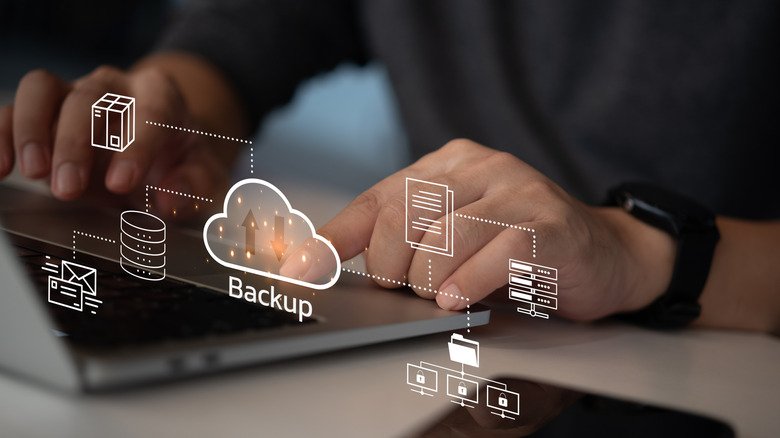
The golden 3-2-1 rule of data backups states that you should maintain three copies of your data, two of which are on different devices, and one of these is offsite and away from your PC. A good example of this would be to keep your data on your computer, an external hard drive, and the cloud. The computer and your hard drive become two different physical devices, while cloud storage takes care of the offsite data requirement.
As online data backups have become more prevalent, this rule has changed somewhat to accommodate these changing times. One notable tweak is the 3-2-1-1-0 rule, which entails that at least one backup copy of the data should always be offline. Hammering in this fact is important, since most people keep copies of their data on two different cloud storage services and call it a day. If hackers get your personal information and target both these sources, say goodbye to all your data. Along with this, the "0" is meant to push you to double-check your backed-up data and ensure that it's error-free.
On top of this, there's a 4-3-2 backup rule. It states that you should have four copies of your data, including your main system. The three backups you've made should be stored in different forms of media. Two of these data backups should be kept offsite, far away from your main system. Usually, a cloud storage service takes care of this. Alternatively, use an old hard drive and safely store it in an electrostatic bag that you can keep in a secure location.
Ensure that your system is safe and protected
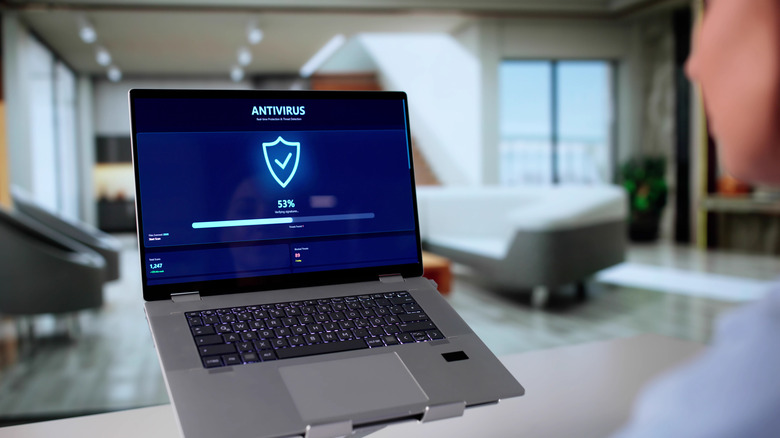
The importance of antivirus software can't be overstated. Defender on Windows and XProtect on macOS are both ingrained software that are effective enough to get the job done without any outside help. However, that doesn't mean you should leave it as is and not configure any settings to further safeguard your device. While XProtect works automatically and doesn't let users access its settings, the same can't be said for Windows Defender.
Go to the Windows Security tab in your Settings, and you'll see a wealth of options that you can peruse, double-check, and customize to your liking. "Virus & threat protection" lets you carry out scans, manage its settings, and even set up OneDrive if it isn't already to protect from ransomware attacks. Aside from this, other relevant tabs that will help unlock the highest level of protection possible for your Windows PC include "Firewall & network protection" and "Device security."
You can take additional steps that aren't limited to your OS's ingrained protection measures. A third-party software to detect and get rid of viruses and malware can be a great addition to your PC, with Avira Antivirus Pro considered the best antivirus software for Windows by Consumer Reports. Ensure that your system has the latest security updates to prevent any outdated protocols from being targeted by hackers. Your Wi-Fi network should also be safeguarded to block any access from suspicious individuals. Last but not least, if you have multiple smart home devices, then we highly suggest that you connect them to a separate mesh network like Zigbee or Z-Wave to prevent them from serving as a gateway for hackers to infiltrate your network.
Rely on an SSD for an offline data backup
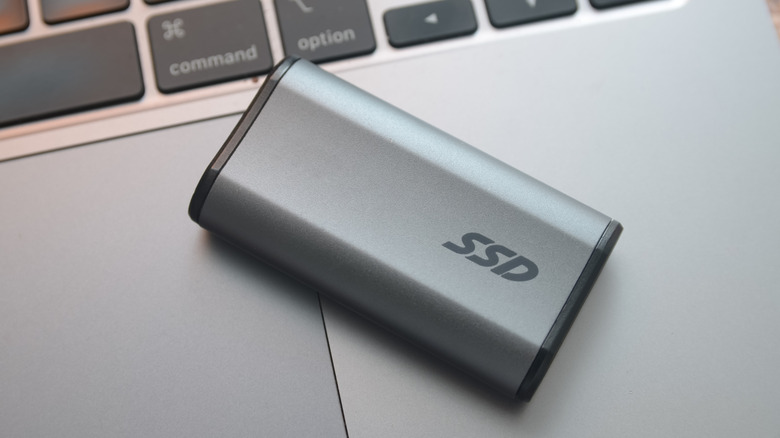
It's understandable why beginners to data backup would purchase a fast, portable solid-state drive to store their data in. However, this is a very costly mistake that can cause your data to be corrupted when this drive is not in use. This is because SSDs use NAND memory flash cells, which require a regular inflow of electricity to charge these components and keep them active. Even when not in use, these cells hold a charge that slowly leaks over time.
For drives in regular use, this isn't a big deal. However, for long-term storage, an SSD is far from reliable. Usually, these solid-state drives can last for a few years with this ingrained charge before it loses power and your data is lost forever. In case you feel that you back up your data regularly enough for this external SSD to never lose this charge, keep in mind that hotter temperatures will cause the drive's charge to degrade faster.
So, you're better off not taking this risk and resorting to a regular HDD for all your storage needs. Will the process of copying over data be slower? Sure, but what you'll get in exchange is a backup drive that can be left inactive for years without any fear of data loss. This is because hard disk drives use magnetic platters to store data, which don't require an electrical charge to remain functional. So, if you have an old external hard drive lying around, it'll be perfect to turn into a cold storage device. That said, HDDs have moving parts that can seize and fail if left idle too long.
Never account for power outages and surges
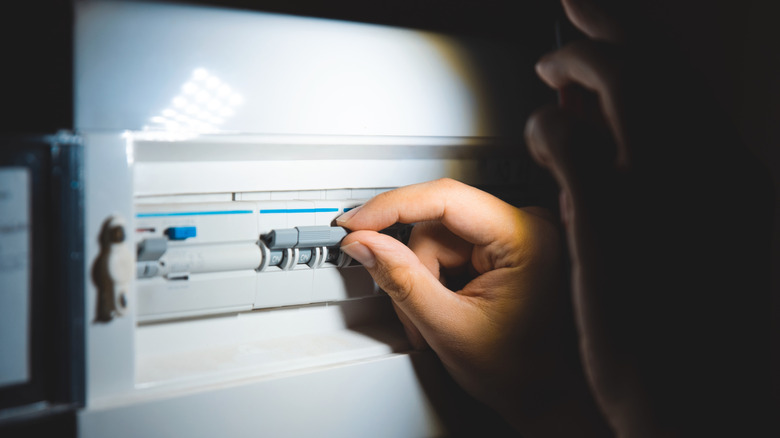
A power outage can be a major issue to deal with for people who use their system constantly. Without a backup system set in place, your computer can shut down at inopportune moments, with this instant loss of power leaving your data at risk. Sometimes, localized packets of data will be corrupted, such as your game's save file that was in the middle of an autosave process, or a media file that was in the middle of being copied right before the power went off. However, if your system was in the middle of a software update when a power outage hit, then you might have to say goodbye to your data as you format your corrupted hard drive and install your OS from scratch.
Power surges can also be a major hassle to deal with, for understandable reasons. While outages may not be all that damaging unless you're very unlucky, voltage fluctuations aren't as lenient and will turn your hardware into a smoking piece of junk if you don't set certain safeguards in place. A massive power surge can fry your device's internal components, easily and irreparably breaking your computer.
To prevent data loss from a power outage or a surge, a UPS is your best bet. As the abbreviation suggests, this uninterrupted power supply gives you the time you need to safely shut off your system in the event of a power outage, holding enough charge to keep the system active as you perform the needful. Another lesser-known feature of UPS appliances is that they come with surge protection, regulating voltage in the event of a sudden spike and saving your hardware from destroyed.
Become lax about regularly testing your data

Are you careful about carrying out backups to multiple sources and following the best practices to safeguard your data? Great! However, the data backup journey doesn't stop here — you also need to be prudent when it comes to checking whether your data has been backed up flawlessly. This quality check is something that most data backup newbies skip, which is a critical mistake and can leave you in a dire situation if your data is lost and the backup you were confident about ends up being corrupted.
Meanwhile, if you check your backup right after it's completed, you can cover three major bases. Firstly, you'll be able to identify firsthand whether this data is perfect or corrupted, with the latter situation meaning that you'll have to carry out the backup again and see why this data is exhibiting such errors in the first place. Along with this, you'll also be able to identify if a data backup is incomplete and change the settings accordingly so that all relevant data is backed up. Finally, you can instantly gauge the effectiveness of the data backup service you're using and see whether you should stick with this program or opt for something else if speed and quality are lacking.