

5 Things Your Galaxy Watch Can Do Without A Phone
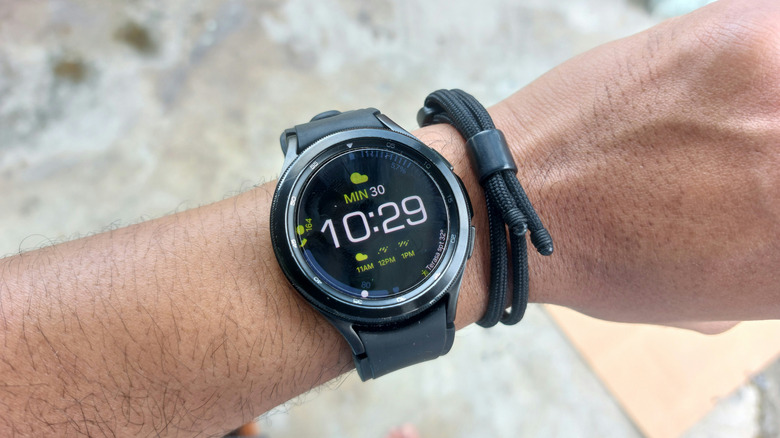
Whether you're wondering if you can replace your phone entirely with a smartwatch or if you can leave your phone behind on a quick trip to the supermarket, the answer to both is yes. A Galaxy Watch has all the features you require of a smartphone in day-to-day use. Some of these require the LTE model, while others work on the Bluetooth version as well. You need a phone to set up a Galaxy Watch for the first time. However, once that initial setup is done, you can leave your phone at home or ditch it entirely, making a Galaxy Watch your only device.
There are certain features you'll miss out on, but you can do most daily tasks on a Samsung Galaxy Watch without a phone. With an LTE model, you can text and call right on your watch. Even with the standard Bluetooth model, you can still make contactless payments and use offline navigation. With certain essential Galaxy Watch apps, you can also stream music and listen to podcasts right from your wrist.
1. Calls and texting
The biggest drawback of not having a phone around is being unable to call or message others. If you want the same features on your Galaxy Watch, you can pay $50 more for the LTE version, which includes built-in calling and texting without relying on a phone.
With an LTE model, you can make and receive calls on your Galaxy Watch without using a phone. The audio quality is decent enough on the watch's built-in speaker that you don't need a phone, whether you're holding it up to your ear or keeping it near your face. Similarly, the mic registers your voice clearly if you hold the watch close to your mouth. You can even pair Bluetooth earphones to your Galaxy Watch the same way you would with a phone, improving mic quality and incoming-call sound. Note that certain carriers may not support this, and people in certain regions also can't use this feature. Double-check carrier support and regional availability before you buy a new watch.
Samsung Galaxy Watches also support text messaging via the Samsung Messages or Google Messages apps. The smaller screen can make reading and typing messages more difficult than on a phone, but certain features help. For example, you can use text-to-speech or Samsung's Quick Messages to send messages without needing to type them out. You can even use certain gestures to control the text-to-speech and send messages, letting you contact people completely hands-free.
2. Streaming music, podcasts, and audiobooks

Both smartwatches and music make great companions for workouts or jogs, but carrying a connected phone can be unpleasant. You'll feel it bouncing in your pocket while you run, and it could fall out during exercise. Sometimes, you simply don't have the pocket space to carry one, especially if you're dressed for the gym.
Fortunately, if you have a Samsung Galaxy Watch, you don't need a phone to listen to music. Galaxy Watches have support for most streaming platforms, and you can download their apps directly from the Google Play Store. If you own an LTE watch with an active data plan, you can stream music on Spotify or YouTube Music, or listen to an audiobook on Audible, without a phone—though YouTube Music requires a premium subscription on Wear OS.
You can use your Galaxy Watch to stream music without your phone around even if it isn't LTE or doesn't have a data plan. To do this, you can either connect to an external Wi-Fi network or listen to music offline by downloading files locally on your Galaxy smartwatch. Music streaming platforms like Spotify can download songs if you have a subscription, and you can also use dedicated Wear OS apps like Wear Casts to download podcasts and other audio files for offline listening.
3. Contactless payments via NFC
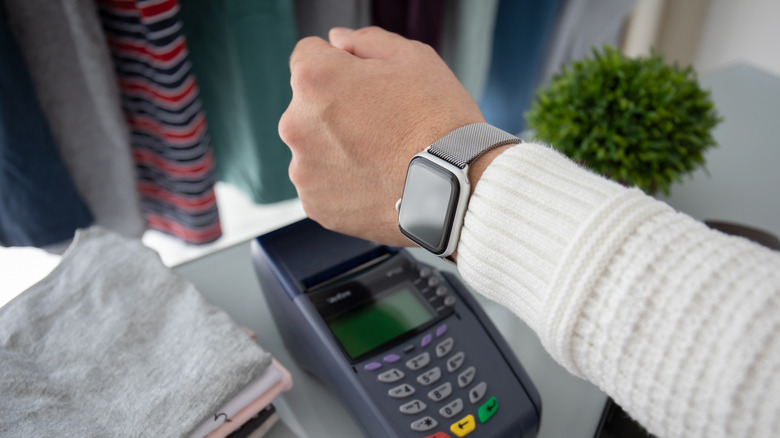
For many, traditional wallets are a thing of the past. You don't need a large capacity to carry cash, and a thin MagSafe wallet attached to your phone is much more convenient. This convenience can be further elevated with a Galaxy Watch, which lets you make NFC payments without carrying any cards or even your phone.
To enable contactless payments via NFC on your Samsung Galaxy Watch, first add a compatible wallet. Open the Samsung Wallet app on your smartwatch and tap the blue arrow to begin setup. You need a paired smartphone to initialize the app and add a card for the first time, but not afterward. Set up a screen lock on your watch, then launch the app again to sync cards with the Samsung Wallet app on your phone. If no cards show up here, open the app on your phone, add a new card, then add it to your smartwatch by launching the app on your Galaxy Watch. Once that's done, you can launch the app directly or long-press the bottom button to open it, then hold your watch against an NFC reader to pay instantly with a card.
If you're not fond of Samsung Wallet or already have Google Wallet set up and don't want to configure a new app, you can add cards using the Google Wallet app as well. Download the app from the Play Store and follow the same steps as you would with Samsung Wallet. If you already have a card added to the Google Wallet app on your phone, you can add it to your watch with a single tap.
4. Maps and navigation

GPS tracking and satellite navigation make traveling easier than it's ever been; just like how navigation apps save you the trouble of carrying around a physical map, a Samsung Galaxy Watch lets you ditch your phone as well. You can use Google Maps, which comes preinstalled on modern Galaxy Watches, or download third-party navigation apps to view maps on your smartwatch. However, you'll need the LTE model with cellular data to use online navigation without carrying a phone, since you cannot rely on Wi-Fi while traveling.
If you don't have the LTE model, you can still use navigation apps on your Galaxy Watch without a phone, but you'll need to download maps for offline viewing. To do this with Google Maps, search for a specific place, tap the three dots in the bottom-right corner, and select Download Offline. This download will sync to your watch the next time you charge it, and you'll be able to view the map, track your location, and use common routes from your Galaxy Watch even without an internet connection or paired phone nearby.
5. AI prompting and automation
Google's recent push for AI integration has been polarizing at best, but it does have certain benefits. Sure, you can ask questions like when a certain movie comes out and prompt tasks like creating a workout schedule, but you can also use Google Gemini to automate tasks on your Galaxy Watch. This includes setting alarms, starting timers, controlling media playback, and much more. You don't need a phone to do any of this, so long as you have the dedicated app on your watch. Newer Galaxy watches come preinstalled with Gemini, which functions alongside Bixby, Samsung's own AI assistant. For older watches without Gemini, you can download it from the Play Store.
As with many other features, you need an LTE Galaxy Watch or an active Wi-Fi connection to use AI on your smartwatch, as current-generation Galaxy Watches cannot run AI locally. However, this may be about to change, as Google's September update for the Pixel Watch let it run Gemini offline. The same feature will likely be coming to the Galaxy Watch 9 later this year.