

Hate Deleted Messages? This Hidden Android Setting Lets You Read Them First
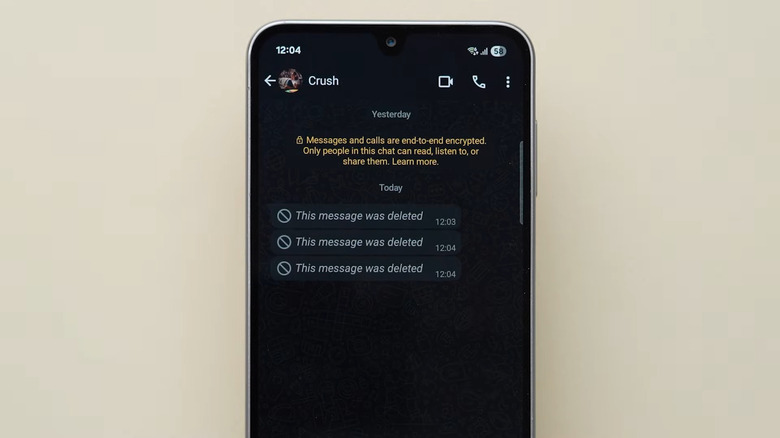
Don't you just hate it when a message comes in, but by the time you open the app on your phone, the sender has already removed it from the chat? Normally, there's no way to retrieve sender-deleted messages other than asking them what they said. But if you're on Android, there's actually a hidden setting on your phone that lets you read the text even after it's deleted.
It's called Notification History, and as its name suggests, it's a history of the notifications you've received, including texts, emails, and chats from messaging apps. With this hidden Android feature, you can find alerts from the past 24 hours right in the Settings app and check their contents.
Besides allowing you to read deleted texts, Notification History is also useful if you accidentally dismiss an important notification while clearing the humongous stack of alerts on your phone. Just browse through the log, and you'll likely find the alert you're interested in. Notification History even helps you identify which apps keep sending you notifications you don't care about. That way, you'll know which ones can be turned off to minimize the distraction caused by phone notifications. To turn on and use Notification History on your Android phone, here's a step-by-step guide.
How to enable Notification History on your Android phone
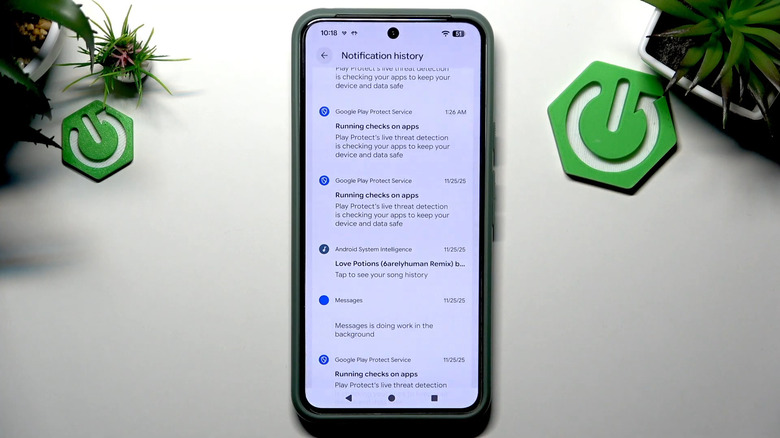
Notification History can only log received messages (and other notifications) when it's turned on. Fortunately, it's quick and easy to check whether Notification History has already been activated on your phone. The process is different for each phone manufacturer, though. Follow these steps for Google Pixel and Motorola devices:
- Go to the Settings app.
- Select Notifications.
- Under Manage, tap on Notification history.
- Toggle on Use notification history if it isn't already on.
Meanwhile, on Samsung, here's what you need to do:
- In the Settings app, press Notifications.
- Head over to Advanced settings at the bottom.
- Choose Notification history.
- Tap on the toggle next to Off.
For other Android phone brands, look for the Notification History option in the Notifications section. If you're having trouble finding it, try typing "notification history" in the search bar. Once you have Notification History turned on, all you have to do is wait for the alerts to come in and review the Notification History log in the same Settings page.
It's important to note, though, that Notification History can only keep track of the alerts your phone received in the past 24 hours. It clears notifications past that timeframe. That means for you to read a deleted text on your Android phone, you have to check the Notification History within 24 hours after you got the text.
Another essential thing to consider is that the feature only tracks the notifications you receive. If a chat is muted — during which you won't receive message notifications — then those messages won't be logged in Notification History and you can't read the deleted messages. Long messages won't appear entirely in Notification History either. You can only see a few lines.