

What Does The Clock Symbol Mean On Your Samsung Phone?
Not knowing what a symbol on your status bar represents can be scary, but there's rarely ever a cause for concern. For example, seeing a triangle symbol on your Samsung phone just means that data saver is turned on. If you're seeing a clock symbol on your status bar or when you scroll down the Quick Panel, it usually means one of two different things, depending on the specific icon.
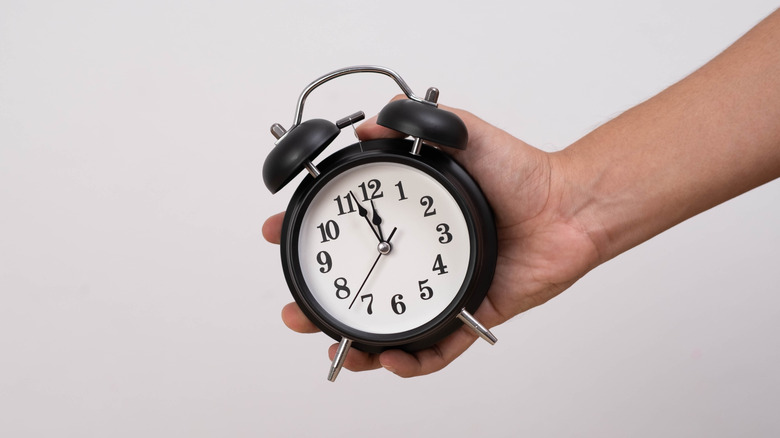
The first one is the alarm icon, shown as a typical alarm clock with two bells on the top (like this article's cover image). This is the icon most people are used to, but it might not make sense for it to show if you don't have an upcoming alarm for the day. If the icon shows despite that, it's likely because there's an upcoming alarm tomorrow or a few days down the line, since One UI shows the icon regardless of how far ahead an alarm is — even if you have an alarm that won't ring until a week later, the icon still appears in the status bar. To remove the clock icon, navigate to your Clock app and ensure all alarms are turned off.
The other clock icon looks like a square with rounded edges that holds a clock inside of it. This means that a new One UI update is available on your phone. To remove this clock symbol, simply update your Samsung phone to the latest version of One UI. As of writing, this would likely be One UI 8.5 for most non-fold devices, but certain Samsung phones will be getting One UI 9 soon. You can update the system by opening Settings, scrolling down and selecting Software update, then tapping Check for updates. Doing so will download the update, and after your phone restarts, the symbol will go away.
Other icons that may look like a clock symbol
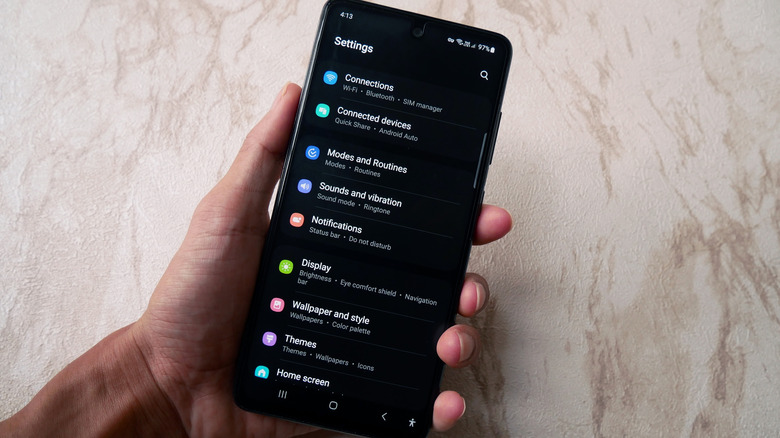
Samsung only has two distinct clock items as part of its status bar UI, but there are certain other icons that may look similar. It's possible that the clock symbol isn't a clock at all, but rather the "Light Performance Profile active" icon. This is a feature on modern Samsung flagships that increases your phone's battery life by reducing performance. To turn this off, go to Settings > Device care > Performance profile. Switch to Standard to toggle the feature off, which will revert performance back to normal and get rid of the clock icon.
Users on older versions of One UI may also be encountering the "Enhanced Processing" icon, which shows that the device is prioritizing performance. This feature no longer exists in modern versions of the OS. To turn it off, go to Settings > Battery > Device care > Battery, and then tap More battery settings. You'll see the option to toggle Enhanced Processing off here.