

10 Reasons Your 4K TV Doesn't Look Like 4K
The jump from Full High Definition (full HD) to Ultra High Definition (UHD) is truly enormous. In a 4K UHD display the number of pixels has been doubled on each axis of the grid, from 1920x1080 to 3840x2160. This means going from 2,073,600 pixels to 8,294,400 pixels, which quadruples the amount of fine detail that's possible to display. So, it's only reasonable to expect that when you watch movies, shows, or sporting events on your shiny new UHD TV, it should, at the very least, look much crisper and clearer than it did on your old FHD TV.
Sadly, that isn't always the case. The reasons why this is happening can range anywhere from the type of content you're watching to incorrect settings on your devices, but that doesn't mean your 4K TV wasn't worth the upgrade. Before you get mad, box up the TV, and haul it back to the store, try these tips first to get the best performance from your new TV.
It's not 4K content
Although it is more common than ever before, the vast majority of video content in the world isn't in 4K, and this is the most likely reason the content you're watching doesn't look at sharp as you expect it to. So, if you the content you're watching doesn't actually have the millions of pixels you need for 4K UHD in the first place, then you can't expect the image quality to look like 4K.
If you think about it, that makes perfect sense. The 4K resolution as a TV standard hasn't been around for that long, and any movies or TV shows created before that point would have been made for an older standard, such as 1080p, 720p, 576p, 480p, and the interlaced equivalent of each of those common resolutions. When your 4K TV is playing back content at anything lower than 4K UHD resolution, it needs to use some form of "upscaling" to figure out what to do with all those extra pixels.
If something like a 480p DVD were to be played back using only the pixels in the original video, it would be the size of a postage stamp. Covering only about 4% of a 4K screen. How good the end result looks depends entirely on the quality of your TV's upscaling technology. The latest, most advanced TVs use machine learning (a form of AI) to smartly generate a more detailed image from a lower-quality source, but on some earlier 4K TVs the image might be rather chunky.
Your streaming service has temporarily dropped below 4K
One of the major reasons 4K just doesn't look that impressive is because you're watching streaming content at a busy time, caused by dynamically shifting quality that changes as network conditions change. For example, Netflix downgraded its video quality during the coronavirus pandemic to deal with excessive demand. In other words, if there's a bit of congestion, or your network speed momentarily drops, the quality is lowered to some level below 2160p.
If it drops all the way down to 480p (Standard Definition) or even lower, you'll probably notice a much crunchier image. However, telling the difference between 1080p, 1440p, and 2160p at typical viewing distancescan be much harder. Bitrate also matters. Two video streams at the same resolution, but different bitrates, will have different levels of image quality.
When I first got Netflix, I used a PlayStation 3 as my streaming device. Back then, all you had to do was press the "Select" button on the controller, and the app would tell you exactly what resolution and bitrate you're getting. Today Netflix makes it harder to get that information, but it's still possible to surface some stats about the current stream on a Windows computer using "Ctrl + Alt + Shift + D" and on a smart TV you may need to connect a keyboard and press the F4 button. Whether a streaming service lets you check the stream quality differs on an individual basis.
You've set the quality wrong, or you're not subscribed to a 4K plan

Using Netflix as an example once again, different subscription tiers limit the maximum image quality. The "standard" Netflix plan limits your streams to 1080p, regardless of whether the movie or show is available in 4K or not. So, if you've accidentally subscribed to the wrong plan and are wondering why your image looks a little soft, that could be the reason.
But even if you are subscribed to a 4K plan, that doesn't mean you'll always get 4K when available. Most streaming apps allow you to set the streaming quality manually, and you may have accidentally lowered the streaming or download quality, or you may have forgotten that you'd tweaked it at an earlier point. So, it's worth checking the settings on your smart TV or streaming box apps to ensure that the software is allowed to request a 4K stream in the first place.
4K streaming can still be brutally compressed

The biggest differences between 4K streaming and 4K Blu-rays comes down to the amount of data that's available to store the video and audio. The official Netflix minimum requirement for 4K streaming is a mere 15Mbps. To get the best 4K bitrate, you'll want to go higher, such as 20Mbps or 25Mbps, depending on the service. 4K Blu-ray, on the other hand, offers a bitrate of up to 108Mbps for 66GB discs, and 128Mbps for 100GB discs.
Clearly this is a massive discrepancy in available bandwidth, so how can both media be "4K"? While both offer a pixel grid with a 4K UHD complement of pixels, streaming video has to fill those pixels useing orders of magnitude less data. Which is why streaming services use cutting-edge compression techniques. These compression methods aim to reduce the amount of data needed to reproduce video and audio while degrading the final result as little as possible. In 2020, Netflix's killer new app feature was a compression algorithm called "AV1," which has quickly become the standard for high-quality video compression since.
This was a big deal, because AV1 used 20% less data for the same quality as the compression method Netflix was using before. It truly is an amazing technology, but there is still a significant image quality gap between a 4K Blu-ray, with its high-bitrate, carefully mastered and stable video stream, and a lossy streaming compression algorithms that fluctuates with the vagaries of if the internet.
Your device is only outputting 1080p
If you're using a smart TV's internal app, then you don't need to worry about whether that app knows its connected to a 4K TV. That's all handled internally. However, if you're using something like the 3rd-gen Apple TV 4K or any of the numerous Android or Google TV options out there, it's not a given that the device has correctly detected which resolutions are supported by your TV.
This means it's absolutely worth checking the video settings of your streaming device to ensure its output is correct. Your TV may also have some sort of "info" button that shows you the current resolution and refresh rate of the connected device. As an example, on my TCL mini LED you can press the central selection button at any time to see what's coming into the TV through the current input.
If you have a standard Blu-ray player, then obviously it can only output 1080p unless it's a model with a built-in upscaler. However, your TV has its own upscaling technology built in. This won't make that sub-4K signal look like 4K, but it will make it look as good as possible. Of course, newer models of 4K TV have better upscaling technology.
Something between the source and TV is the bottleneck
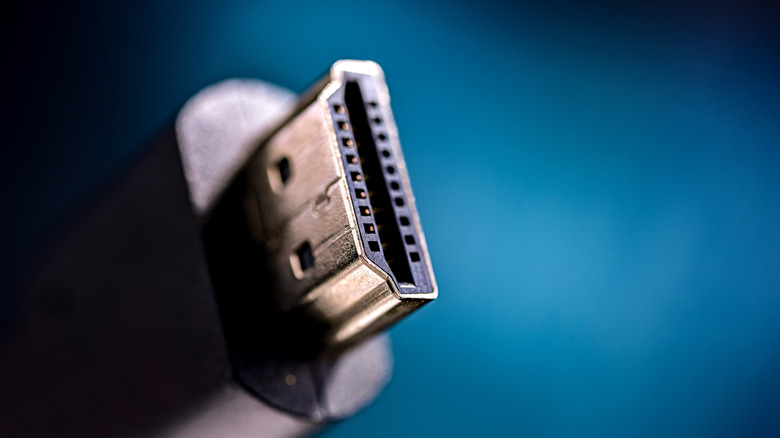
If you have a device that can output 4K and a TV that can receive it, then something could be going wrong between those two devices that's limiting the image quality. The most likely culprit is your HDMI cable. If you're still using the same cables you did with your old FHD gear, you should upgrade your HDMI cables.
How can you tell if your HDMI cable can output 4K? The most important step is to determine the HDMI version of that cable. This should be printed somewhere along the length of the cable, and the cable's packaging, if you still have it, will also state this information clearly. You want HDMI 2.0 at a minimum, but if your TV and device have HDMI 2.1 or better ports, then that's what you want to go for. HDMI 1.4 cables are only good for 4K at 30Hz, which is fine for TV shows and movies, though not with HDR. HDMI 2.0 is good for 4K at 60Hz, and 2.1 for 4K at 120Hz. The latest HDMI 2.2 standard supports 4K at 240Hz or 8K at 60Hz.
Keep in mind that a TV might have a mix of HDMI port types, so you might also want to check that you're plugged in to a port that supports 4K at the refresh rate you need. It's not just cables. An AV receiver or HDMI switcher that doesn't support 4K passthrough will also limit you resolution.
Noise reduction and smoothing are erasing real detail
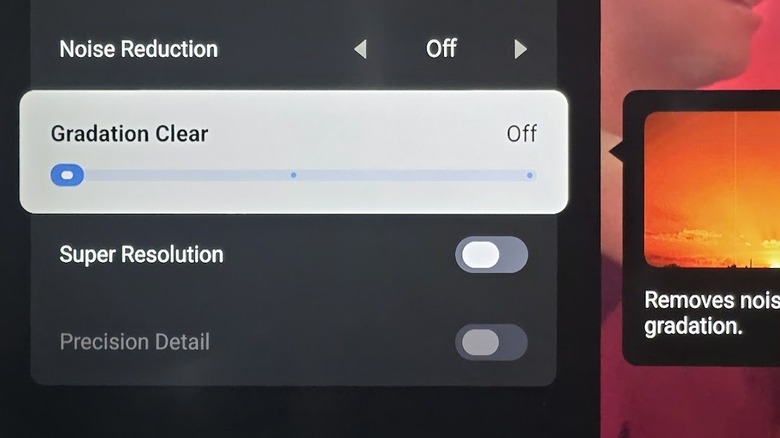
When you plug a streaming box or disc player into your TV and it sends a 4K video stream, what you see on your screen is usually not a raw reproduction of what the TV has received. Instead, modern TVs perform various forms of "post-processing" where whatever secret sauce the TV manufacturer has come up with is applied to that video feed to improve it in some way.
Now, "improve" can be highly subjective. One common type of postprocessing is meant to help smooth out color gradients. Some TVs call this "noise reduction" or "gradient smoothing." It depends on the brand and model in question. However, the idea is to filter the image so that color gradients often found in shots of a blue sky, or any other image where a color changes subtly changes shade, don't show banding lines. Dark areas such as shadows and skin tones are also common culprits.
The problem is if this is done too aggressively it can also reduce the fidelity of the image significantly. Other forms of noise reduction may also try to filter out film grain or other "imperfections" in a video, but end up giving people skin that looks waxy, or making a sunset lack detail. The good news is that these post-processing filters aren't usually just an on-off switch, but a slider that you can tune until the balance between smooth gradients and crisp detail is achieved.
Sharpness is making the picture look worse
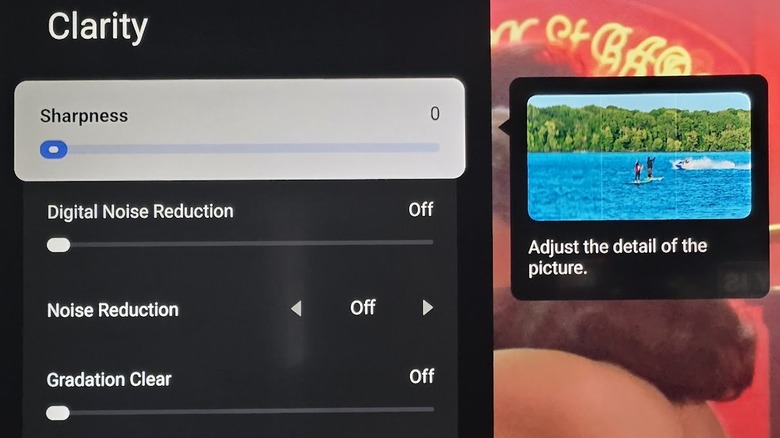
If you go through your TV's picture settings, you might spot something called "sharpness." This isn't a new setting, but the exact mechanism of this feature isn't the same anymore and doesn't really serve the same purpose. On old TVs, sharpness enhanced the edges in images, making them look crisper, but there was certainly a point where pushing this setting too much made the image look over-processed and real details in the image was erased.
"Sharpness processing" in modern TVs is part of the upscaling toolkit, and it helps give lower-resolution content a more 4K-like appearance. However, just because modern sharpness is a more sophisticated effect than it used to be, doesn't mean it can't be overdone by default. So, if you have a Blu-ray or DVD player connected to your TV and you think the image really looks softer than it should, or conversely, it looks to sharp and crunchy, open that sharpness slider and adjust it until things look pleasing to your own eye. Keep in mind that you should adjust this setting from the position you'll actually be watching.
Motion is wiping out the detail you can see in still frames

Flat panel displays have a dirty little secret: poor motion clarity. There are actually two types of resolution when it comes to video: spatial and temporal. The pixel grid itself is the spatial resolution. That's the details you see in a still frame, but the temporal resolution is the frame rate. The more frames there are, the more detail you can see in the motion.
Cinematic films run at 24fps, TV shows at 30fps, and video games generally start at 30fps, but the sky (actually you refresh rate) is the lmit, if you have the hardware to drive the experience. The problem is that LCD technology has a relatively slow pixel response time, which leads to some degree of natural blur between frame. If there's too much of this, the blur is obscuring details in the static frames.
New LCDs have minimized this, but if you have an older TV it can still be noticeable. OLED TVs has such a fast response rate that this type of blur is eliminated, but this can actually cause stutter in 24fps content, because a smidge of blur helps hide the motion gaps. LCD and OLED displays have a different type of motion blur called "sample-and-hold" blur. This happens because of the instant frame changes with no blanking period. Features like Black Frame Insertion (BFI) and backlight strobing can significantly reduce this, at the cost of brightness.
Your gaming console is using dynamic resolution and reconstruction

If you're using a modern console like the PlayStation 5, Switch 2, or Xbox Series X, you're rarely getting a true 4K image while playing video games. It takes a lot of graphics horsepower to render over eight million pixels. So, most games with modern graphics on these consoles choose to render at a lower resolution and then use a reconstruction or upscaling method to make the game look more detailed.
PC gaming is no different. Thanks to technologies like DLSS on NVIDIA graphics cards, game can be rendered at (for example) 1440p and then reconstructed at 4K using AI technology. However, The PlayStation 5 and Xbox Series X have access to older reconstruction methods that don't do quite as good a job as the latest AI upscaling tech. Which means you can usually see that while the game look good, it doesn't have the full sharpness of true 4K
This upscaling can be fixed or dynamic, and it's with the dynamic approach where you might notice quality issues the most. Here, the game dynamically changes its render resolution to maintain a frame rate target. So when there's more pressure on the GPU, it's possible to see the image become more pixelated with the naked eye. However, it's during the most intense battle scenes and high-action moments where most people are least likely to notice, so overall this is a fair tradeoff, and a smart use of limited graphics processing power.