

How To Tell If A USB-C Cable Supports Video
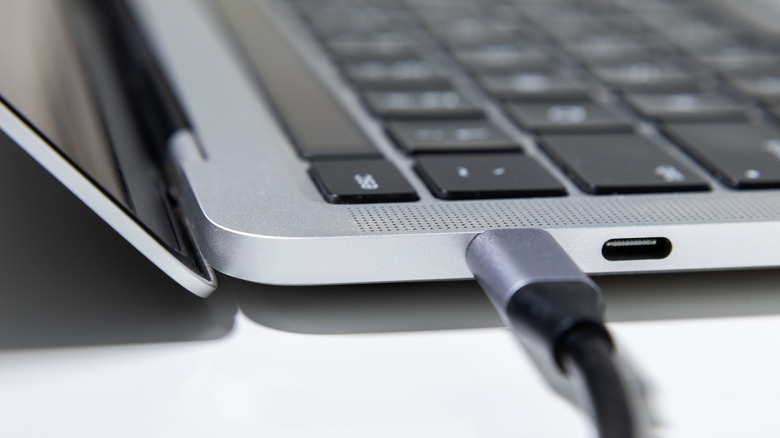
USB may stand for Universal Serial Bus, indicating it's a universal port, but that doesn't mean all ports and cables are the same. Some USB connections support applications like data transfers, video, and high-power delivery, while others don't. Either way, to take advantage of these capabilities, including high-resolution video, you need the right USB ports on your devices and a compatible USB cable. While not every USB port supports video, usually those that do are labeled.
So how do you know if, say, a USB-C cable supports video? Most cable manufacturers print the appropriate markings directly on the cable, and if not there, they'll print the designated symbols on retail packaging. Look for a small DP logo, which stands for DisplayPort or the Thunderbolt logo, which looks like a lightning bolt on USB components. If you cannot find these icons on the cable, packaging, or in the documentation, you can also look at the speed rating.
Typically, cables rated as USB 3.1 Gen 2 or higher are capable of 10Gbps data speeds and will support video output. If the cable is generic and has no markings or documentation, you can physically test it to find out. Connect a laptop and monitor that both support DisplayPort via USB-C to see if it works. This may not be the easiest method, but it will tell you if the cable supports video.
Can I use an adapter with a regular cable?
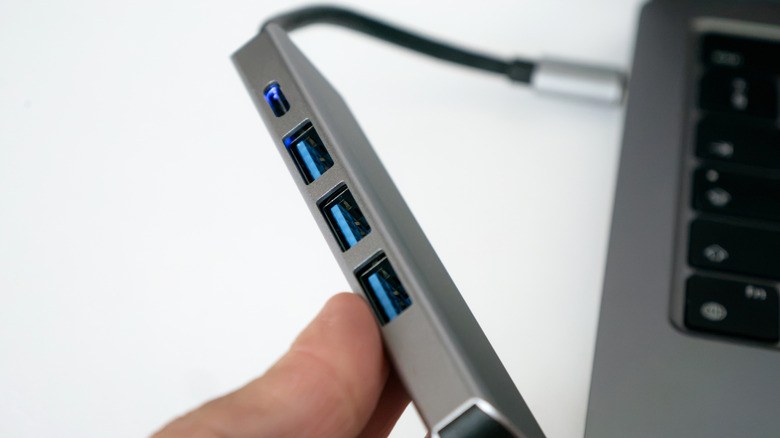
You can use an adapter, however, you still need a cable that can handle high-speed data and video transfers, which means full-featured USB 3.0 or an equivalent. Adapters convert the signal and bridge from one type of connection to another, like USB-C to HDMI, but the resulting data stream still needs to be passed over a cable between devices.
For example, you can use a USB-C to HDMI adapter to connect your laptop to a monitor, but you'll still need an HDMI cable — capable of video transmission — as a stand-in for the USB cable. One side of the adapter plugs into the DP compatible USB-C port, converts the video for use over HDMI, and sends it via an HDMI cable to your monitor or display's input. Similarly, you can use a USB-C docking station which converts video streams between inputs.
With it, you would plug into a USB-C port with DP capability on your device and then connect an HDMI cable between the dock and your display. To determine whether you should go with a USB-C connection or HDMI for video output, consider your setup. USB Type-C is best for multi-purpose configurations such as hooking up a laptop to a monitor, while keeping the device powered. An HDMI connection is better for common media uses, like plugging into a projector or TV for a presentation.