

How To Find Your Parked Car Using Waze
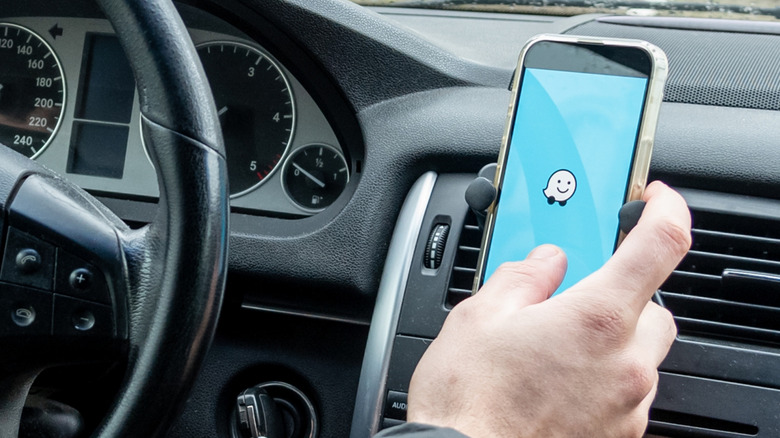
Waze might be popular because of real-time reports on road hazards and traffic conditions. But part of why users love it more than some other mapping apps is its range of handy, little-known features that make your drives a bit more convenient. For example, you can save more on fuel using Waze and its feature that lets you sort gas stations by price. Once set up, it will automatically show you the cheapest gas stations first. Then, you have the Drive to friends & family function. This eliminates the need to type long addresses and just use your loved one's contact name as the search query on Waze.
Another hidden Waze feature you might not realize existed is the option to save your parking spot. Yes, Waze isn't only good at finding parking areas in the first place but also for pinning your exact parking location on the map to help you find it later. We'll walk you through how to set this up before your next outing.
How to set up Waze to save your parking spot
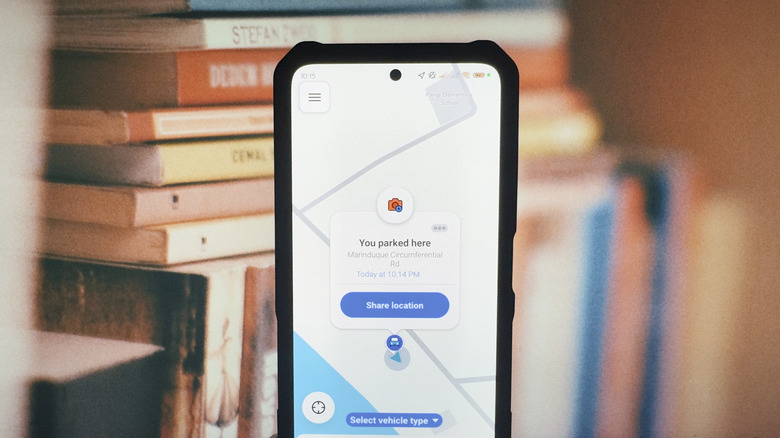
To help you remember your parking location, all you have to do is mark it on Waze. Here's how:
- Open Waze.
- Press and hold the blue dot on the map, which indicates your current location.
- Tap the three horizontal dots in the panel that pops up.
- Choose Mark your parking spot.
A blue car then shows up on the map to pin where you parked. For a visual reminder, you can add a picture of the general area to the Waze pin. Just tap on the blue car on the map and select the camera icon in the popup that appears. When prompted, give Waze permission to access your camera. You might need to go into Settings to do so, though. From there, snap the picture, and it should be saved to the pin.
When you're ready to go back to your car, just find the car icon on Waze and head back to it using the map as your reference. Unfortunately, you can't get directions to your parking spot, as Waze doesn't have a walking mode like Google Maps does (one of the reasons Waze is worse than Maps). If you're having trouble locating the general area, you can open the photo you took to get a better sense of where to go.
Once you're in your car, simply drive away, and Waze will automatically delete the saved parking spot on your map. If it doesn't, you can manually clear it once you've stopped driving by going to the car icon again, pressing the three dots, and tapping on Remove from map.