

Here's How To Make Your Own Personalized Waze Voice
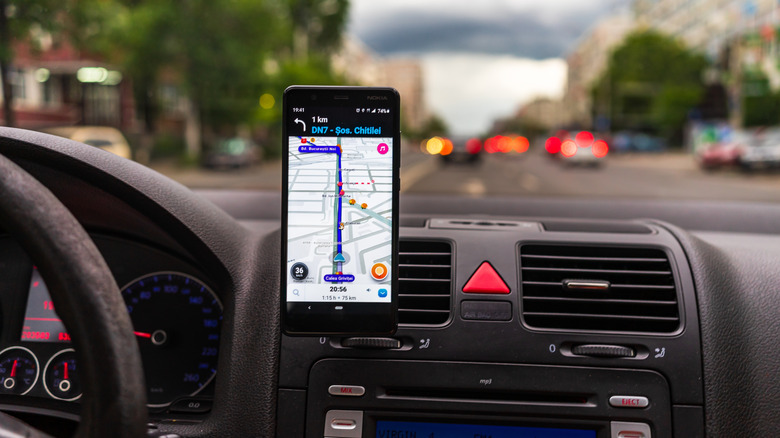
If you've used Waze for any length of time, you've probably already cycled through many of the app's quirky voices for your drives. It's one of the reasons why Waze is better than Google Maps in terms of personalization. When you're tired of one voice, you can just pick a new one from at least 200 navigation voices across multiple languages. For English alone, there are over 80 different options you can choose from.
But even with this wide selection of voices, you might eventually feel like none of them really speak to you personally (pun intended). Fortunately, there's a hidden Waze feature that lets you create custom voices to be used for navigation. This option can come in handy when you prefer to hear a familiar voice, like your spouse's, mom's, or friend's, while you're on the road. You can even put your own twist on the navigation prompts to make the drive more exciting. Let's walk through how to make personalized voices in Waze for your next trip.
Turn your voice into Waze directions
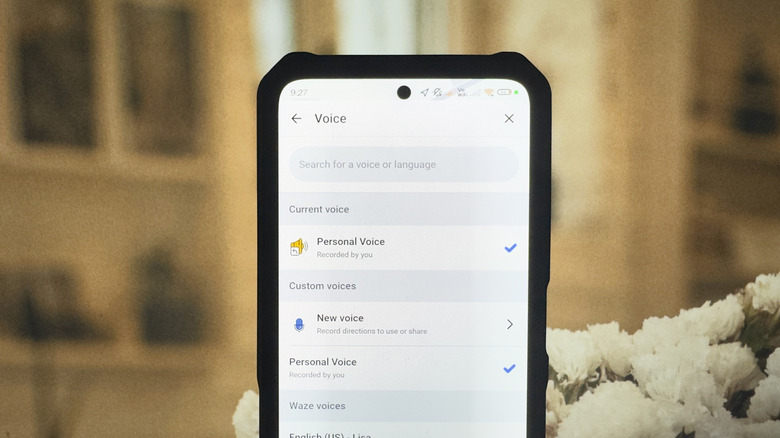
You can create your own voices in Waze right from the in-app settings. Here's how:
- Open Waze.
- Go to the hamburger menu in the top-left corner.
- Press Settings.
- Select Voice and sound.
- Under Voice, choose Current voice.
- Tap New voice.
- Hit OK to proceed.
- When prompted, give Waze access to your microphone. You might be asked to open the Settings app to allow the permission.
From here, you can now start recording the lines. Just tap one, press the button to record, and say the prompt. To stop recording, simply hit the blue square. If you want to hear the recorded line, replay it by selecting the blue play icon. Once you're satisfied with the recording, press Save and proceed with the next line to record. Keep in mind that all of the lines need to be six seconds or shorter. After you're done going through all the phrases, or if you prefer not to record everything, choose the Save/Done button in the upper right corner. You'll be prompted to add a name for the custom voice. Waze will then set your custom voice as the current navigation voice automatically. For any phrase you didn't record, though, Waze will default to using one of the built-in voices.
If you want to delete the personalized Waze voice you made, you need to navigate to Voice and sound in the Settings again. Then go to Current voice, tap your custom voice, and find the Delete voice option at the very bottom of the page. If, however, you simply want to get less frequent alerts — one of the reasons some users dislike Waze — you can enable the new Less Chatty setting.