

You Can Change How Long Your Phone Rings, But Not Through The Settings
You can control a great deal about your smartphone, from the look of its home screen to custom ringtones. What's oddly absent from those settings is an option to adjust how long your phone actually rings. When someone calls and the phone plays its ring sequence, if it's too long with too many rings, or too short, you're out of luck because you're stuck with the way it is. At least, it's not possible to change this manually from the device in a majority of cases. That's because your wireless carrier determines how long it lasts. The process isn't controlled on your end.
With select carriers, there are ways to adjust the ring delay, but it varies. Sprint, for example, doesn't offer this option at all. With AT&T and T-Mobile, there's a hidden dialer sequence you can use that works just like the secret codes for various tricks on iPhone devices. These are typically called Man Machine Interface (MMI) codes. Verizon customers have to call customer service directly and ask for assistance, which is true of any wireless phone carriers owned and operated by Verizon.
There are some workarounds depending on what type of phone you have. Samsung's latest Galaxy devices, from the S22 through S26 series with Android 16 and One UI 8.5 or higher, now allow you to adjust ring duration via Direct Voicemail settings. Whichever method works for you, here are the easiest ways to set everything up and adjust the ring delay.
Changing the ring delay through the phone dialer
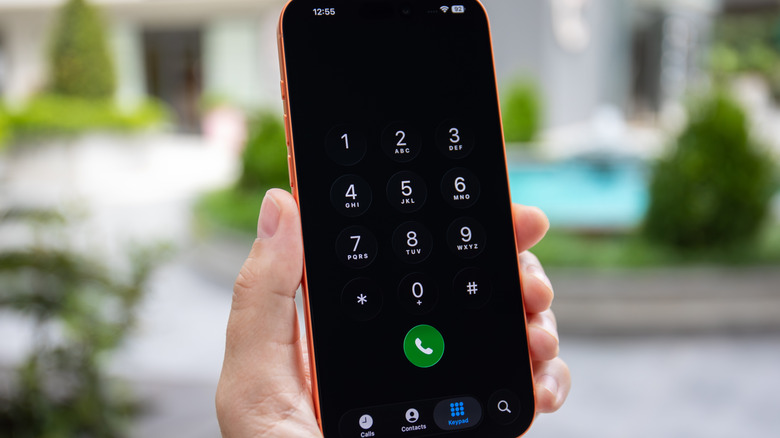
Using the phone dialer will primarily work for AT&T and T-Mobile customers. It may or may not work for the cheap carriers that use AT&T's network or smaller phone carriers that use T-Mobile's network. That's uncertain. Using this method shouldn't break anything if it doesn't work. Moreover, this method should work on both Android and iPhone devices, regardless of carrier support. To adjust the ring delay, first you'll need your voicemail number.
- Open your phone dialer.
- Dial *#61#
- Press the call button.
- A prompt will appear, showing details about your service. Look under 'Voice Call Forwarding' for an 11-digit phone number.
- Write this number down. If you try to do this on an unsupported carrier, like Verizon, the prompt will merely show a failure message after some time.
After you have your voicemail number, it's time to adjust ring delay using the dial code. This time, in the dialer, type **61* along with the 11-digit number, immediately followed by *11* and how long you want the ring to last in increments of five seconds (up to 30), and then a #. It should look like this: **61*[voicemail number]*11*20#. The 20 there is to change to 20 seconds (you can change it to what you'd prefer). When you've successfully entered that dial code, hit the call button. Wait for the prompt to appear that tells you call forwarding was successful, and then restart your phone to apply the changes.
Adjusting call delay through Samsung's Direct Voicemail
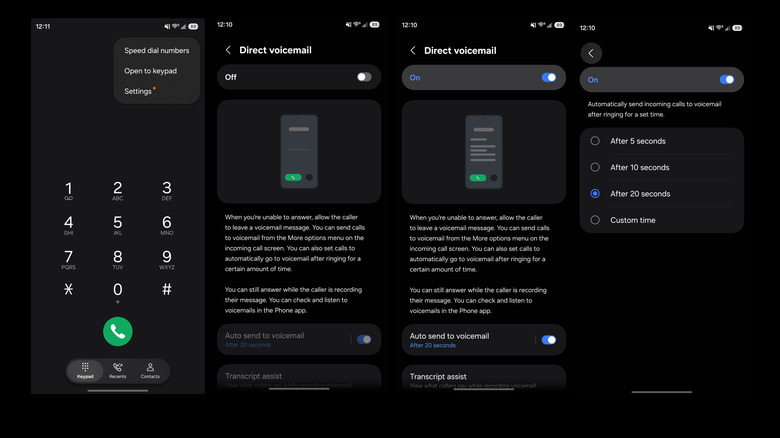
If you have a Samsung Galaxy device running Android 16 with One UI 8.5 or higher, you can change the call delay using a workaround from the device itself. Samsung is one of the first phone manufacturers to offer something like this. In addition to having the appropriate device model and software version, your wireless carrier has to support you changing this setting, so keep that in mind. It won't work on Sprint. To adjust your delay:
- Open the phone app.
- In the top right, tap the menu icon (three vertical dots).
- Go to Settings.
- Tap Direct Voicemail.
- At the top of the menu, you'll see a toggle, likely set to off. Turn it on to enable Direct Voicemail.
If this is your first time, you may have to agree to the terms and conditions to finalize. Once that's done, scroll down to the Auto Send to Voicemail option and turn that on. Below that, you'll see a blue setting to send to voicemail "after x seconds". The default is 20 seconds (about three to four rings). Choose your duration if you'd like to change it.
Do note that 20 seconds will be the maximum option available if your carrier doesn't support longer delays. On my Galaxy S25 through Verizon, I can only choose up to 20 seconds, not 30. Once you've changed the delay, you can test it out by having someone call you and letting it ring.