

The 5 Biggest Problems Users Have With Bluetooth On Windows 11
It's almost comical how much Windows struggles with Bluetooth even decades after its initial implementation into PCs. There are frequent disconnects, an unreliable status display, and sometimes the Bluetooth icon completely disappears from your computer, stopping you from turning it on in the first place. Even if everything seems to be working fine, a Windows 11 update can completely mess up Bluetooth, rendering you helpless until Microsoft provides a fix.
Sometimes, upgrading your PC's Bluetooth can help get rid of these issues. Other devices, like the latest Googlebook (formerly Chromebook) models are already being built with Bluetooth 6.0, which includes precision tracking similar to Apple's Find My.
Unfortunately, most of these problems have more to do with the Windows software that powers your PC than with Bluetooth as a technology, so no amount of upgrading will likely provide a fix if Microsoft continues to struggle. However, not all is lost; Microsoft is promising to fix certain aspects of Bluetooth in the near future, and some of these are already being tested by insiders. Until that eventual fix arrives, here are some ways of mitigating common problems that users have with Bluetooth on Windows.
1. Bluetooth devices disconnecting randomly

It's annoying when you can't toggle a feature on, but even more so when a functioning feature suddenly stops working in the middle of something. A Bluetooth controller disconnecting during a competitive FPS can cost you the match, and your headphones randomly disconnecting can disrupt your flow state. A device can disconnect for a number of reasons, but on Windows 11, it's often due to a power-saving feature. This can certainly be useful for laptops that need to conserve battery power, but it provides no real benefit on a desktop computer–and is often a hindrance on laptops as well.
To turn Bluetooth power saving off, use your taskbar's search bar to find and open Device Manager > Click on the drop-down arrow next to Bluetooth > Locate your Bluetooth adapter. The name of this differs depending on your device, but look for terms like "adapter," or a brand name, such as Intel or Realtek. Ignore any devices with Enumerator in the name, because it's a part of the system that finds new devices.
Once you've found your Bluetooth adapter, right-click on it and choose Properties > Navigate to the Power Management tab at the top of the window > Deselect "Allow the computer to turn off this device to save power."
At its core, this type of problem happens because some manufacturers add power-saving features to their devices. If you leave them idle for too long, they automatically disconnect and power down. There's often no way to change this, but if you want to ensure your Bluetooth headphones or speaker continues to stay connected even when not being used, you can play some low ambient noise while the device is idle.
2. Bluetooth toggle no longer being there
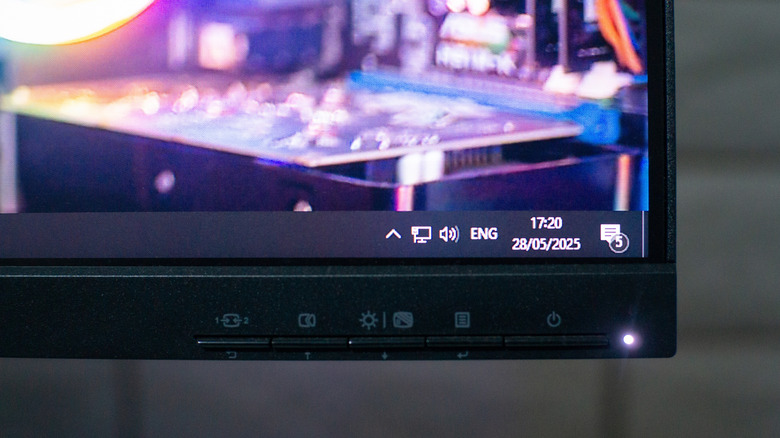
Bluetooth can be annoying, but you can get some benefit out of it so long as you can turn it on — which isn't always a given. For many, the Bluetooth icon can disappear from the Quick Settings panel beside Wi-Fi in the bottom-right corner of your screen. The best-case scenario is that you've just accidentally removed it from the Quick Panel, in which case you'd still be able to toggle Bluetooth on from Settings. You can add it back by clicking the upwards arrow at the bottom right corner of the screen, and then either dragging the Bluetooth icon back, or clicking the pencil icon to edit the list.
The issue becomes more complicated if the icon doesn't show in the upwards arrow's box, because that likely means your Bluetooth adapter isn't functioning properly. To see if this is the case, search for and open Device Manager in Windows. If you see Bluetooth, tap on the arrow next to it to open a drop-down that should show multiple devices, including your Bluetooth adapter and certain devices with Enumerator in the name. If you're not seeing the adapter, right-click any option in the Bluetooth drop-down and select Uninstall device. With this done, click Action from the top menu and select Scan for hardware changes, which will hopefully get your Bluetooth working.
If that doesn't work, you can download manufacturer-specific drivers directly from the brand's website. Simply search the adapter's manufacturer followed by Bluetooth driver on a browser and then follow the on-screen instructions. If neither of these steps work, there's a chance your Bluetooth adapter is damaged, and you need to get it replaced.
3. Poor audio quality for Bluetooth headphones
Present-day Bluetooth technology has improved to the point that, for most people, wireless audio is just as good as wired output. However, if you notice that your headphones don't sound the best while you're gaming or on a call, there's a specific setting that could be affecting your experience.
The main feature responsible for bad audio on Bluetooth headphones is called Hands-free Telephony, which manages input and output audio profiles for headphones or earphones that have mics. This improves your mic quality, but does so by dividing the available network bandwidth between the mic and the incoming audio when you're speaking–leading to worse audio quality. As such, you can disable Hands-free Telephony in Windows 11 to improve the audio quality of your wireless devices.
To do this, search for and opening Settings > Bluetooth & devices > Devices > More devices and printer settings. Here, right-click your audio device, select Properties, and then go to the Services tab at the top of the window. Wait for the available options to load, and then deselect Hands-free Telephony.
Note that this resets each time you start your computer. Windows natively doesn't allow users to turn the feature off permanently, but you can disable the driver associated with Hands-free Telephony from your device. Do this by going to the same More devices and printer settings page > Hardware > Locate an entry that includes "Hands-free." With the correct device selected, click on Properties > Change settings > Drivers > Disable device. Be careful with this, however, as tampering with device drivers can have side effects, including computer crashes. If you face any issues, you can likely fix them by updating drivers from Device Manager.
4. Unreliable device connection details

Viewing accurate information about your Bluetooth device connections shouldn't be a tall order, but it is for those using Windows 11. For example, if you manually disconnect a device, Windows may still show it as being connected. While generally not an issue, this can stop you from reconnecting it later. It's also frustrating if this happens randomly, where you suddenly stop hearing audio after a disconnect, but your laptop or desktop still shows the Bluetooth device as connected.
This issue is beyond your control, and it has existed for a long time. Fortunately, Microsoft is finally working on improving on Bluetooth status accuracy with updates 26100.9539 and 26200.9539. The company states: "This update improves the accuracy of the connection state displayed by Windows for accessories that have disconnected from the PC." Microsoft has already pushed this update to testers, and if it works as intended, users may get it in the near future as well.
5. New Windows updates ruining Bluetooth
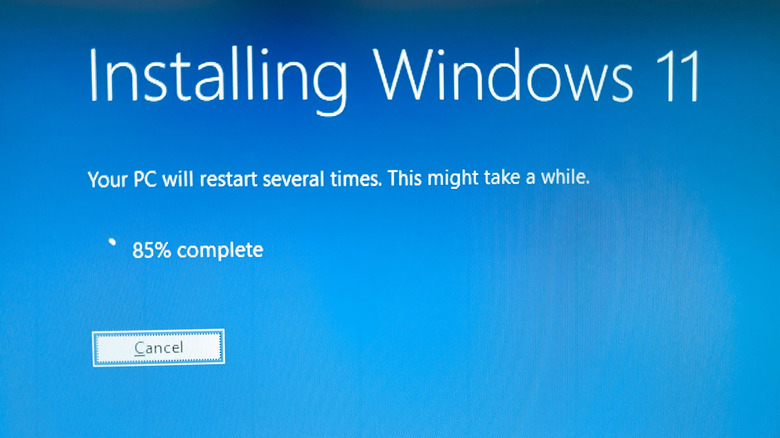
There are certain reasons to use Windows PCs instead of Apple's macOS or other operating systems, but reliability is not one of them. Windows 11 has had its fair share of problematic updates. A majority of these don't fix existing issues, but there are also those that actively ruin things that seem to be working just fine–including Bluetooth.
There have been numerous Windows 11 updates that ruined Bluetooth just this year. In January, users started complaining they were unable to see the Bluetooth toggle following a software update from the company. Later, users who installed an update in April reported consistent disconnects and cut-offs while using Bluetooth peripherals. At times, they also received a "Device does not have Bluetooth" error with the adapter disappearing from devices. More recently, the August update prompted several Bluetooth-related issues: repeated disconnect and crashes, Bluetooth disappearing from Quick Settings, and the Bluetooth adapter no longer being shown in Device Manager.
As each update is different, the solution differs for them too. The most common culprit is a driver conflict, which can be exacerbated by Windows features that automatically download and update drivers. In such a case, uninstalling existing drivers and downloading new ones from the manufacturer's website can fix your Bluetooth. In other cases, you'll have to wait for Microsoft to fix the issue via another software update.