

You Can Be Rewarded For Contributing To Google Maps - Here's How
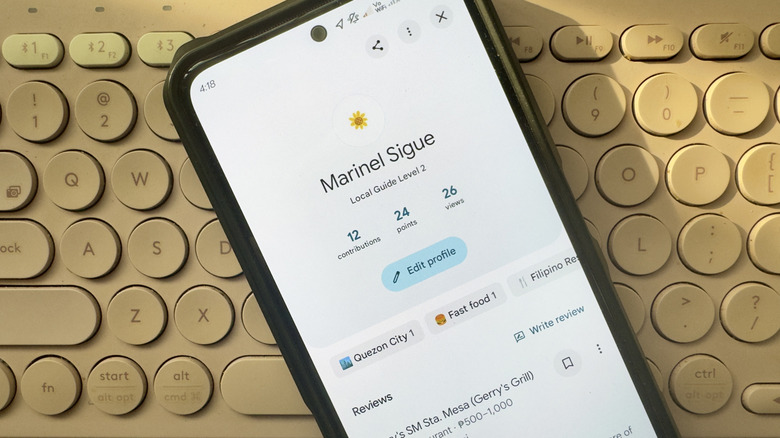
In comparing Waze with Google Maps, Waze stands out as the better platform when it comes to community participation. It does, after all, allow users to submit gas price updates, traffic condition reports, and hazard alerts. But that isn't to say that Google Maps doesn't support community involvement. It actually does through a little-known initiative called the Local Guides program.
The Local Guides program encourages eligible users to help improve Google Maps by adding contributions like reviews, photos, and map edits, among others. In exchange for your contributions, you'll then be rewarded with points and badges. If you're active in the program, you also get a chance to be invited to Google-hosted exclusive events and gain early access to new experimental features in Google Maps.
To join the Local Guides program, all you have to do is make sure you're using an individual Google account (not a business page) and are old enough to manage your own account (age depends on your location, with most countries requiring you to be at least 13). Then, for the opportunity to get event invitations and early feature access, you'll have to enable email updates from Local Guides via the Settings page. Once you're all set up, you can automatically join the Local Guides program by simply contributing to Google Maps. Here's a more detailed guide on how to do so.
How to contribute to Google Maps
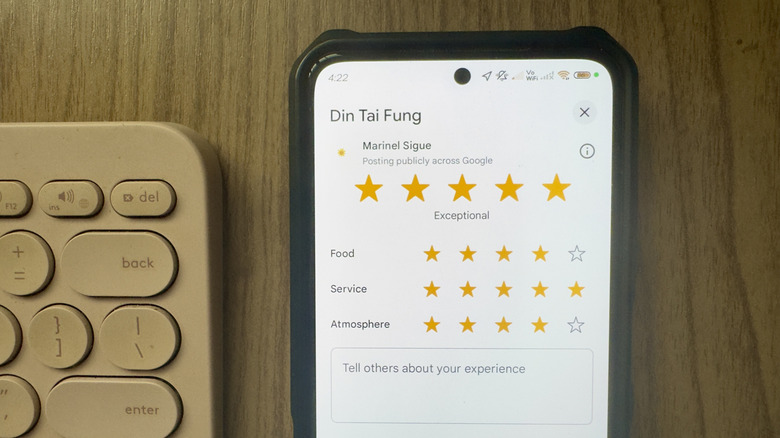
The easiest way to start earning Local Guide points is to write a review, rate the location, add photos and videos, and caption the photos. Conveniently, all four Google Maps features are accessible from a single page. Follow these steps to make your contribution:
- Find the location on Google Maps.
- Tap on the Post option.
- Select Rate & review.
- Leave a star rating at the very top.
- Rate the individual aspects (e.g., Service, Food).
- Go to Add photos & videos.
- Choose your best photos and videos from your gallery.
- Tap "Add caption" under each photo.
- Write your caption.
Now you can write your review. It's good to be as detailed as possible and include information like what you liked about the experience, what you didn't like, how much the products were, how good the service is, and what the overall vibe was. It's also important to create a review that's specific to an establishment, as Google is likely to kick you out of the program if you use the same review for multiple locations.
You can also contribute to Google Maps by answering questions about places. Just go to the Contribute tab and find the card for "Answer simple yes/no questions to help others." Press Start, and you'll see specific questions about locations you've previously navigated to using Maps. For instance, you might be asked if the place is wheelchair-friendly, or whether it has parking spaces. Select Yes, No, Not sure, or Skip. From the Contribute tab, you'll even find options to add a missing place, edit the information of a place, or update the street address. If you find incorrect information about a place while editing it, check the box saying "this is incorrect," and you'll get points for that too.
How the Google Maps point system works
So, now what happens after you contribute to Google Maps? Well, each contribution made earns you specific Local Guide points. For instance, one review equals ten points, but if it exceeds 200 characters, you're rewarded with ten more bonus points. Rating places, answering questions, and reporting incorrect items will earn you one point each time. You'll score the most points — 15 points — if you add a new place or road.
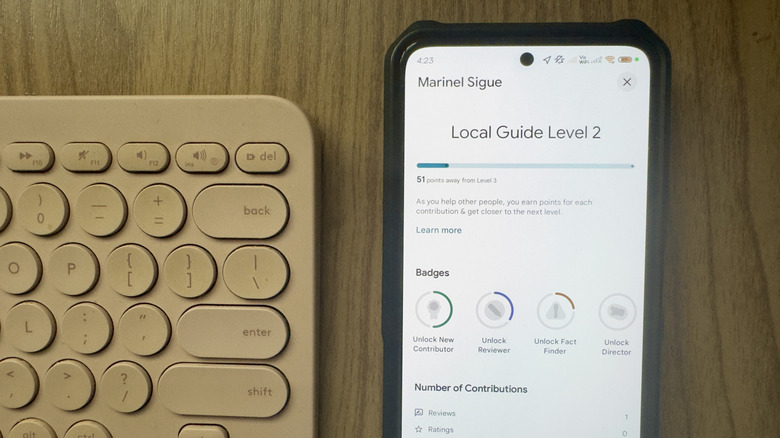
All Local Guides start at Level 1 with zero points. Once you get 15 points, you advance to Level 2. Then, it takes a total of 75 points to get to Level 3. From there, the jump between levels becomes significantly bigger. You need 250 points to reach Level 4, 500 points for Level 5, and 1,500 points for Level 6. This continues until you advance to Level 10 with a total of 100,000 points.
You can easily keep track of your Local Guide level from Google Maps. In the app, open the Contribute tab and select your name at the top. From here, you can see your level, total points earned, total contributions made, and number of views on your contributions. You can also find your Google Maps reviews, photos, and videos on this page. If you tap on your contribution number, there's a more detailed breakdown of all your contributions. This is where your badges are displayed as well. Keep in mind that your Local Guide details page is public and viewable to other Maps users, just like how you can see the details page of other Local Guides.