

Which USB Ports Are The Fastest?
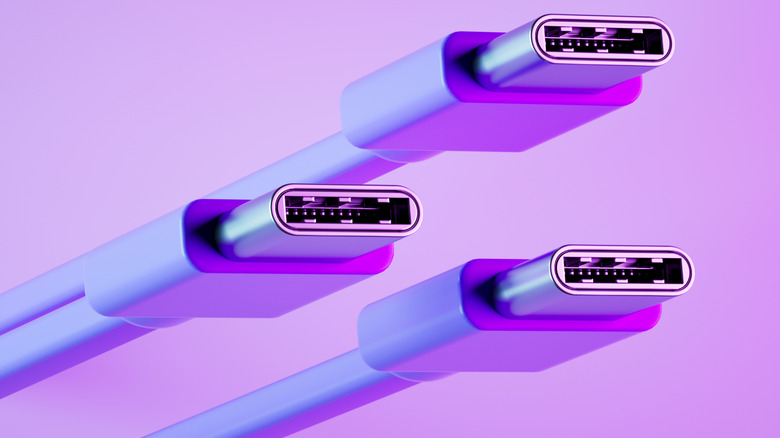
Universal Serial Bus (USB) is a widely used and versatile interface that can be found in computing devices, lifestyle products, smart TVs, and more. Since its first iteration arrived on the market in 1996, the interface has come a long way, with multiple new versions, different USB connectors, and capabilities. This makes the interface more complex to understand for not-so-savvy users, as different USB ports can have different capabilities. That said, the newest USB versions typically offer the fastest data transfer speeds and latest features. As of September 2026, the fastest USB port is the one supporting the USB4 Version 2.0 specification.
USB4 V2.0 was introduced in 2022, and remains the latest USB standard right now. It only works with the USB Type-C (commonly known as USB-C) connector, and can reach bidirectional data transfer rates of up to 80 Gbps. It can also support power delivery, video signal, and PCI Express (PCIe) traffic, if the same has been enabled by the manufacturer. Interestingly, USB4 V2.0 (marketed as USB 80Gbps) is also capable of asymmetrically delivering up to 120 Gbps data rates in one direction when used with high-resolution displays while retaining 40 Gbps bandwidth for the other direction. Moreover, it's compatible with DisplayPort (DP) 2.1.
It's important to keep in mind that USB speed depends on the slowest link in the connection. For example, if you're connecting a USB flash drive to a laptop, both the drive and the laptop's USB port need to support USB4 V2.0 to enable up to 80 Gbps data transfer rates. If the port is limited to 40 Gbps, you'll only get up to 40 Gbps speeds. Moreover, your operating system can potentially impact the transfer speed in some situations.
How fast are older USB generations?
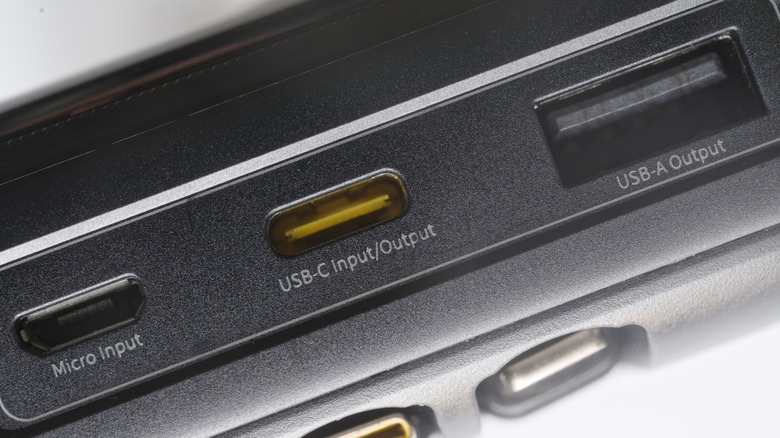
While you can reach impressive data transfer speeds with USB 80Gbps, ports supporting it are still relatively rare, and you're more likely to encounter older-generation USB ports with slower speeds. For example, USB 4.0 version 1.0, which came before version 2.0 in 2019, is more common and tops out at 40 Gbps data transfer rates. It also exclusively uses USB-C and supports PCIe 4.0 and DP 1.4a. However, as USB4 V1.0 requires a minimum of 20 Gbps data bandwidth, and 40 Gbps is an optional maximum, there's a chance that you might come across a 20 Gbps USB4 port.
USB 3.2 Gen 2x2 came before USB4 in 2017, and like its successor, it's also limited to the USB-C connector. It supports up to 20Gbps bandwidth and is marketed as USB 20Gbps. It doesn't support PCIe signals but can carry DisplayPort signals by reducing data transfer speed. USB 3.2 Gen 2 and USB 3.2 Gen 1 are even older specifications, but still pretty common on computing and mobile devices. The Gen 2 (also known as USB 3.1 and USB 3.1 Gen 2) supports up to 10 Gbps bandwidth, whereas Gen 1 (also referred to as USB 3.0 and USB 3.1 Gen 1) tops out at 5 Gbps. Both can use USB Type-A, Type-B, Micro B, and Type-C connectors.
USB 2.0 is the oldest USB generation that you can still find on various devices. It's limited to 480 Mbps speeds, and it works with USB Type-A, Type-B, Mini-A, Mini-B, Micro-A, Micro-B, and Type-C connectors. USB 1.0 and USB 1.1 are no longer actively used in devices and were limited to 1.5 Mbps and 12 Mbps speeds.
How to check which USB port you're using
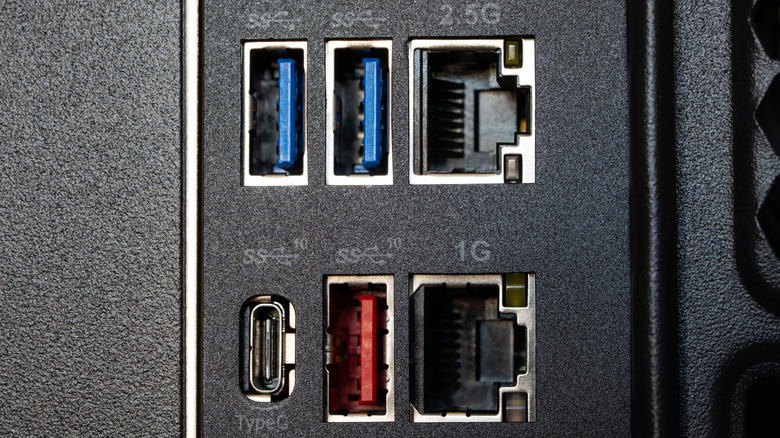
There are a number of ways that can help you determine which USB port you're using. One of the most common is the accompanying logo. Much of the time, you'll see the USB port on your computer has a logo or symbol next to it that indicates the bandwidth or generation. For example, you'll sometimes notice an "SS" icon with a trident (with or without number 5); it tells you the port is SuperSpeed or 5Gbps capable. An "SS" icon with a trident and a number on top is easier to identify, and the included number tells you the port speed; 10 would indicate it is a 10 Gbps USB port, and so on. Some USB-C ports are also accompanied by a lightning bolt icon, which signifies that it's a Thunderbolt port. Different Thunderbolt ports have different capabilities but can generally support all USB devices.
USB port color is another way that can sometimes be helpful in determining the USB port generation. USB Type-A ports often use different color plastic inserts indicating various features. A black insert means it's a USB 2.0 port, whereas a blue insert indicates support for USB 3.2 Gen 1 (5 Gbps). Similarly, red, purple, teal, or turquoise port colors sometimes suggest support for USB 3.2 Gen 2 (10 Gbps).
If you're not seeing any of this, your best bet for finding a USB port's capabilities is to consult the device specifications or the manual. Windows OS users can also sometimes locate this info in Device Manager. You can also reach out to the manufacturer for clarity.