

This Quick Galaxy Tablet Setting Turns Your Device Into A Second Monitor
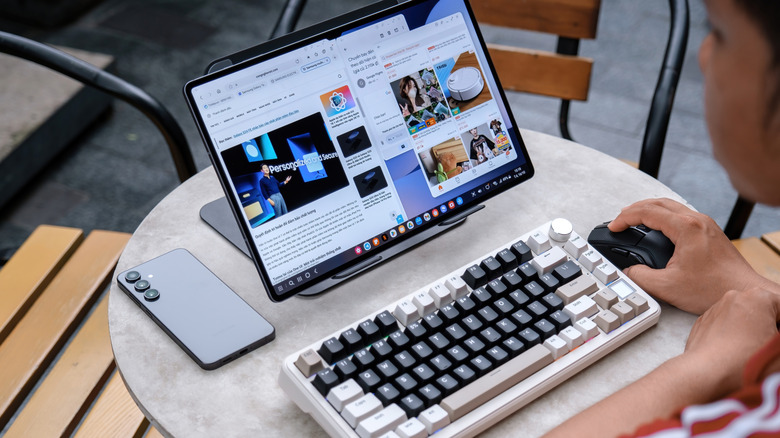
There are many things you can do with a second monitor that you cannot accomplish with a typical single-monitor setup. Modern operating systems offer a lot of dual-monitor support natively, and you can download some essential multi-monitor programs to get even more out of your second screen. However, you don't need to go out of your way and get a dedicated display, as the Second Screen feature in Samsung Galaxy Tabs turns your tablet into a portable external monitor.
To use your Samsung Galaxy tablet as a secondary monitor, swipe down the Quick Settings panel and tap Second Screen to open the connection screen, which shows two options. The Drawing/Gaming option will be selected by default, which is best for faster response times. You can switch to Video to prioritize smoother playback if you don't plan on using the tablet's touch interface too much.
Keep the connection screen open as you go through the next step on your Windows PC or laptop: connect to the same Wi-Fi as your tablet and press the Windows + K keys together to open the cast menu. Alternatively, right-click the Windows icon on your taskbar, select Settings, go to System, and click Display. Click on Multiple Displays and select Connect next to "Connect to a wireless display." Either way, select your Galaxy Tab from the available devices. Doing this will immediately show a new desktop environment on your Samsung Tab. You can use your mouse to control your tablet and to move windows to the tablet's screen, and you can use your Galaxy Tab's touchscreen as well.
Tips for using a Samsung tablet as an external monitor
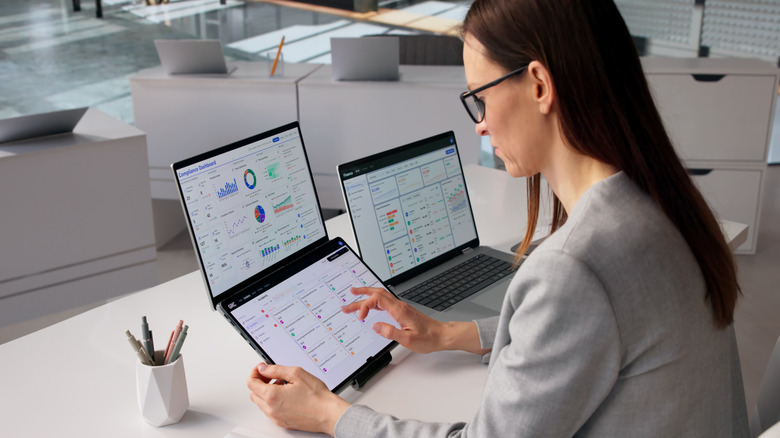
Your tablet is now working as a secondary monitor, but there are some things you can do to improve your experience. First, go to Settings on your PC, select System, then click on Display. You'll find various ways of configuring your Galaxy Tab as an external display here, the same way you would a traditional monitor.
For example, you can drag the visual representation of your monitors around to represent your real-world desktop layout. This ensures your cursor travels seamlessly across different monitors. If you're unsure which screen represents your tablet, click on Identify. You can also turn your tablet into a vertical monitor by selecting the tablet display, clicking on the Orientation dropdown, then selecting Portrait. Furthermore, if you find the text and icons on your tablet to be too small to properly see, you can use the Scale option to magnify the screen. Similarly, you can change the display resolution to match that of your Galaxy Tab for optimal visual clarity.
You can also switch between Extended and Duplicate mode by pressing the Windows + K keys. Second Screen is in Extended mode by default, which makes your tablet function as an independent external monitor. You can switch to Duplicate to show a copy of what's being shown on your main screen on your Galaxy Tab. This is useful if you want to show a coworker or a friend something that's on your screen without having to crowd around in front of a single monitor.
What to do if your device doesn't support Samsung Second Screen
The Second Screen feature is available on most modern Galaxy tablets. Samsung states that any Galaxy Tab running One UI 3.1 or a later update can use the feature. This includes any tablet in the Galaxy Tab S7 series or later, including the Plus, Ultra, and FE models. However, Second Screen isn't available on S6 tablets, despite them also getting One UI 3.1. There used to be a way to use a hidden Developer Options feature to get Second Screen working on Galaxy S6 Tabs, but Samsung has since removed it.
Like Galaxy tablets, most modern Windows laptops and desktops support casting to a Samsung Tab via Second Screen. That said, users with Ethernet might run into an issue. If you open the cast menu using the Windows + K keys or through Display and find a message that states "Your device doesn't support Miracast," this usually indicates you aren't connected to the same Wi-Fi network. Disconnecting the Ethernet cable and connecting to the same Wi-Fi generally fixes the issue.
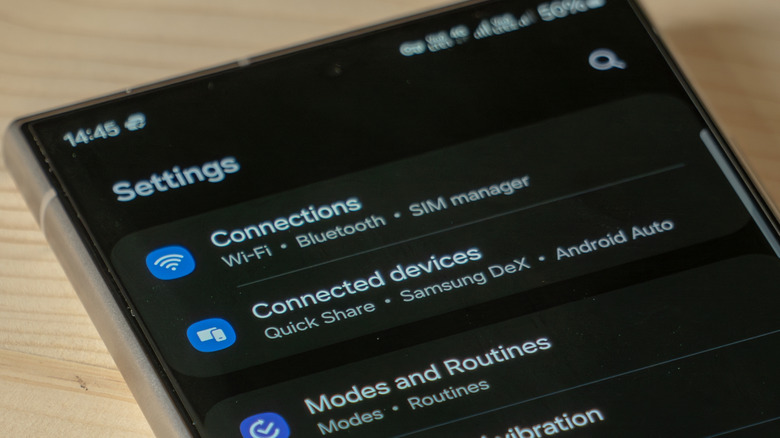
If you have a device that doesn't support Second Screen, there are still certain things you can do to use your Samsung tablet as an external display. For example, you can use an app like SuperDisplay to turn your tablet into a portable monitor with a USB connection. Alternatively, you can use Samsung DeX to connect an external display to your tablet, though doing so requires a USB-to-HDMI adapter for wired setups, or a smart monitor or TV for wireless connectivity.