

Change These 5 Settings To Improve Your Fire TV Stick's Audio Quality
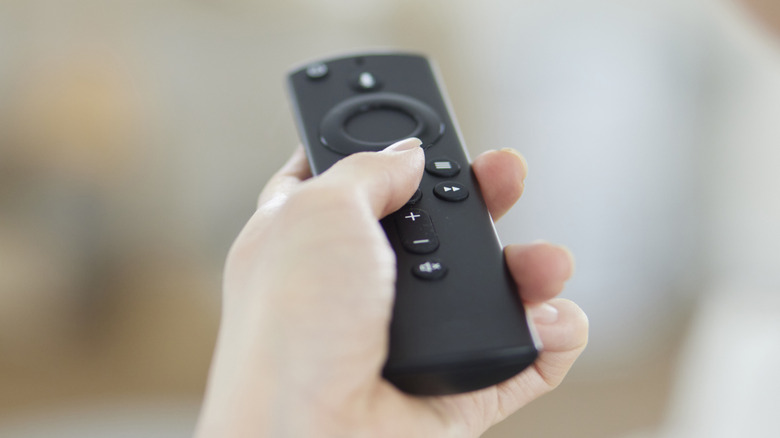
Sitting down for movie night only to have the audio to drop in and out can quickly kill the fun. Sometimes the problem is with a failing TV, poor internet, interference for wireless speakers. But other times, it's default software settings that don't match with what your devices need. For example, Amazon's Fire TV Sticks in particular default to the same audio setting the TV asks for. While good for some cases, the defaults can also lead to muffled dialogue, action scenes sounding like they were recorded in a Pringles tin, and unpredictable volume jumps.
We've found five settings inside Fire TV Stick menus that resolve some of the most prevalent problems. The these settings resolve issues with dialogue clarity, distortion, tone shaping, Bluetooth sync issues, and volume behavior. Keeping Bluetooth gadgets that pair with a Fire TV Stick locked to the picture is one example of how far a small setting change can go, so readers can rest assured that these fixes hold up.
Make sure to check the settings below before unplugging a soundbar, resetting a sound system, or buying new optical and HDMI cables. With luck, you could end up saving a lot of time and a fair bit of money. The good news is that just a few tweaks can make an older Fire TV Stick feel like new.
Switch on Dialogue Boost
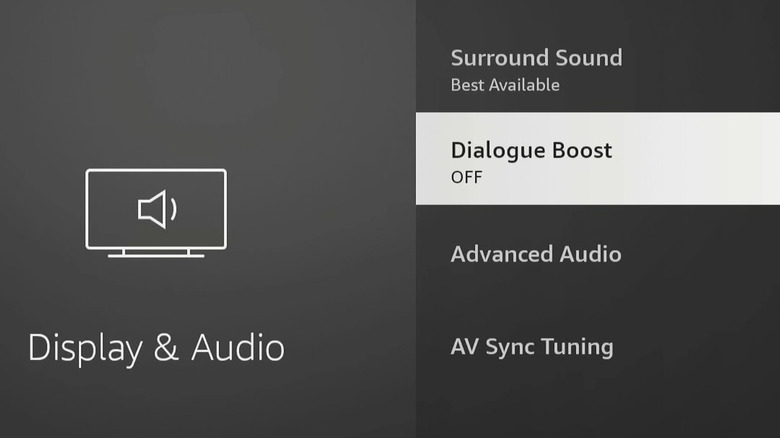
One common complaint of modern movies is that it's become much harder to hear dialog. There are many reasons, from new cinema sound technologies to changing acting styles, and complex home audio setups haven't helped either. The Fire TV Stick has a setting called Dialogue Boost that's designed to lifts up speech in the audio mix while lowering background music and effects. It's one of the audio settings every Fire TV Stick user should use.
Dialog boost can be great for action films and TV shows, where hushed whispers between spies can flip to a massive explosion in the same scene. When it first launched, it was for titles released by Amazon itself. Newer Fire TV Sticks use AI running on the device itself, across any video source, to do the job.
To activate Dialogue Boost, head to Settings > Display & Audio > Dialogue Boost. On older sticks, Dialogue Enhancer lives under Settings > Display & Sounds > Audio > Advanced Audio, or potentially a menu for Dolby audio. On premium sticks, such as the Fire TV Stick 4K Max, there's an intensity slider that allows you dial in the mix that best suits the room.
This setting can cut background audio by up to 12dB while lifting dialogue by around 10dB without raising the overall volume. That's why it's such a great feature, especially with late-night sessions. Setting Dialogue Boost to Low or Medium suits a show with a laugh track, while Enhanced or Heightened works better for those summer blockbusters. It's a good feature for anyone with hearing difficulties, as well as anyone living on a busy street. Some versions of the Fire TV Stick list this setting under Accessibility, so make sure to double-check there if Dialogue Boost or Dialogue Enhancer isn't present as above.
Set the right Digital Audio Format
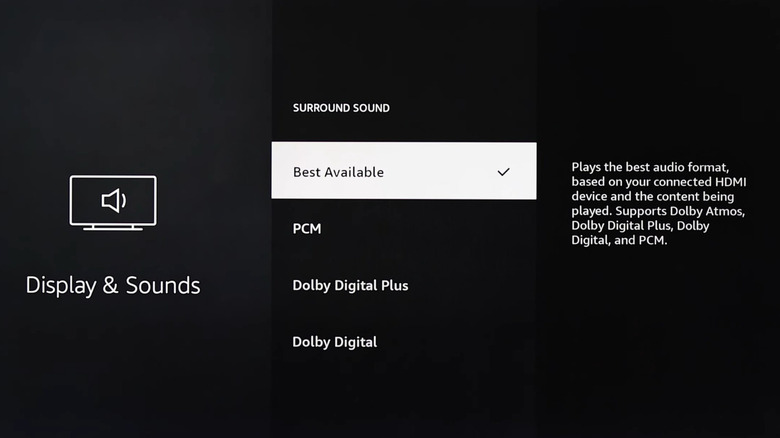
Cracking, buzzing, or total silence is usually linked to a busted speaker or a malfunctioning sound system. But what about when audio sounds fine on everything else but the Fire TV Stick? The problem is most likely the stick guessing which kind of audio signal to send, since the default setting chooses for you. Fire TV Sticks put out audio under several options, including PCM, Dolby Digital, Dolby Digital Plus, and Passthrough, plus the default Best Available setting, which is where this problem starts.
If you have surround sound, head to Settings > Display & Sounds > Audio > Options for Display & Sounds > Surround Sound. To play around with advanced audio settings, go to Display & Sounds > Audio > Advanced Audio where Volume Levelling and Dolby Dialogue Enhancement should live.
If Audio is distorted, turn off Dolby Digital Plus to force a less complicated audio stream the TV or sound system in question can handle. On the other hand, if a soundbar can handle the audio signal but it sounds too quiet, leave that setting on and use the soundbar. PCM sends uncompressed, downmixed stereo audio, which is the best fix for popping or silence because nearly every TV speaker works with it. Passthrough sends the source signal untouched to a connected receiver or soundbar, and the channels it unlocks depend on what that hardware supports. And Best Available is supposed to pick the right option automatically, but it isn't always up to the task.
Shape sound with Sound Mode and EQ
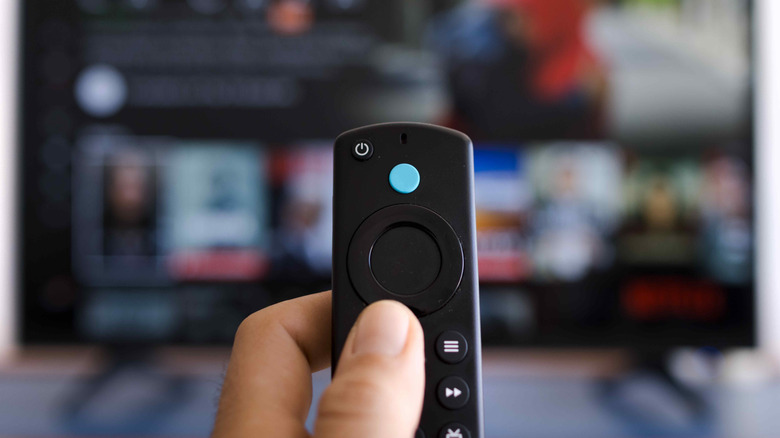
On a television running the Fire TV platform, Sound Mode, alongside the bass, treble, and balance controls, can let users tune the audio output to the speakers instead of going with the flat defaults. A standalone Fire TV Stick handles the digital audio format but leaves this kind of equalizer control to the TV or soundbar it is plugged into. On a TV with small drivers, a touch of treble makes a surprising difference to the TV's audio clarity. Anyone who has chased a good electric guitar tone knows how much that small a tweak can matter.
To sort this out, head to Settings > Display & Sounds > Sound Mode, and pick a sound setting that would suit the TV or movies on the slate for the evening. Users can pick from Standard, Movie, Music, and more presets, then adjust Bass, Treble, and Balance. There's a reset option to restore back to defaults if things sound wose instead of better.
Other settings are tucked away in Advanced Settings. There's Dialog Clarity for talk-heavy content like podcasts and interviews, TruVolume to even out loud ads scattered within quiet shows, and DTS Virtual:X for a wider virtual surround effect. The quickest way to settle on a setup is to start with a mode that fits most of what gets watched, fine-tune with the EQ, and switch on TruVolume to stop ad volume jump scares.
Turn on Bluetooth Audio Sync for headphones
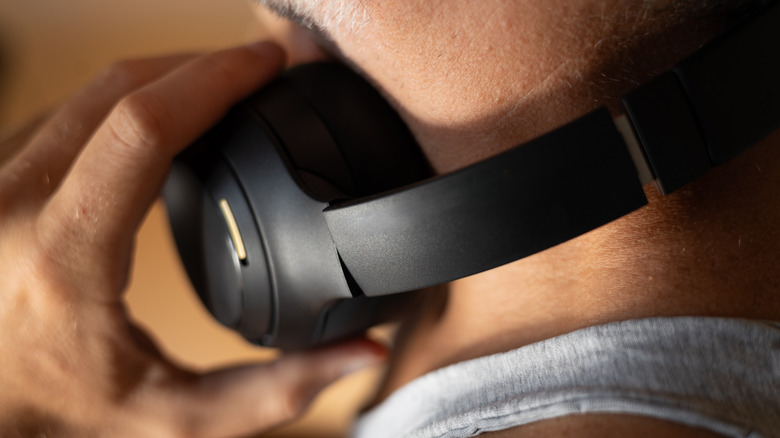
Bluetooth headphones are the easiest way to get great audio without waking anyone up. But lip-sync issues and slight delays on button presses can turn a chilled night into an annoying one. Luckily, Fire TV devices have an AV Sync Tuning tool to straighten these issues out, and it switches to a Bluetooth mode when a wireless headset is connected.
Start by pairing a set of Bluetooth headphones by going to Settings > Controllers & Bluetooth Devices > Other Bluetooth Devices or Add Bluetooth Device. Once the headphones have been paired up, head to Settings > Display & Sounds > Audio > AV Sync Tuning and move the slider until the voices match the lips. The screen detects a connected headset automatically and shows Tuning Mode: Bluetooth in the corner, then stores a separate offset for it, so make sure to run it whenever a different set is used. That first step is how Bluetooth gadgets that pair with a Fire TV Stick, including headphones and game controllers, get connected.
If sound still isn't synced with actions on the TV, disconnect, move physically closer to the Fire TV Stick, and try again with the headphones. The problem is that longer distances between Bluetooth devices and the stick weakens the signal and adds delay. There can also be wireless interference, particularly in homes where many Wi-Fi radio signals might already be present.
Control volume with the right remote setup
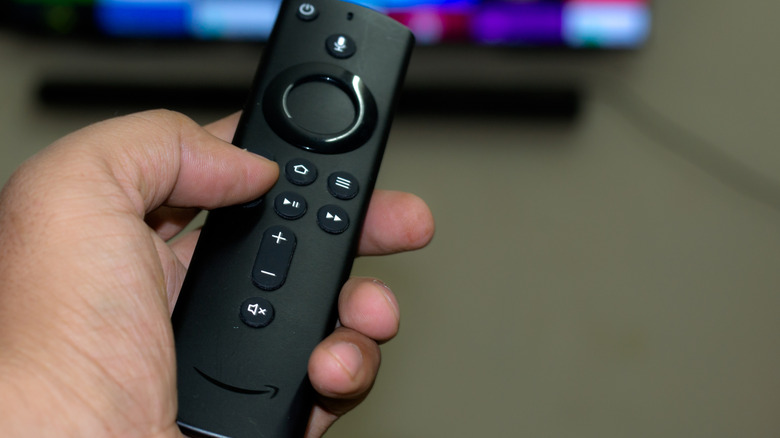
Remote controls have become much simpler these days, but they still have issues sometimes. If you notice that a remote's volume buttons stop controlling the TV, soundbar, or soundsystem, it has likely lost it sync connection with the device. This can also happen out of the box if programming sync hasn't been set up properly, or when HDMI-CEC is disabled in the TV settings. Your first stop might be to the Fire TV Stick's Display & Sound menu to mess around with audio formats or inputs, but that's not going to fix this issue.
Head to Settings > Equipment Control / Device Control > Manage Equipment > Change TV . Then you can re-add the TV brand, like settings up the remote for the first time. Just follow the prompts to resync the remote and users should be good to go. To allow Fire TV Sticks to control TV functions like volume, users need to enable HDMI-CEC on their TV. Fair warning that TVs have settings and menus of their own to set up correctly, so always have the TV instruction manual handy.
This is a go-to fix whenever remote buttons randomly stop working. Just make sure that the remote has good batteries, and isn't too far away from the TV before you try. If the Fire TV Stick is indeed too far away, you can solve this by using a HDMI and USB-C extension cable to have the Fire TV stick closer to the couch.