

What Does The Camera Symbol Mean On Google Maps?
One underrated Google Maps feature that makes navigation so much better is the array of icons that sometimes appear in the app. Yes, they're tiny and easy to miss, but when you need to know what grocery stores are in an area or how long it takes to get to the nearest gas station, those little symbols can be a lifesaver.
The thing is, some of the icons in Google Maps aren't so easy to decipher with one glance. One case in point is the camera symbol. Google Maps actually uses this icon for several features, so if you see one in the app, it isn't always obvious what it means.
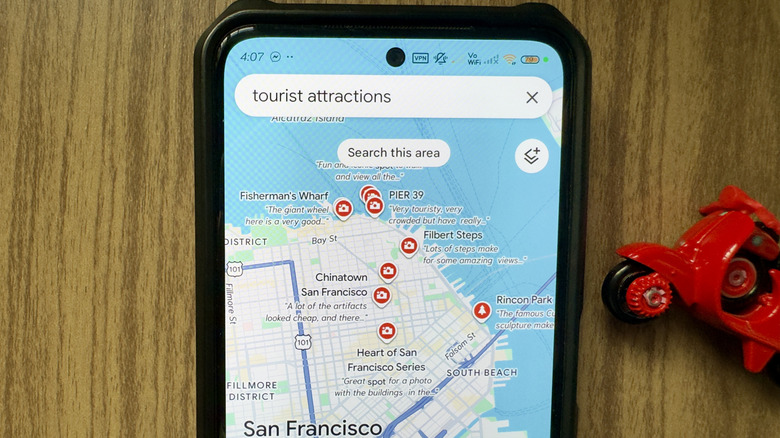
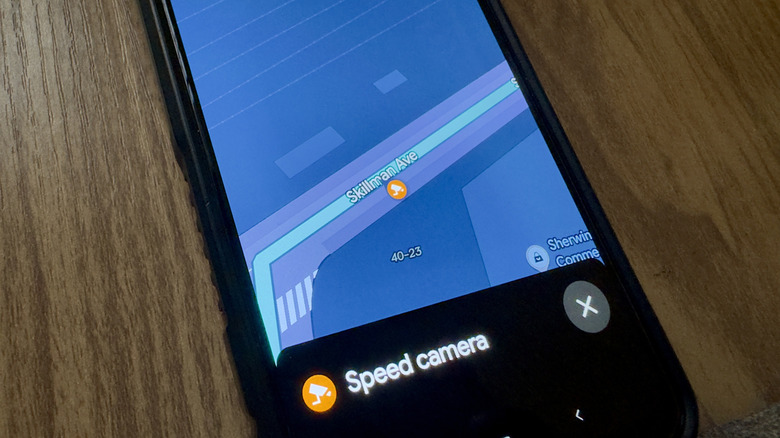
To clear things up, there are generally three types of camera symbols that appear in Google Maps: one in the search bar next to your profile icon and two on the map itself. A camera icon in the Google Maps search bar represents Lens in Maps, while one on the map marks either a tourist attraction (red camera icon) or a speed camera (orange camera icon). They all look somewhat similar to each other, but they serve different purposes.
What the camera symbols on a Google Maps map mean
If you see a red camera icon on a Google Maps map, that means you're looking at an attraction. It essentially tells you what locations are worth seeing in that specific area, which can include tourist attractions, scenic spots, and even visitor centers. However, it won't point you to places like amusement parks, museums, and historical landmarks. These locations have their own unique Google Maps symbol.
The red camera icon in Google Maps usually appears when you search for "attractions" or "things to do." Then, when you tap on the icon, the details panel for that attraction will pop up. This is where you can view information about the point of interest (e.g., operating hours, wheelchair accessibility, parking), photos other visitors uploaded, and directions to get to the attraction, among other things. Examples of attractions in California that are marked with a red camera icon include the Lyon Street Steps and the Sea Lion Viewing Area near Pier 39, both in San Francisco.
On the other hand, the orange camera symbol in Google Maps marks the location of speed cameras along your drive. Just like the leaf symbol on Google Maps, this icon only shows up on the map if you have a route displayed. In some cases, though, you'll need to start the drive first before the orange camera icon becomes visible. You might see multiple orange camera symbols along the way, depending on where you are. Tap on the icon, and Google Maps will only tell you that it's a speed camera and nothing else.
What a camera symbol in the Google Maps search bar means
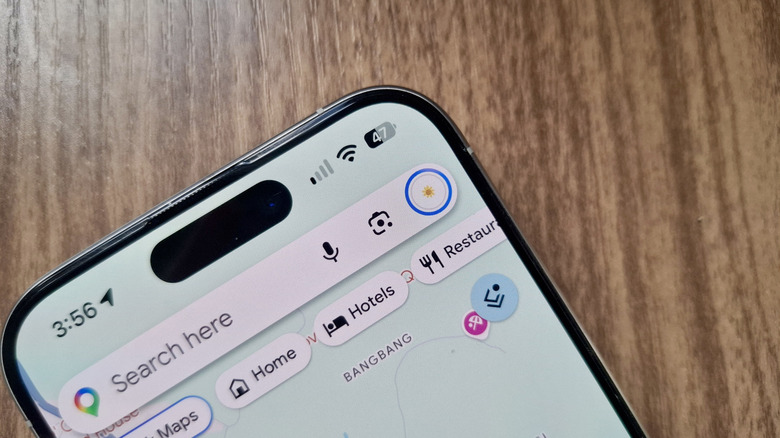
Whenever you open Google Maps on your phone, you see the camera icon in the search bar. This lets you access Lens in Maps, introduced back in 2023. What this Google Maps feature does is use augmented reality to tell you the names of the establishments around you. The information is overlaid exactly where that establishment is, so you have a good idea of where to go. It's a nifty way to familiarize yourself with your current location without having to ask other people.
Lens in Maps is quite easy to use. All you have to do is tap the camera icon in the Google Maps search bar and give the app permission to access your camera. From there, hit Start and point your rear camera at the buildings and signs around you. As you move your phone, the names of the buildings will show up on the screen. Just tap on one to view its details panel.
If you want to search for specific categories like restaurants, groceries, or attractions, select your category of choice from the options at the bottom. Maps will then filter the establishments to show you only the selected category of attractions in the area and how far you are from them. If you're interested in a particular place — say, a building with no obvious signage — you can point Lens in Maps at that location and press the shutter button in the middle. An information card with the building's name and details will pop up. If you don't have the Lens in Maps camera in your Google Maps app, it likely isn't available in your country, there's no Street View coverage in your location, or your device doesn't support it.