

Your Android Phone Comes With A Setting That Can Make Multitasking Easier
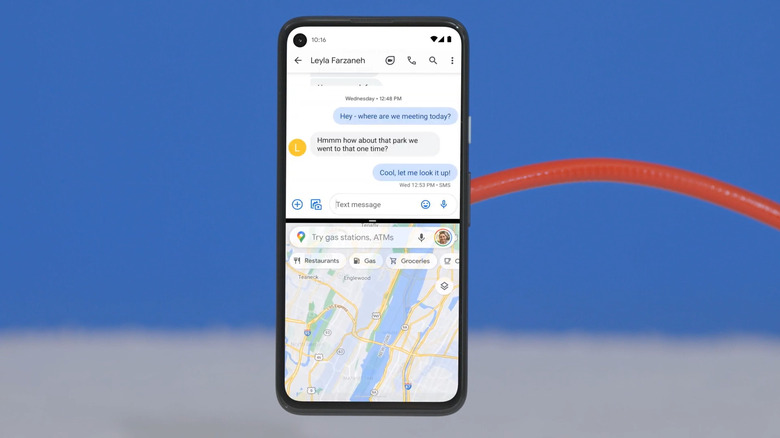
If there's one Android feature that puts iPhones to shame, it's multitasking. The iPhone has been releasing models since 2007, and yet not one of the regular non-foldable iPhones offers any specific multitasking features. On the other hand, Android devices have come with split-screen support since Android 7.0 was introduced in 2016. In those ten years, multitasking on an Android has only gotten so much better.
For one thing, you can now adjust how much space each app takes up on the split screen. You can set the ratio to 90:10, for instance, where one app eats up 90% of the screen, while the other app is mostly hidden away but still readily accessible. Then, you have the option to save split-screen apps as an app pair. This lets you quickly open both apps together again without needing to reconfigure them.
Besides these nifty features, there's also a hidden Android setting that lets you open a notification in a pop-up window. This window sits over other active apps, so you can quickly reply to messages while still keeping your original task viewable on the screen. The setting is usually already turned on by default, but here's how to check if it's enabled on your device.
How to activate pop-up windows for Android notifications
Each major Android phone brand has different ways of allowing users to open notifications in a pop-up window. If you're using a Samsung phone, follow these steps:
- Launch Settings.
- Go to Notifications.
- Tap on Advanced settings.
- Select Floating notifications.
- Switch from Bubbles to Smart pop-up view.
- Open Included apps.
- Toggle on the apps you want to open in a smart pop-up view. If you can't see an app on the list, that means it doesn't have multi-window support.
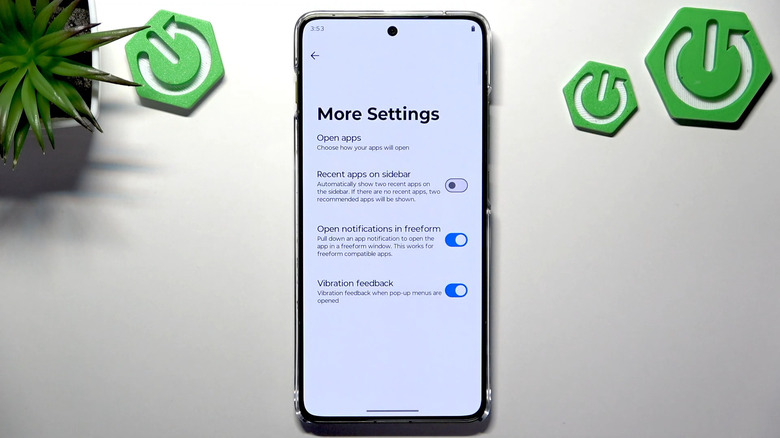
Meanwhile, on Motorola devices, here's what you need to do:
- In the Settings, go to Gestures.
- Select Sidebar.
- Go to the gear icon at the bottom.
- Open Settings again.
- Toggle on Open notifications in freeform.
For ASUS phones, you can find the multitasking feature in the Settings, too. Just head over to Advanced and choose Open floating windows via heads-ups and turn it on. Xiaomi devices also come with this feature, but it can't be turned off from the Settings. You can, however, view a tutorial of how to use the pop-up windows by navigating to Additional settings in the Settings app and choosing Floating windows.
How to open your Android notifications in a pop-up window
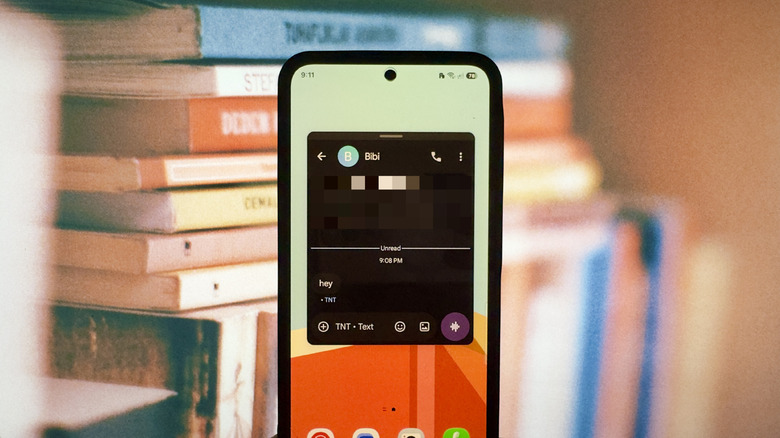
Once you have your Android phone set up, you can start opening your message notifications in a pop-up window. The exact process to do this again varies slightly depending on the phone manufacturer. On Motorola, ASUS, and Xiaomi, you pretty much just swipe down on the notification banner that appears on top of the screen.
On Samsung, whenever you receive a message from the apps you selected, the corresponding app will appear as a floating icon on your screen instead. Tap on it, and the message will open as a pop-up window that you can then move around and type your reply in. If you receive notifications from multiple selected apps at the same time, the app icons will stack on top of each other. You can tap on one to expand it and select the notification you want to open. But there's also an option to open all the notifications in a pop-up window at the same time by pressing the overlapping squares icon.
What you can do with the floating window from here depends on what your phone manufacturer allows. On Samsung, for example, you can minimize the window back to the floating icon, open the window in split-screen mode, expand the window to full screen, or close the window. Just tap the blue handle bar at the top to view these options. Closing the window is also as easy as just dragging it to the Close symbol at the bottom of the screen.