

5 Things Users Wish They Knew Before Buying A PlayStation 5
We may receive a commission on purchases made from links.
Getting started with Sony's PlayStation 5 is a simple affair. Once you've connected everything, signed in, and installed or downloaded games, you're good to start playing. However, that doesn't set up the console for long-term ownership, and it doesn't hurt to know what you can do to make your experience great from the get-go.
For instance, if you're a fan of blockbuster games, you'll quickly fill up your PS5's internal storage. Also, the game that comes installed with a brand new PS5 is a fun way to get to know your console. Furthermore, if you have a QLED TV with 4K/120Hz, did you know it can help get the best performance out of some PS5 games?
These are but a few things people who've had a PS5 for a few years wish they knew before getting in deep with the console. None of the things mentioned here are complicated or major tweaks. However, they can save you a lot of headaches down the line, and maybe even an expensive repair.
Get an extra SSD
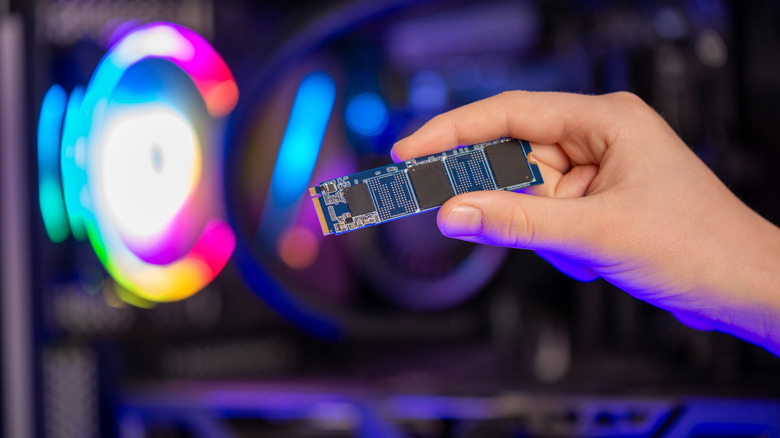
The advertised internal storage of the PlayStation 5 is 1TB, but after the system takes its share, you have about 842GB left for games and apps. This storage space can fill up quickly, especially if you intend to play blockbuster games. For example, "God of War: Ragnarok" is about 84GB, "Marvel's Wolverine" is about 80GB, and third-party games like "Assassin's Creed Shadows" and modern "Call of Duty" titles are over 100GB. On top of the games you want to play, you might want to have multiplayer games installed for friends and family. Luckily, the PS5 has an extra slot for an additional M.2 NVMe SSD.
With extra storage, it means you're not forced to delete games to accommodate others. It also means you don't have to wait for hours while you re-download a game. And if you have a limited data plan, you don't have to worry about blowing past your monthly allocation by re-downloading a game that's over 50GB.
You need an SSD that's PS5-compatible, since not every NVMe SSD works. You can get a 1TB SSD for less than $200. A good option is the Acer Predator GM7 1TB SSD, which costs $189.99. If that sounds particularly expensive, you can opt for an external HDD for less than $80. Keep in mind, you can only play PS4 games off external storage, not PS5 games.
Don't ignore the included game

When you buy a brand new PlayStation 5, it'll come with a game pre-installed called "Astro's Playroom." On the surface, you might think it's nothing but bloatware or shovelware that Sony includes with every PS5. However, there's a good time to be had with this short platformer that takes between three and five hours to beat. On Metacritic, it has a Metascore of 83 based on 69 reviews from professional critics, indicating a "Generally Favorable" reception. As for the user score, it holds an 8.9 based on over 2,800 user ratings. On the PlayStation Store, it holds a 4.4 out of 5 with over 169.5k ratings from PS5 players.
The consensus from critics and players is that it's a fun experience, even though it didn't need to be. The main point of "Astro's Playroom" is to introduce you to the various features of the DualSense controller. This includes adaptive triggers, haptic feedback, and gyroscope (motion sensing). Yes, it's essentially one big advertisement for the PS5, and it does get criticism for that.
But one thing "Astro's Playroom" did well was lay the groundwork for the 2024 critically acclaimed game "Astro Bot," which you should also play (it's not free, though). That game then went on to win Game of the Year at The Game Awards 2024. It beat games like "Final Fantasy VII Rebirth," "Black Myth: Wukong," and "Elden Ring: Shadow of the Erdtree."
Keep the PS5 horizontal
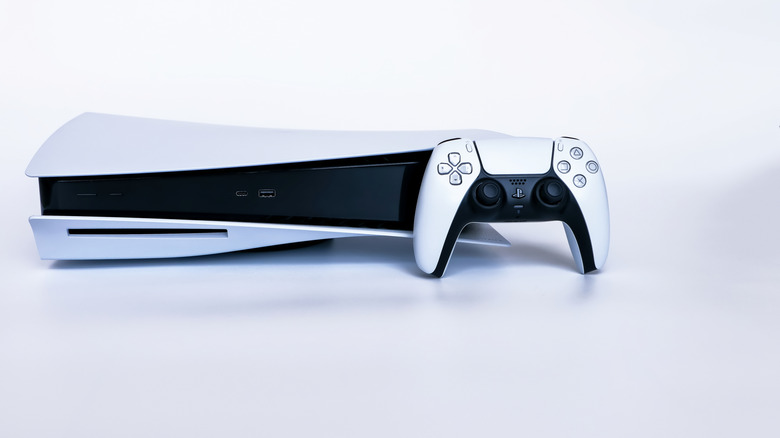
If you have the original "fat" PlayStation 5 stand, the stand can be set up vertically or horizontally. If you have a "slim," it comes with small feet for a horizontal layout. However, you can purchase the Vertical Stand for $29. However, there are a couple reasons why keeping it horizontal is a better idea.
Keeping it vertical can cause liquid metal to pool at the bottom due to gravity. Liquid metal is the material that transfers heat away from the PS5's Accelerated Processing Unit to the heat sink, which then dissipates the heat. Over time, the liquid metal can even start leaking through the heatsink. Once that starts to happen, your PS5 can overheat, since its heat dissipation is effected. Thankfully, leaking liquid metal can be fixed, but keeping it horizontal significantly reduces this risk and extra costs down the line. With "slim" PS5s, there are claims that Sony quietly fixed the issue, but they aren't definitive.
Keeping it horizontal is also just safer, because it reduces the risk that the PS5 will get knocked over. If it's near an edge, a hard fall can damage internal components. Furthermore, if your PS5 has a disc drive, it's much more intuitive to insert discs when it's horizontal. No need to remind yourself which side the disc needs to face or awkwardly twist your wrist to align the disc with the slot.
Get a longer charging cable
With an Xbox Wireless Controller, you can use it for up to 40 hours. Of course, this depends on the type of batteries used. If you upgrade your Xbox Series X setup with a rechargeable battery pack, it can last up to 30 hours on a single charge. However, the PlayStation 5's DualSense controller can only last about six to 12 hours.
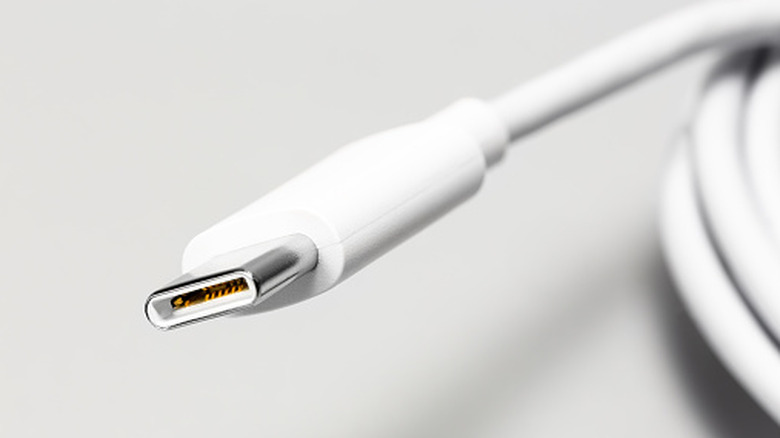
It's easy to plug the controller into the PS5 and continue playing while it charges, but the cable is a bit short (about 5 feet long). So if you want to be able to kick back and relax on the couch while it charges, you need something longer. You can find cables that span 10 feet or more on Amazon, giving you a comfortable distance.
A good long cable is the Anker 240W 10ft USB-C cable, and you can get a two-pack for $22.99. Keep in mind that this is a 240W cable, so if you're going to plug the PS5 controller into a wall charger with high wattage, ensure that it supports the USB Power Delivery (USB-PD) fast-charging protocol. Since the DualSense is not a PD device, the charger can still adjust to the charging requirements of the controller without sending it a high amount of watts. But to be on the safe side, plug it directly into the PS5's USB port.
Use the HDMI cable it comes with
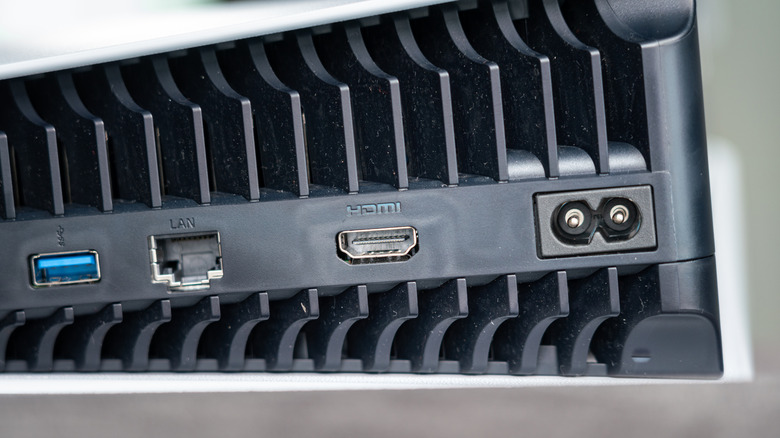
You probably have HDMI cables that you use to connect various video and audio devices to your smart TV. These include streaming boxes, laptops, and Blu-ray players. But if you're planning on using standard HDMI cables with your PlayStation 5, you might be doing yourself a disservice if you have a TV with a refresh rate of 120Hz and HDMI 2.1 support. These TVs can support 4K output at 120FPS, which is what the PS5 is also capable of.
Not every game supports 120FPS on PS5. But for those that do, you'll get a much smoother visual experience than 60FPS or lower. Notable examples from Sony's first-party lineup include "God of War: Ragnarok," "Marvel's Spider-Man 2," and "Horizon Forbidden West." Even if your TV doesn't support HDMI 2.1, having the cable around is a good way to future-proof your gaming experience for when you eventually get one that does. If your TV meets the requirements, you can enable the 120Hz frame rate on PS5 by doing the following.
-
Go to Settings.
-
Select Screen and Video.
-
Select Video Output.
-
Under Resolution and frequency, set 120 Hz Output to Automatic.
-
Go into the game's settings and look for an option to turn on high frame rate or 120 FPS mode.