

How To Use Your Xbox Series X Controller On A Steam Deck
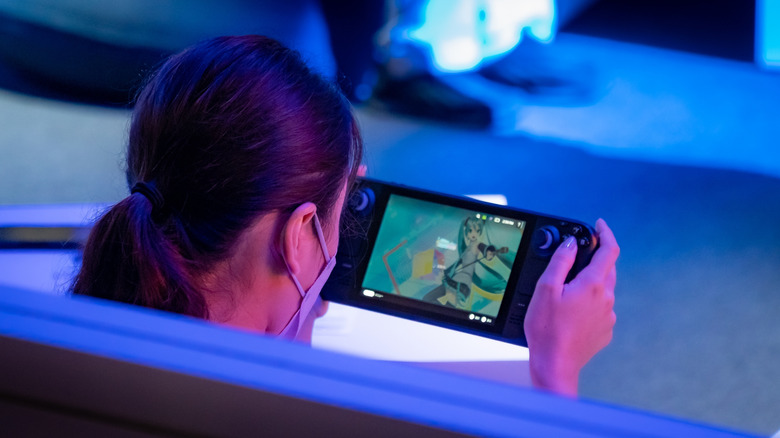
One of the Steam Deck's biggest selling points is that you can play it anywhere. However, at nearly two inches thick and around 640 grams in weight, you may notice your hands cramping or feeling sore after longer gaming sessions. Thankfully, the Steam Deck supports a wide range of modern controllers, including the PS5's DualSense, Joy-Cons, and Xbox Series X controllers. This lets users choose the most ergonomic controller for them and keep playing with the Steam Deck docked, as though it were a Nintendo Switch.
Better still, the whole process takes only a few moments. There are two ways to connect an Xbox Series X controller to a Steam Deck. If you don't mind trailing cables, you can link the two with a USB-C to USB-C cable. On the other hand, Bluetooth lets you move around freely and keep your space clutter-free. Here's how to wirelessly link an Xbox controller to a Steam Deck:
-
Press the Steam button on your Steam Deck.
-
Open the Settings menu and make sure Bluetooth is enabled.
-
Press the Xbox button on your controller to wake it up.
-
Hold the pairing button on the top of the controller until the Xbox button flashes.
-
Your controller should now be visible in the Steam Deck's Bluetooth menu. Select it, and you should be connected within a few seconds.
Customizing your gaming experience on Steam Deck
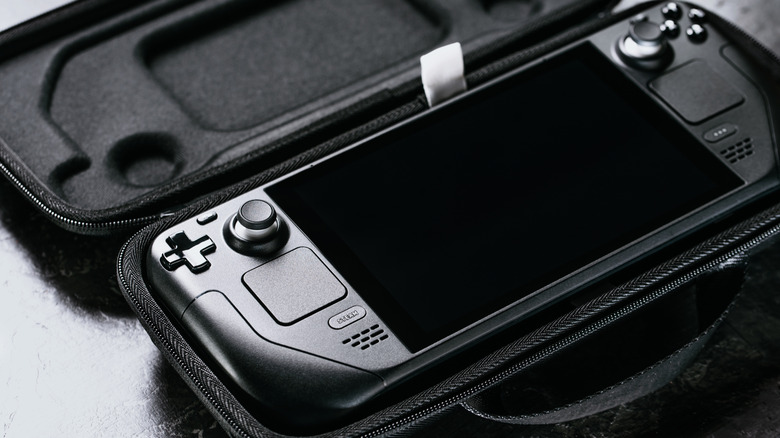
The Steam Deck is actually extremely customizable. If you don't like the default control scheme, you can try community-created layouts, just like you would on a typical PC. Alternatively, you can use the built-in remapping functionality to set exactly what each button does. To access this, simply open a game, press the Steam button, and select Controller Settings. These settings are game-specific and won't transfer to other titles.
If you'd like to ensure your control scheme works no matter which game you're playing, you'll have to create a new template. Remap controls as before, but this time select Export Layout and choose New Template from the dropdown menu. Finally, name the template and save it. From now on, it should appear under User Created Templates and be accessible anytime.
There's no need to stop at a controller, either. Steam Deck owners can connect all kinds of peripherals, so why not level things up by connecting a good Bluetooth speaker or a pair of wireless headphones? This is also a great time to familiarize yourself with the Steam Deck's lesser-known features, like quickly turning the trackpad into a mouse or adjusting the brightness. With just a little digging around in the menus, you can extend the device's functionality far beyond what you first thought possible.