

4 Devices Your Steam Deck Can Connect To
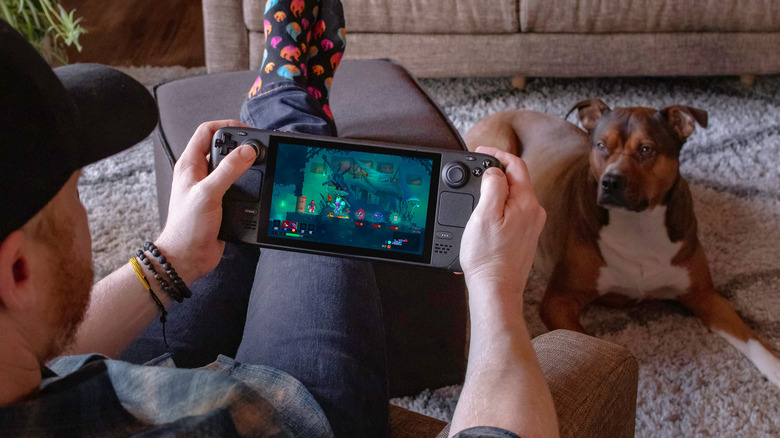
The mighty Steam Deck, despite getting up there in years and alternative PC handhelds overtaking it in performance, still sits atop the pile. That's even with it featuring a highly customized version of Linux, which you might never really interact with. What makes the Steam Deck so resilient as the years go on is its flexibility. From the various control methods, like gyro and touch pad, or just the general fact that it's using Linux, modders and developers have been able to go wild providing tools and options.
A big part of that flexibility is that connecting the Steam Deck to other devices isn't a headache. Headphones, smart glasses, and more are all usable on Valve's handheld. Some have even gotten some much-needed community support to make them even easier to set up.
Speaking of flexibility, if you own an Asus ROG Ally or another PC gaming handheld, all of what's being recommended below should work too, even if you stick with Windows. Having Linux, like SteamOS, CachyOS Handheld, or Bazzite, would make things easier. However, no one's going to yuck your yum if there are key games that you're still playing on Microsoft's OS.
1. Your gaming PC
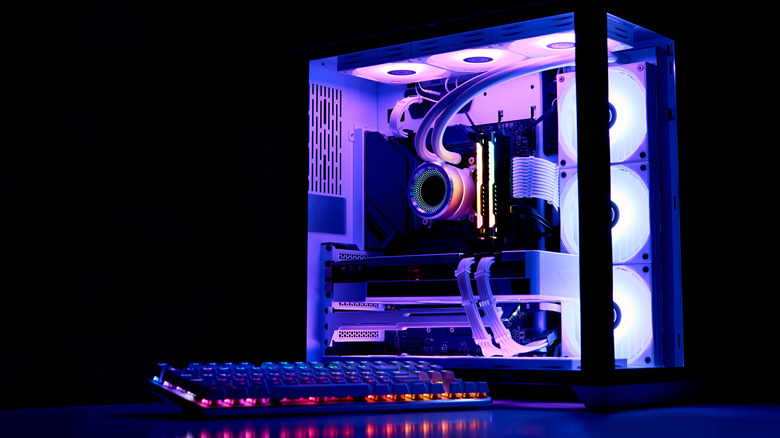
Remote play on a Steam Deck is one of the best ways to use the handheld. Not only are you getting the top-end performance of your gaming PC, but it's being beamed to somewhere you'll be more comfortable. There are multiple options too, with the built-in Steam Remote Play functionality baked directly into the device. If you're willing to get your tech-hands dirty, Sunshine and Moonlight (or any of its derivatives) might be the way to go.
With a plethora of games now very much unplayable on the Steam Deck's aging hardware, sometimes it's best to let your beefier machine handle things and stream over your network. The Steam Deck will effectively become a giant controller with a screen, similar to the PlayStation Portal. That means you get access to the full Deck control methods, including the back buttons and gyroscope.
If you own a Steam Deck OLED, you won't be able to take advantage of the better depth of colors available on the panel. High Dynamic Range (HDR), which enables those rich blacks and contrasts to really stand out on the screen, has been part of the Steam client for about two years, but isn't yet enabled over Remote Play to Linux. That said, again, if you get your hands dirty a little, Sunshine might be able to pull it off.
2. An excellent set of headphones

While audio is probably not a focus while on the move, once comfy after spending a Steam gift card or cash on games, it's imperative to the overall experience. Can you imagine "Resident Evil" (2002) without hearing the horrors of Spencer Mansion, or "Disco Elysium"s updated voice acting not tickling the brain stem? The Steam Deck is primed for connecting a decent set of headphones, however, in whichever way you want.
The USB-C port on a Steam Deck isn't just for hooking up a USB hub for additional ports. Some headphones now support being connected over USB-C, giving you premium audio and a nifty way to charge your headset while you play. Of course, Bluetooth and the 3.5mm jack are there for more traditional methods as well, meaning you won't be stuck on those tinny Steam Deck speakers.
If you own a pair of AirPods, an additional bit of software to consider is Decky Loader. This will allow you to install and activate a bunch of plugins, including one that will help manage Apple's earphones. MagicPods slots right into Decky Loader, giving the Steam Deck actual control over noise cancellation, the microphone, and the ability to track the battery too.
3. Use your phone to control Steam Deck Desktop mode with KDE Connect
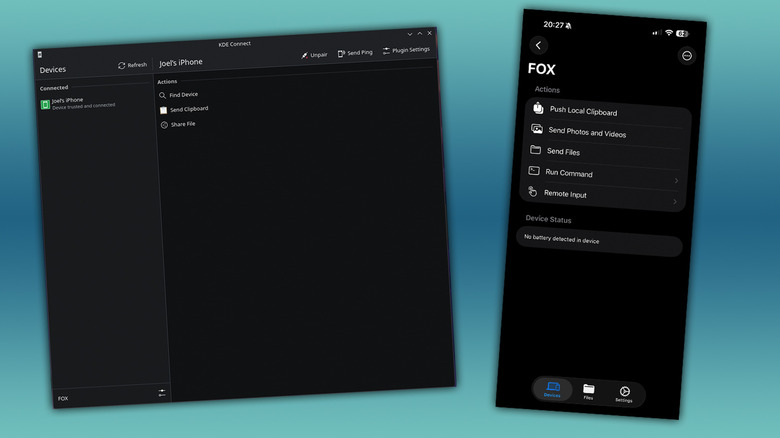
Ever needed a keyboard or remote control in a pinch? The Steam Deck has an incredibly powerful desktop mode that features the KDE desktop environment, which can helpfully be used like any other Linux desktop. With that in mind, you can download and use KDE Connect, an app that can either be installed on another PC or, handily, your phone.
KDE Connect is a free app that can be installed on the Steam Deck, and much like the rest of the KDE software suite, is quite easy to use and deceptively powerful. During complex setups that require the use of the terminal or even just navigating the web, it can be a bit of a hassle with the Deck's onscreen keyboard. With KDE Connect, you can use your phone's keyboard or use it as a wireless mouse. All of this is done over the network, making it a super-easy setup. All that needs to happen is some permissions given when prompted, and away you go.
KDE Connect also has the option to transfer files between devices. Better yet, if you have a Bash script or other command that you run regularly or want to initiate a shutdown remotely, the app can handle all of that for you. The only thing to keep in mind, especially on iOS, is to keep the app open when using it, or KDE Connect will instantly drop it.
4. Smart glasses
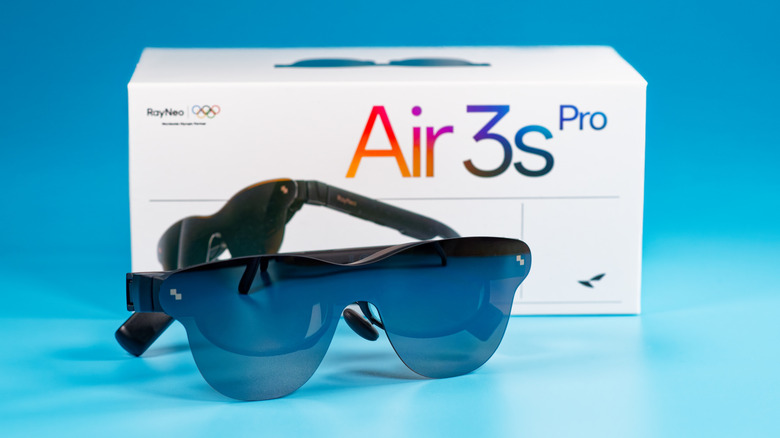
Smart glasses, or augmented reality (AR) or mixed reality (XR) glasses, depending on which brand you speak to, are a killer device to hook the Steam Deck to. There are several companies now making these, including XReal, RayNeo, and Viture, and they differ slightly from say, Meta's Ray-Ban glasses with the camera embedded. These are designed for projecting a huge virtual screen in front of you, with around 100 inches usually being touted. On Steam Deck, there's even a Decky plugin that will help manage these for you.
Using USB-C, XR glasses act like a second monitor to your Steam Deck. Depending on the brand, this could also come with light motion tracking that will let you "anchor" the virtual screen to a position or have it float in front of you. It's suggested that you grab a specific dongle for these, which sports two USB-C ports to still let you use a charger so that you don't get caught with an empty battery. Another nifty feature is that the glasses contain speakers, and will drive your audio through the glasses' arms.
XR glasses aren't for everyone straight out of the box. Some users might find that their particular kind of sight will require them to get their prescription cut into smaller lenses that sit in front of the embedded screens. Once that's been sorted, viewing your games blown up to 100 inches and floating in the pitch black of night proves this is sone of the best bits of tech to release in the last few years.