

You Should Try Windows 11 Nearby Sharing To Save From The Headache Of USB Drives
The world would probably be a better place if sharing files between nearby PCs were as easy as dragging and dropping items onto each other's screens. Alas, we aren't there yet, so until then, you typically have to rely on thumb drives.
Unfortunately, USB sticks aren't the most convenient way to move files from one Windows computer to another. For one, you may not always have one with you. And if you do, it might not be the right size. Then, you'd have to wait twice as long — one round of waiting as you move the file from your PC to the flash drive and again as your receiver transfers the file from the drive to their PC.
Instead of going through all that headache, Windows 11 lets you do the file transfer wirelessly via its built-in feature called Nearby Sharing. This shouldn't be confused with Quick Share, which was originally a Samsung Galaxy feature for moving files quickly. While Quick Share is designed for use between a Windows computer and Android phone (or two Android devices), Nearby Sharing works between PCs only. It does the transfer over Wi-Fi or Bluetooth, as long as the devices are within ten feet of each other. We'll walk you through how to set up and use Nearby Sharing on your Windows 11 computer.
How to set up Nearby Sharing on Windows 11
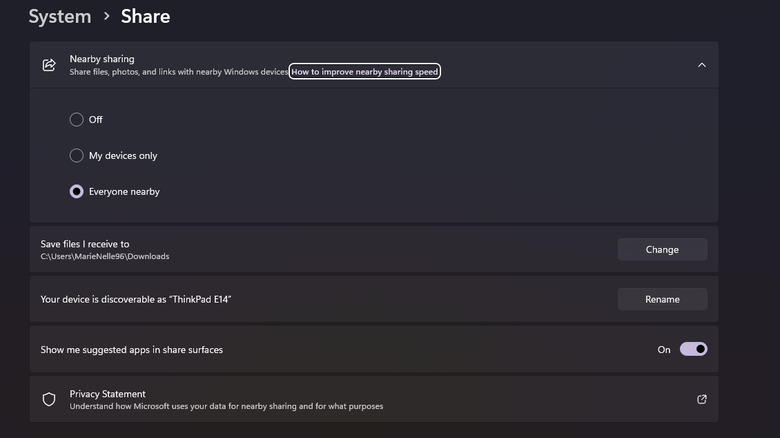
Before you can use Nearby Sharing on your Windows computer, you first need to turn it on and set it up under-the-radar Windows feature. Here's how:
- Open the Settings.
- Click on System on the left side panel.
- Choose Share.
- Expand Nearby sharing.
- Change the option from Off to "Everyone nearby" if you want to send and receive files from anyone, or use "My devices only" if you prefer communicating with just the PCs where you're logged into.
- To set a folder for the files you receive via Nearby Sharing, hit Change and select your folder.
- To change what your PC appears as to other PCs, press on Rename and type your name of choice. Then, click Save.
From here, repeat the same steps to enable and set up Nearby Sharing on the other PCs. Keep in mind that activating Nearby Sharing will automatically turn on Bluetooth and Wi-Fi on the computer if they aren't already on.
How to share files with Nearby Sharing
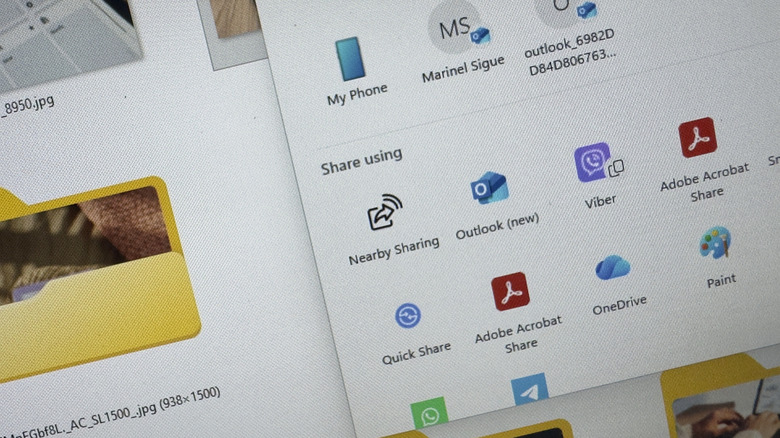
Now that you have Nearby Sharing up and running on the relevant Windows 11 computers, you can start wirelessly sharing files without relying on USB drives. To share a file, document, or photo saved to your local drive, follow these steps:
- Find the file in the File Explorer.
- Right-click on the file.
- Select Share with.
- Go to More options.
- Under the "Share using" section, choose Nearby Sharing.
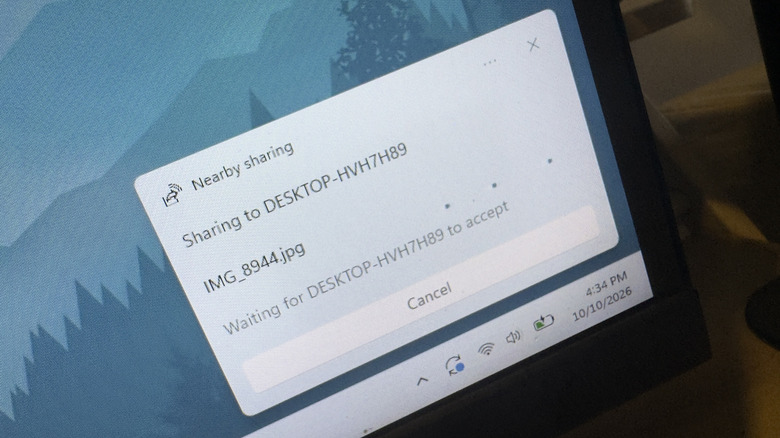
- Wait for the other PC to appear in the discovered devices.
- Choose the PC. If you're not sure which one it is, ask your receiver what the name of their computer is.
Once done, your receiver will see a notification pop up on the screen with options to Save & open, Save, or Decline. They should be able accept the file within a couple of seconds. Otherwise, the transfer will automatically be cancelled.
Other than local files, Nearby Sharing on Windows 11 supports website links too. You can, however, only share links through Microsoft Edge. Simply open the webpage on Edge and click the three dots in the top-right corner. Then, go to More tools, choose Share, and click on Nearby Sharing. When the other PC shows up, select it. Your receiver will see a popup, where they can hit Open to be redirected to the website or Decline to cancel.
In terms of connection, you and your receiver don't necessarily need to be connected to the same Wi-Fi network to use Nearby Sharing. You can still transfer files just over Bluetooth. But if you want to see faster transfer speeds, it's recommended to connect both devices to the same Wi-Fi network.