

How To Build A Cheap Home Server To Save Money On Subscriptions
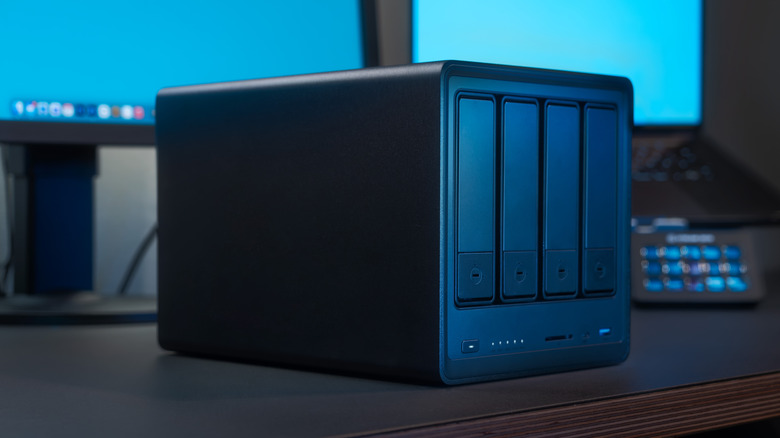
Creating your own home server in 2026 is more of an investment than anything. The upfront costs will be offset by the lack of need to subscribe to streamers for movies, TV, and music. Self-hosting can scale to your needs as well, so you don't need to hunt down an old office machine, but can opt for something as small as a Raspberry Pi, or one of the more powerful alternatives. In fact, if you're just getting started, it might be worth just digging out an old Mac Mini or PC, and using that as the base for your cheap server.
Of course, it wouldn't be a tech article in 2026 without mentioning that prices are whack right now. AI data centers and other worldwide events have impacted pricing on just about everything that you'd want to pick up for this kind of project. Even the humble Raspberry Pi now commands hundreds of dollars, all because RAM is really hard to get hold of these days. If you have an old PC lying around, or found a screaming deal, and want to jump in, you've got a few options, but the best is to run a Linux distribution for maximum compatibility and flexibility, and it's free.
We'll also talk about Docker, which is software that hosts other software (images) in "containers", keeping them separate from the main PC. If they go down or encounter an issue, it will only impact the container and other connected containers.
First time server? Go with a Debian distro
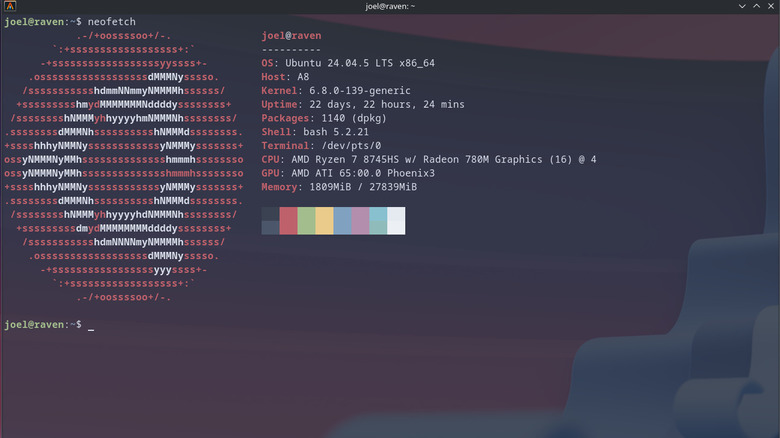
Setting up your server for the first time is easy, and just like installing a regular operating system. Ubuntu Server is what we're running, but you can go with Debian – or Pi OS Lite for Raspberry Pi – for a minimal OS footprint. Server OSes tend not to come with a graphical user interface (GUI). Technically, you could bolt this on, but a majority of what you'll do will be within file explorer applications on another PC, or the web browser for Docker applications. When you boot up after installing for the first time, you'll be met with a black terminal interface. Ignore all this unless you're still setting up different users.
On another PC, you can connect via Secure Shell (SSH) in your preferred terminal on Linux and macOS or via Command Prompt, Windows Terminal, or PowerShell on Windows. To do this, open the terminal and type "ssh @." If you share a username with the device, you don't need to add the username at the beginning. It'll ask for the password, and you can log in. Before continuing, it's best to update the whole server. Each distro uses a different package manager, so you'll need to find that first.
Typically on Ubuntu and Debian, this is "sudo apt update" to grab new packages, and "sudo apt upgrade" to fully upgrade everything. You'll be using "sudo" a bit here. It means "superuser do." From here, the sky is the limit. Some recommendations to look into are the free media streamer Jellyfin, the comic reader and host Komga, or even setting up a WireGuard VPN for remote access to your home network. Some of these will run on "bare metal," straight on the PC, while others leverage Docker.
Docker unlocks so much on a server
You'll be required to install Docker first, and it's best to get familiar with the documentation now. On Debian or Ubuntu, you'll need to update the package list to acquire Docker first, but once done, it's quick to get some of these applications going. One element you'll encounter when installing Docker apps is the "Docker Compose" file. Not every app requires one, but if you want more manual control over your stuff in a clear fashion, be sure to set up a folder on the server to store them in.
These Compose files can be activated by heading to the directory they're stored in (using cd ) and using "sudo docker-compose up -d" to activate the installation. Compose files are YAML files, so they will need to be saved as .yml. On Windows, in Notepad, when saving, you'll need to use the drop-down menu in the save menu to choose "All Files," then name it "docker-compose.yml." Docker doesn't use the standard directories, but has its own separate space that mirrors the storage you've pointed it at. In Compose files, this will often look like:
volumes:
    - type: bind
    source: /path/to/your/directory
    target: /a/folder/in/Docker
This can trip some people up, but essentially, you'll grab the directory you want the Docker app to use, and then it'll convert that into a particular folder. Some Docker programs will provide a basic Compose file for you to futz with and set up to match your system. Otherwise, you might find that the program takes over and will make you a full directory of folders called "/path/to/your/directory." From there, it's just about filling whatever storage you've attached to your cheap server.