

Siri Shortcuts Can Do More Than Set Timers, Here's 5 Automations Worth Trying
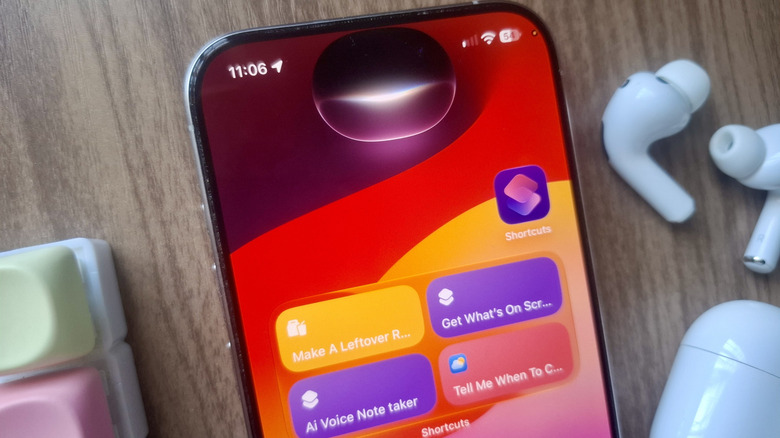
The iPhone Shortcuts app is powerful on its own, but what makes it even more versatile is the many different ways you can run your shortcut of choice. For one, you can assign it to the Action Button, ideal for those who like the tactile feel and ability to start the shortcut even when the iPhone is locked. You can also add the shortcut as a Home Screen icon, an option in the Share Sheet, or a tile in your Control Center.
But beyond these hands-on approaches, there's a more effortless and convenient way to activate a shortcut: by asking Siri. Siri Shortcuts are one of the iOS features you need to start using, especially when your hands are full or you don't want to bother tapping away on your screen.
All you have to do is call Siri, say the name of the shortcut, and sit back as Siri takes care of the rest. If you're looking for ideas on how to use Siri Shortcuts aside from the usual setting of a timer, here are five shortcuts worth exploring.
Get a specific date and time on when to mow the lawn
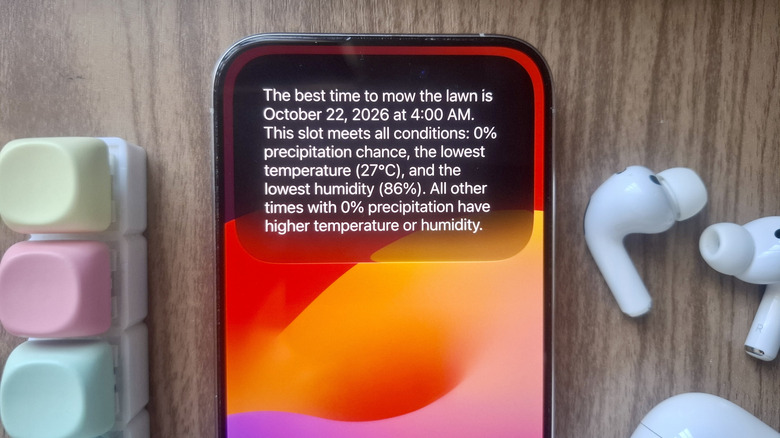
Yard work is literally hard work, and scheduling when to do it is equally exhausting during the rainy season. Thankfully, you won't have to manually check the weather forecast just to figure out the best time to mow. You can let a Siri Shortcut do it for you. This shortcut is called When Should I Mow?, created by YouTuber Stephen Robles.
It's a pretty straightforward shortcut with only three actions. What it does is get the hourly forecast at your current location, use AI to find the best day and time with 0% chance of rain and the lowest possible temperature and humidity, and finally, show the AI output to you. To start the shortcut with Siri, say, "Siri, when should I mow?" It'll proceed with running the shortcut and telling you the exact date and time, along with the temperature and humidity levels during that time. If Siri AI has trouble triggering the shortcut, you can rename it to a request like, "Tell Me When to Mow," or "Find The Best Time To Mow."
If you don't have a lawn to mow, you can use this shortcut for other personal tasks you prefer to do when it's less likely to rain. That can include running errands, hosting a picnic in the park, or going on a short road trip in the city.
Record conversations and have ChatGPT summarize it
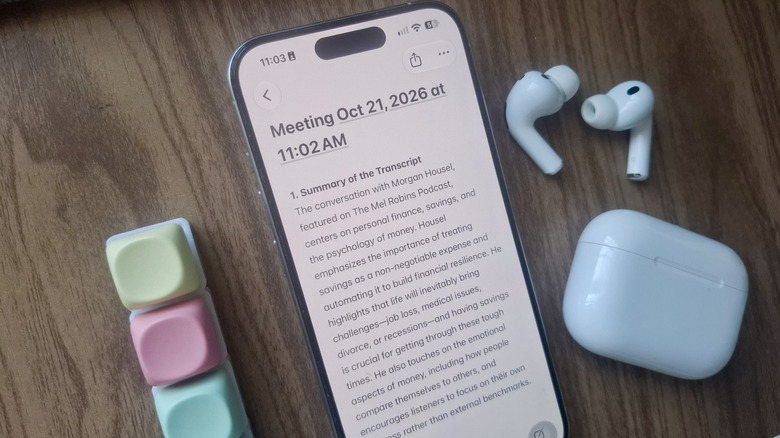
The iPhone Voice Memos app comes with underrated features that makes it easier to record and play back audio. Unfortunately, it still isn't smart enough to summarize the recording and pull key points and action items from it. But the good news is, Siri Shortcuts can do what Voice Memos can't, and one particularly handy shortcut you can use for this very purpose is the AI Voice Note Taker.
Built by YouTuber Anthony Olivieri, the AI Voice Note Taker is designed to record audio, save it to a folder in your Files app, and transcribe the recording. It then feeds this transcript to ChatGPT, which, in turn, generates three sections: a summary, key points and chapters with timestamps, and a list of action items. ChatGPT's response is automatically saved as a note in your Notes app, with the recording attached for reference, so you can review it later.
Unlike most Siri Shortcuts, the AI Voice Note Taker needs to be set up before you can use it. First things first, enable ChatGPT in the Settings if you haven't already. To do so, open Siri in Settings and select ChatGPT. Then, toggle on Use Extension. You have to make sure your iPhone isn't set to auto-lock too, as the recording will stop once your iPhone locks. Go to Display & Brightness and change Auto-Lock to Never. When you first run the shortcut, you'll also be prompted to grant it the necessary permissions, which includes accessing your microphone, saving the media item to a file, sharing it to ChatGPT, and working with the Notes app.
Remember what's on your screen
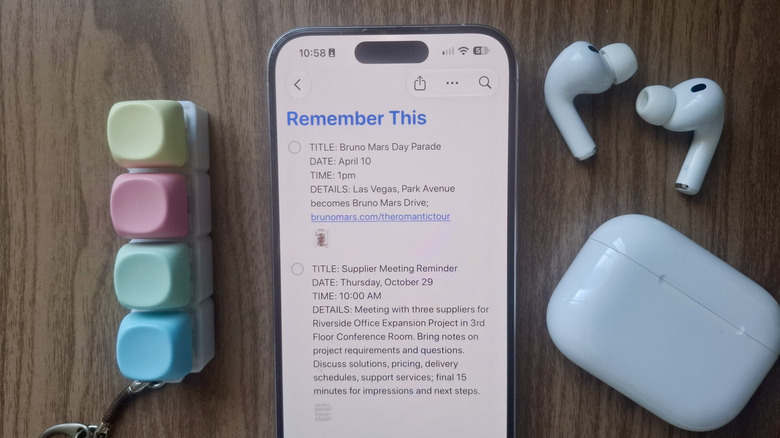
The iPhone Reminders app is there to help you remember anything and everything. But sometimes, creating the reminder itself can be a hassle. We know the struggle, and there's a Siri Shortcut especially for this task. Aptly called Remember This, this shortcut takes a screenshot of your screen and extracts useful information. It can note appointments, concert dates, a client's phone number, things to buy, and other relevant details. Once it's done analyzing the screenshot, the shortcut then turns the data into a reminder in your Reminders app. The screenshot itself is also attached to the created reminder, so if you need clarification on what the reminder was about, you can easily reference the original photo.
To keep your Reminders app organized, the Shortcut is designed to add its AI-generated reminders to a separate list called Remember This (which you need to create in the Reminders app first). Activating this shortcut is as easy as calling Siri. Simply say, "Siri, remember this." Siri AI will then run the shortcut and reply with something along the lines of "Done," or "OK." By default, the shortcut saves the reminders with no alerts, meaning you won't be reminded about them in the future. If you do want to be notified about the generated reminder on a certain date and time, you can edit the shortcut. Follow these steps:
- In the Shortcuts app, tap Remember This.
- Select Edit.
- Scroll to the very bottom of the actions list.
- In the Reminders action, change No Alert to Ask Each Time. Then, when you prompt Siri to remember something onscreen, it'll ask you whether you want to be alerted or not and what date and time you want to be alerted.
Create recipes using your leftovers
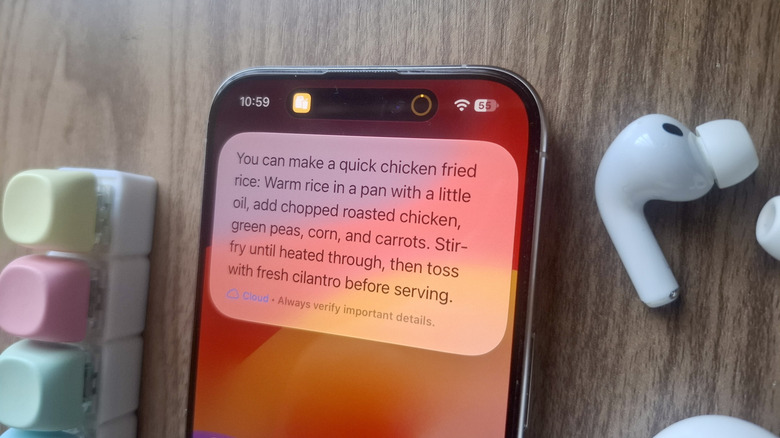
One of the best iOS Shortcuts you should try is actually pre-built in your Shortcuts app already. It's the Leftover Recipes Shortcut, which comes in handy when you don't want to waste your leftovers in the fridge but also don't know what meal to make with them. This shortcut asks you what leftovers you have, then suggests a recipe that uses most, if not all, the ingredients provided. If the ingredients don't really work as a meal, the shortcut also suggests you have one or two as a side instead. To add Leftover Recipes to your shortcuts library, here's what you need to do:
- Launch the Shortcuts app.
- If you're in the All Shortcuts page, tap the back arrow.
- Open Gallery.
- Next to Apple Intelligence, tap See All.
- Press the plus icon for Leftover Recipes.
You can then run Leftover Recipes by saying, "Siri, leftover recipes." If you already closed Siri AI and need to remember what the recipe was again, you can always check the Siri app. Your conversations with Siri are added there.
Draft email responses
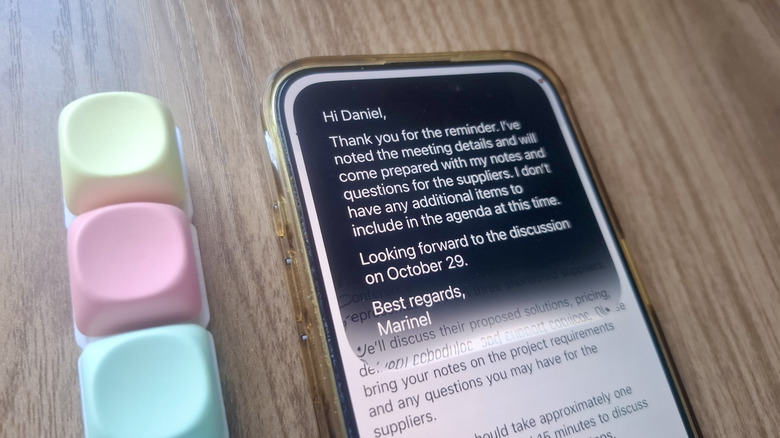
When you try to draft a reply to an email and end up rewriting it over and over, you usually resort to seeking help from AI. It is, after all, more than capable of creating the perfect response. The problem is, the process of asking AI's help requires added effort, since you'd hop from one app to another and then back. That's where the Draft Reply Siri Shortcut comes to your rescue. It can read the email onscreen, generate a reply for you, and copy that reply to your clipboard, ready for pasting. The best part is, it only takes one voice command.
This Siri Shortcut is actually a tweaked version of the Email Reply Shortcut built by YouTuber The Tech Girl. Hers starts the shortcut via the Share Sheet, but this version is modified so it can also be run using Siri. Once activated, the Draft Reply Shortcut extracts the text onscreen and uses ChatGPT to write a reply. The reply is automatically copied to your clipboard, and all you have to do is paste it. You can also edit it right in the email as needed.
It's important to note, though, that there are some limitations to this shortcut. Since it only reads what's currently onscreen, it works best with short emails that don't require scrolling. If you want to use it with a particularly long email, make sure you get most of the message onscreen before running the shortcut.