

How Long Did It Take To Download 100 MB On A 56K Modem?
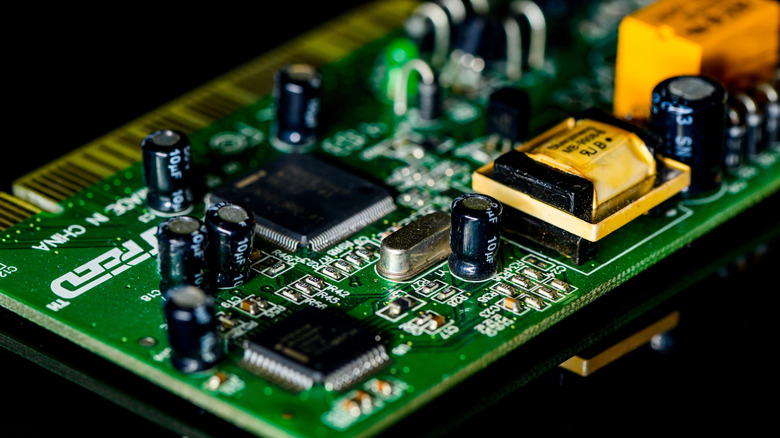
If, like me, anyone grew up in the '90s and early '00s trying to download a playlist, or heaven forbid, a "Dragon Ball Z" episode from Japan because I was sick of seeing Frieza Saga reruns on Toonami (the struggle was real), you'll know what a slow internet connection really is. While the sound of my modem card dialing up and connecting to the World Wide Web fills me with warmth and nostalgia, watching images load line-by-line and hoping the download of "Unreal Tournament" didn't crash during the night isn't something I'd like to go through again.
What is the download speed of a 56k modem? The clue's in the name, limited to transmitting 56 kilobits per second, or just 7 kilobytes per second, since there are eight bits in every byte, the unit we measure files with today. Considering downloading a 100MB file back then? We would have to wait four hours to finish downloading providing that the connection was actually performing at 56 kilobits per second. Spoiler alert: It didn't.
I wish it only took a few minutes to download 100MB, as most 56K modem cards only managed around 6.6 kilobytes per second in practice. Plus, if someone picked up the home phone to make a call or the connection was interrupted for any reason, download progress would often reset back to 0%.
Download speeds today compared to 56K modem cards
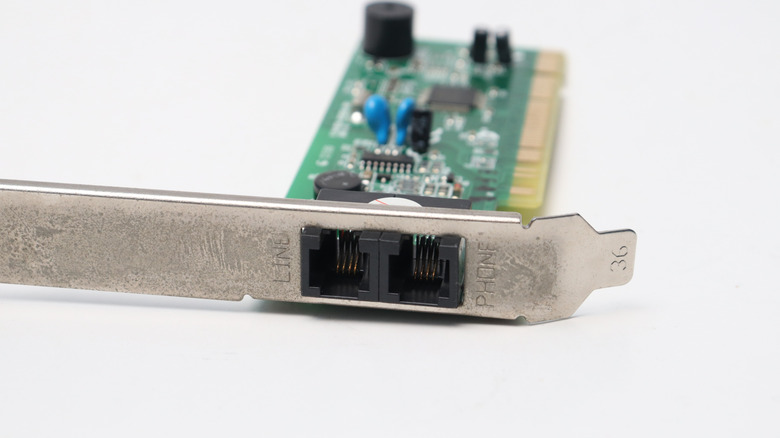
It's a first-world problem when a 4K video takes a few seconds to buffer, which is valid with up to 1 gigabit per second fiber internet connections being offered today. But if we want to guarantee those high speeds, we need to understand how the hardware has changed over 30 years, and the actual difference between a modem and a router.
The average home internet connection in the United States today is about 195Mbps (Megabits per second). Hence, on a 200Mbps connection, that same 100MB file that took roughly four hours on dial-up 56K speeds, can now download in just four seconds.
Comparing a practical file size in today's world really puts into perspective how far we've come with internet speeds. For example, a 150GB file today takes about one hour and fourty minutes to download on a 200MB connection, which is around the file size for a "Call of Duty" install and plenty of other AAA game downloads. It would only be possible for 56K dial-up connections to download just 28MB in the same timeframe, with a 100GB file taking a ridiculous nearly 4,000 hours. That's over five months, and that's without considering realistic 56K speeds in the '90s. If you miss those days, though, one of the cool and creative ways to use a Raspberry Pi is setting up your own dial-up ISP.
Pushing dial-up to its limit
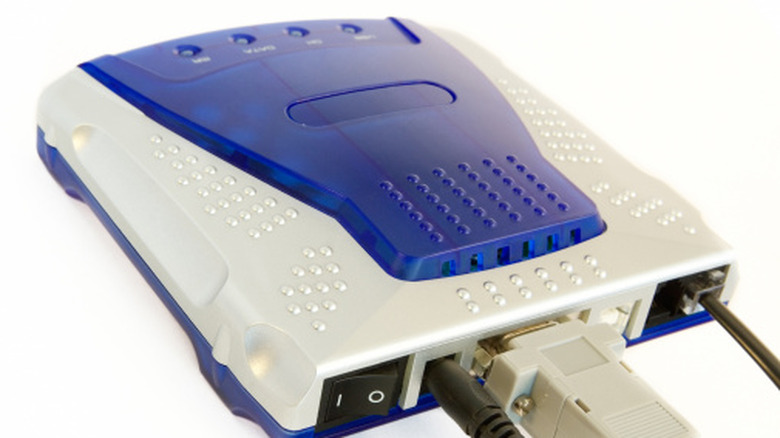
56K modems being agonizingly slow is no secret, but there was a special way to increase bandwidth during the dial-up era. This method, known as Multilink PPP (Point-to-Point Protocol), allowed users to combine multiple phone lines and dial-up modems at the same time to increase total bandwidth.
It wasn't common practice for home users thanks to the cost of running multiple home phone lines at the time, and the need for an ISP that supported it, but there's a team of modern tinkerers that pushed this method to its absolute limit. The team behind the YouTube channel The Serial Port connected 12 separate 56k modems together, resulting in a huge combined speed of 668kbps by dial-up era standards. That's just enough bandwidth to stream a highly compressed YouTube video.
Obviously, Multilink PPP isn't practical by any standards back then or now, as users only need a single landline, cable, or fiber connection to get online. However, experiments like this really help us appreciate what we have today, especially for those of us who lived through the dawn of the internet. If speeds are slowing down today, it's either a case of restarting a router and modem, or making sure there are no bad actors connected to a user's home network when they shouldn't be. This is easily solved by making sure guest network security features are in check, pointing those high speeds to one's own devices. In fact, before you buy a new router, check for this security feature first.