

5 Disadvantages Of Using Your Laptop Webcam

Using your laptop's built-in webcam may seem like a good idea at first because you don't have to buy another gadget, but it has disadvantages. The built-in webcam can produce blurry images, make framing difficult and even put your privacy at risk. In a work meeting or another presentation, it can also be hard to make it look good.
Although the built-in camera saves you from buying another accessory, it still has limitations. Part of this comes from its position: it's attached to your screen, and you don't have much room to adjust it. Depending on the model you buy, you may also have little control over tools for correcting colors, exposure, and focus. Not all laptop cameras are bad, but their quality can vary widely.
How much these limitations affect your webcam experience also depends on how you use it and how well you maintain your computer, since outdated software can create additional limitations. If your goal is to chat with friends, that is less demanding than a professional recording. For that reason, we gathered some disadvantages to consider if you plan to use a built-in webcam.
The laptop's webcam may capture less detail
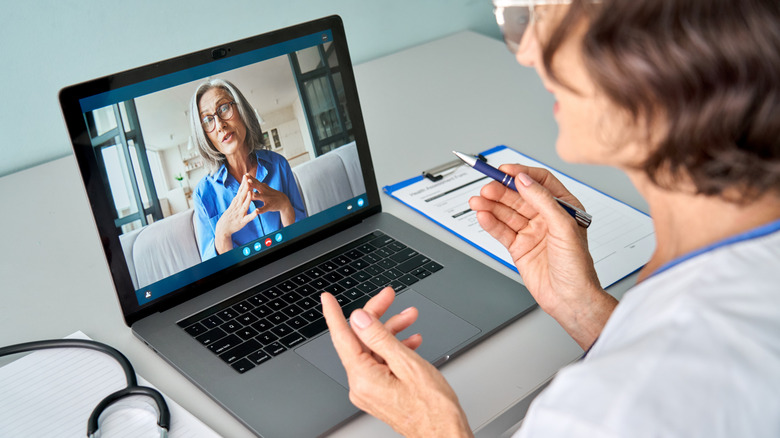
One of the main problems with a laptop's built-in webcam is its quality. To reduce costs, companies often choose a lower-quality option. Some laptops still use a webcam at 720p, especially entry-level options, which is pretty low nowadays, since we have 1080p or even 4K. In practice, this makes it harder to see details or even read something during a video call.
Lens, sensor, and image-processing quality can also affect what the camera can capture. DXOMARK tests show that some webcams with lower-megapixel sensors outperform alternatives with higher ones. For that reason, research your model in depth, since a camera that advertises Full HD doesn't guarantee a sharp image.
You can also improve video call quality by checking the app's settings and cleaning the lens before use. However, these adjustments won't let the camera capture more detail than it normally can.
The built-in microphone can make your voice less clear
If you use your laptop's webcam, you'll probably use its microphone too, which is another setup disadvantage. Keyboard clicks, fan noise and people talking nearby can compete with your voice and make your speech less clear to others on the video call.
Many laptops build microphones and cameras into the same physical module. While this setup offers some convenience, it also limits audio capture to the position of the device. An external microphone lets you move it closer to your mouth while keeping the screen in the most comfortable position for you, something you can't do with the built-in setup.
Noise filters in video calling tools like Teams or Discord can cut out interference, but they are generally hit or miss and never ideal. If you'll be moving around or stepping away from the microphone while using a built-in webcam, it's a good practice to test the sound quality at that distance before your call starts.
Low light demands more from the sensor and processing
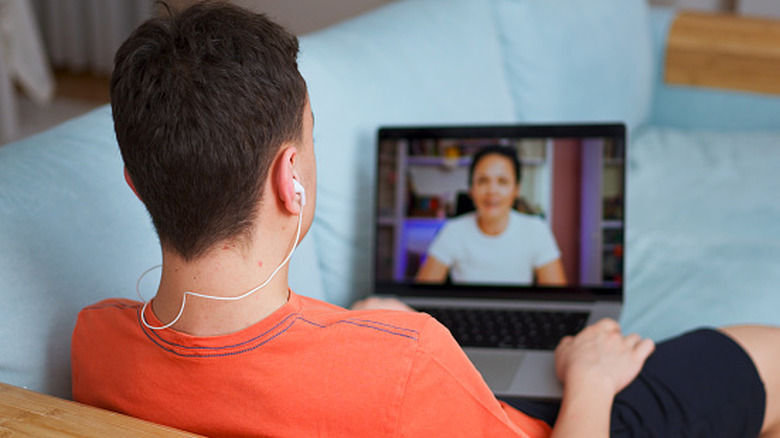
In dark environments, a webcam needs to compensate for the limited light reaching its sensor, such as by increasing gain or amplifying both signal and noise, which can produce a grainy look. Another approach is to extend each frame's exposure, letting the camera capture more light but increasing the risk of motion blur.
So, the advantage of an external webcam, even a cheaper one, is the space available for its optical components. Without needing to fit inside a laptop lid, the design has room for larger sensors and lenses with wider apertures. This helps produce cleaner images without relying as much on electronic signal amplification.
Each camera also processes images differently. A conventional webcam usually has noise-reduction systems and exposure adjustments that preserve facial detail better, especially against a bright background, and features like HDR help represent bright and dark areas better, something a built-in webcam struggles to do.
The camera's position limits your framing

A laptop's camera usually sits fixed above the screen, and that placement creates one of its biggest drawbacks. You cannot adjust the framing independently, so if you want to keep using the laptop's screen for something else, you are stuck with that angle. That means even a tiny setup adjustment can throw off the framing you want during a video call.
Putting the laptop on a desk can drop the lens below eye level and point it upward, putting your chin and nose in focus. If you raise it a little, though, you may find the screen harder to read or end up with more of the ceiling in the frame. These are small limitations you don't have with a separate webcam, since you can move it independently and find a better angle without repositioning the rest of your setup.
A built-in webcam can create more privacy concerns
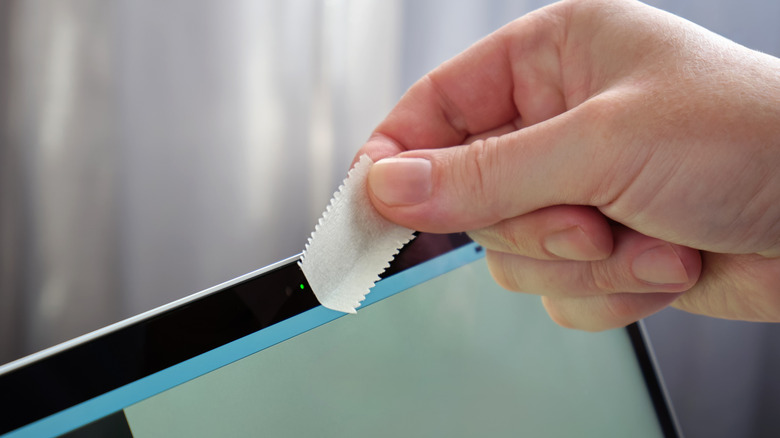
If you value your privacy, a built-in laptop webcam can be a sticking point because it stays connected to your PC and can be accessed by others if they gain unauthorized access. That does not happen with a USB camera once you unplug its cable, since disconnecting it stops the camera from working altogether. With a built-in model, getting that same isolation is trickier and requires other measures.
So if you can access your webcam, whether through malware or an app misusing the permissions you granted it, the camera could expose images of you and your surroundings. Of course, that risk exists with any webcam, but with an external one, you can often fix it by disconnecting the device. That is why some laptops have a physical shutter to block the lens, while some users use tape or a stick-on privacy blocker to do the same.