

9 Ways To Improve Video Calls Without Faster Internet
We may receive a commission on purchases made from links.
In decades past, video calls were only seen in science fiction movies, but they're now a part of everyday life. Whether it's to check on your loved ones, join a class remotely, or hold a meeting with fellow remote workers, you should know how to improve your video calls so that you and all the other participants will see and hear each other clearly.
The obvious solution for better video calls is to upgrade your internet connection for faster speeds, but this isn't an option for everyone. The additional monthly cost may be too much of a burden for some, while others may be stuck with their current network for various reasons. Thankfully, there are many alternatives if you're seeking methods to enhance your video calls.
For this article, we've gathered a total of nine ways to improve video calls without faster internet. Our suggestions include investments in equipment, preparations for your setup, and simple habits that you can integrate into your routine. You can try these on your computer or phone for your next video call, and hopefully, you'll notice an immediate upgrade in terms of quality.
Invest in a high-quality webcam
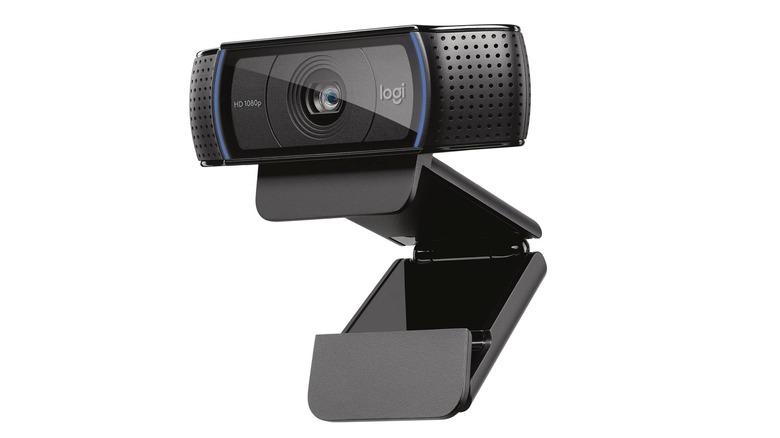
While some models of laptops and monitors have built-in webcams, they're often not as nice as standalone webcams. When it comes to better video calls, in particular, buying a dedicated webcam can give you a good boost. Not only can webcams deliver better resolution, but they also provide clearer microphones and access to features like autofocus and subject-tracking.
While we've featured the Insta360 Link 2 Pro as the best webcam to buy in 2026 because of its built-in motors that enable impressive tracking capabilities and solid picture quality with 4K HDR video, it may be too expensive for some at $249.99. You don't have to spend that much to get a reliable webcam with solid options to help upgrade your video calls, thanks to models like the Logitech C920x HD Pro, which we've included in our list of cool gadgets actually worth buying on a budget. For $69.99, you'll get Full HD resolution, stereo audio with dual microphones, and automatic lighting and focus adjustments.
Standalone webcams are usually plug-and-play devices, and they're often easy to attach to your desktop computer's monitor or laptop. This means you'll be able to use them across multiple devices, depending on which one you're using for your video call, helping you squeeze even more value out of your purchase.
Install the latest updates
After purchasing equipment and installing apps for your video calls, you need to make sure that you install the updates that manufacturers and developers release for them over time. This not only increases your chances of better video calls on your computer or phone, but it also comes with the important benefit of fortifying your system's security against potential threats.
For both your hardware and software, updates may include performance improvements for better video and audio quality, which you'll get without spending anything extra. They may even be used to roll out new features, such as additional settings that you can adjust for your video calls. In some cases, installing an update delivers such a significant upgrade that it feels like you've bought a new webcam.
Updates may also fix issues that you may be experiencing in your video calls. There's a chance that problems like lower-than-expected video or audio quality and dropped connections are caused by bugs, so patches that are rolled out for the device or program could eliminate them.
Dedicate your network's bandwidth

Even if you've signed up for fast internet speed, you still won't get high-quality video calls if the bandwidth is shared between too many devices. If you don't want to experience lagging video and audio, you'll need to make sure that most of your maximum bandwidth is dedicated to your video call.
Managing bandwidth usage is one of our suggestions for how to speed up your internet without replacing your router. If you're getting a pixelated picture and distorted sound, you can try turning off other devices on your network that aren't currently in use, such as the tablet in your drawer or a robot vacuum that won't be cleaning soon. If there are other people using the internet for data-heavy purposes like watching content on streaming services and playing online games, you should ask them to pause until you finish your video call.
You should also look at your own computer or phone you'll be using to join the video call. You should close extra tabs in your browser, shut down other apps running in the background, or suspend any downloads, as these will use up the bandwidth that should instead be going to your video call.
Fully charge your mobile device
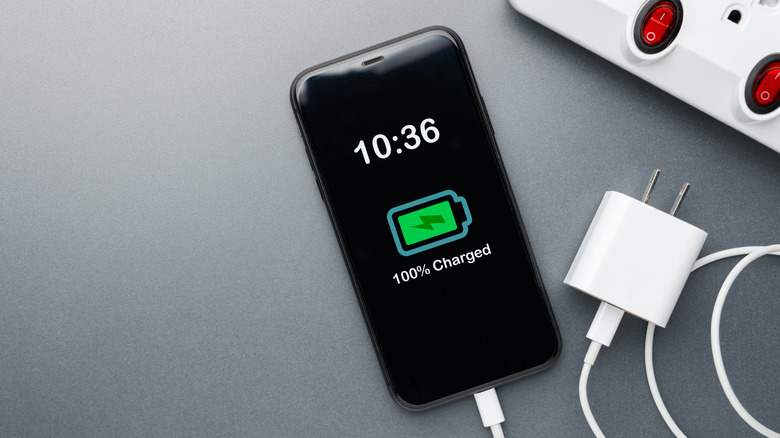
If you'll be using a mobile device or a laptop that's not plugged in for a video call, you need to make sure that its battery is at least nearly fully charged. Video calls require cameras, microphones, and an internet connection, which will combine to drain your battery at a faster pace compared to other activities.
When your device doesn't have much charge once you begin your video call, it may activate its equivalent of a low power mode in as soon as a few minutes. If that happens, the quality of your call's video and audio may be affected. Your phone, tablet, or laptop may automatically adjust its settings to extend its battery life, which will result in reduced performance.
This also applies to any other accessories that you're planning to use for your video calls if they're battery-powered, such as external microphones and wireless headphones. After you've handpicked these gadgets for your preferred setup, you don't want them to stop working in the middle of the call.
Find the perfect angle
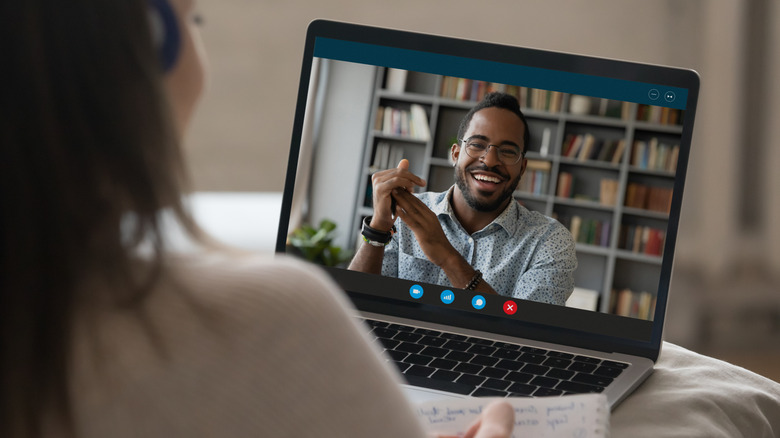
You want to be seen properly when you join video calls, and while a high-resolution camera will help with picture quality, you also need to consider how it's positioned. You don't want the camera pointing at your face at an awkward angle, nor should it be focused on something else in the background.
Fortunately, webcams are mostly flexible. You can change the angle of built-in webcams in laptops by moving the screen, and for those in monitors, you can raise or lower their height. Standalone webcams are the easiest to adjust because they're separate gadgets, and phones and tablets can be propped up in the best position.
For the best angle in video calls, you usually want the camera directed at your face at eye level so that other people won't be looking up your nostrils. You should also frame the shot to show your head and shoulders for a cleaner look compared to just focusing on your face. If you're on a phone, you should consider using a stand instead of holding it to prevent shakiness, and taking the video horizontally if others are on computers to match their orientation can also improve the overall call experience.
Optimize lighting
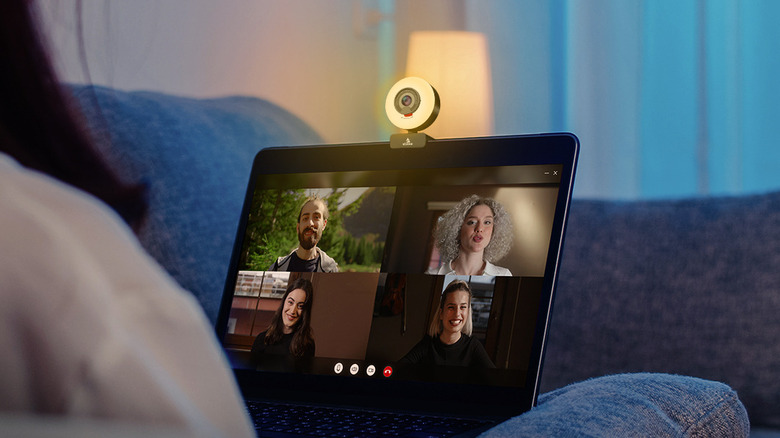
Your choice of lighting matters during a video call if you want to be seen clearly by the other participants. Without optimized lighting, you're going to look like a shadowy silhouette among windows of well-lit faces, or a washed-out version of yourself.
During the day, you should be facing the windows so that the light lands on your face. If the windows are behind you, your webcam will compensate for your bright background, and you'll appear much darker than usual. When it's night or when you're in a room with closed windows, turning off the overhead lighting and placing a desk lamp somewhere in front of you would be ideal, as long as the light isn't harsh and direct.
A purchase that you can make to optimize your lighting setup is a ring light. These accessories could be standalone devices like this Acmezing video conference light kit for $19.99 on Amazon. Powered by a USB-A cable, you can clip this onto your laptop or have it stand on its tripod, giving you flexibility in where to place it. You can also buy a webcam with a built-in ring light, such as the NexiGo N960E for $69.99, so that you'll only have to deal with one gadget when preparing for a video call.
Wear noise-canceling headphones
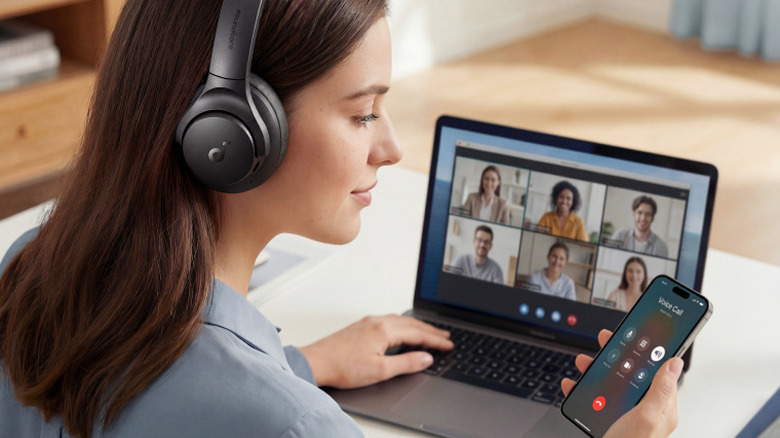
Whether you're taking a video call at home or in the office, it's usually a good idea to wear headphones or earbuds. This is because if you use the speakers of your computer or phone, not only may you be disturbing the people around you, but the other participants might also hear an echo of their voices, as your device's microphone can pick up everything they say.
It will be better if you have noise-canceling headphones, so that you won't be disturbed by anything that's going on around you while you listen to other people speak. You can go for premium gadgets like the Apple AirPods Max 2, which Consumer Reports rates as the best over-ear noise-canceling headphones. They're pretty expensive though, at $549 on Amazon. In comparison, the more affordable Anker Soundcore Q20i headphones sell for $44.99 and may be more than enough for video call purposes if you're primarily after the noise cancellation feature.
Clean your camera
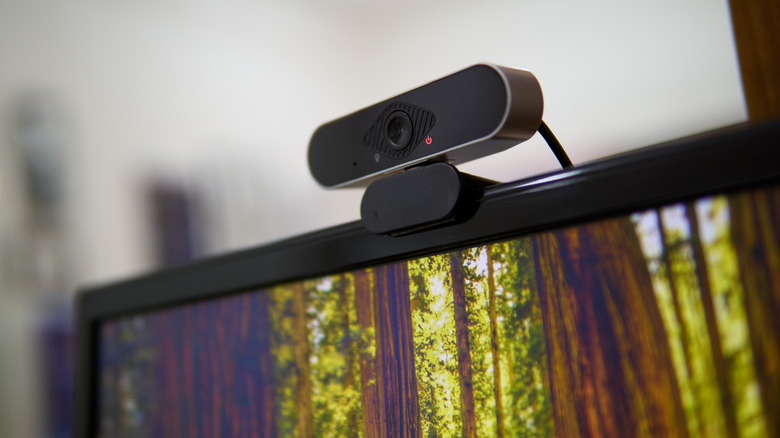
Improving your video calls can sometimes be as simple as cleaning the lens of your webcam. Over time, dust and other particles may accumulate there, and when you make adjustments to its positioning, you may accidentally get some fingerprint smudges on it. If you look blurry to the other people on the video call, it could just be a dirty webcam.
You should make it a habit to regularly wipe your camera's lens before each video call. Check out our guide on how to clean your webcam lens the right way, which starts with wiping the glass gently with a very soft cloth and escalates to using cleaning solution if the buildup on the camera is significant.
When cleaning your webcam, you should avoid using bleach and similar household chemicals that may damage the glass of the lens. Using paper towels and rough fabric is also not advisable, as they may end up leaving permanent scratches on the webcam.
Switch to a wired connection
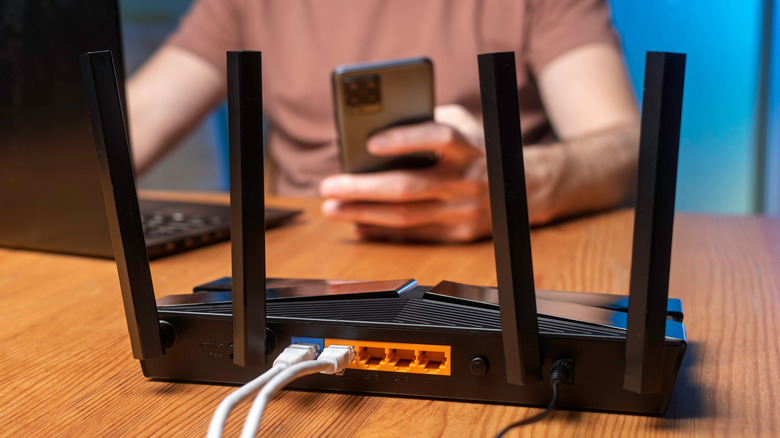
If your Wi-Fi connection is struggling to support video calls even after managing your bandwidth, switching to a wired connection is one of the ways to speed up your internet without replacing your router or upgrading your overall service. This requires an Ethernet cable to connect your router to your desktop PC or laptop. If your device doesn't have an Ethernet port, you can pick up converters like this Amazon Basics USB to Ethernet adapter, which will only set you back $13.46.
There are various things that might be interfering with your Wi-Fi, including smart home devices that can overcrowd your network, thick walls that can reduce signal strength, and large metal objects that can block and reflect Wi-Fi signals. However, a wired connection from your router to your device will add clutter to your computer setup, and for laptops, reduce their portability.
Ethernet cables don't require any complicated processes, though, as you just plug them in and the connection establishes itself. If you only need the faster internet for a video call, you can just unplug and move back to Wi-Fi after the meeting.