

Improve Your Samsung Phone's Display With These Simple Changes
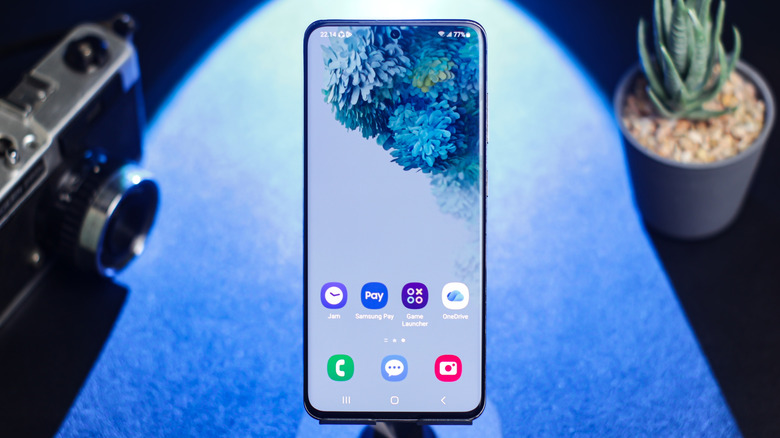
The Samsung Galaxy S26 Ultra was one of the best-selling Android smartphones in the second quarter of 2026, according to analysts at Counterpoint Research. This phone has the largest display in the Galaxy S26 series, featuring a 6.9-inch Dynamic AMOLED 2X panel and a Quad HD+ (QHD+) resolution of 3120 by 1440 pixels, higher than the Full HD+ (FHD+) resolution of 2340 by 1080 pixels.
Furthermore, if you own a device with QHD+ resolution like the Galaxy S26 Ultra, you may realize this setting isn't turned on by default. While it isn't one of the few features only Samsung Galaxy devices have, you're probably still missing out by leaving it off. Conversely, the absence of a QHD+ or even a FHD+ mode on your Samsung smartphone does not mean you're out of luck. Tweaking color modes, adjusting motion settings, and enabling other display options are some of the ways you can improve your Samsung phone's display.
Once activated, these settings can result in more vivid colors, crisper-looking text and multimedia, along with smoother motion transitions and video playback. However, it is important to note that some of these features can affect battery life if enabled for long periods of time. Moreover, manually adjusting color balances may lead to a different (and possibly inaccurate) color output if you are not careful.
Enable high-definition display and extra brightness
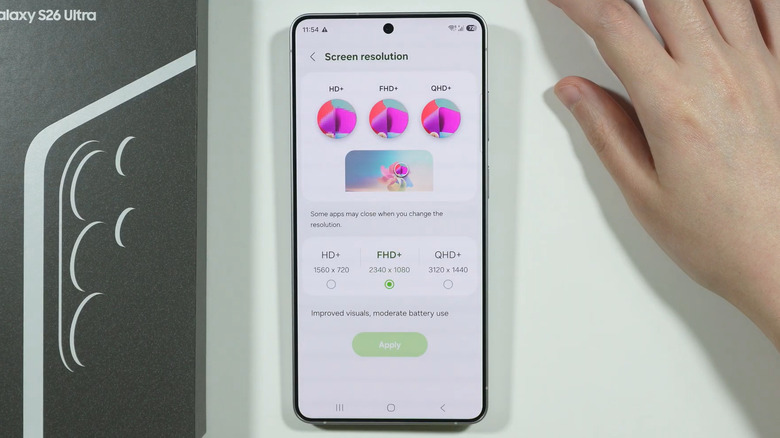
If you're the type of smartphone user that pays attention to every pixel on your screen — especially if it improves your mobile streaming and gameplay experience — then your phone's resolution and brightness settings are worth checking. If your Samsung phone supports QHD+ resolution, switching to it is one of the easiest ways to make the display look noticeably sharper. Apart from the Galaxy S26 Ultra, QHD+ resolution is also available on other Samsung flagship models such as the Galaxy S26+ and Galaxy S25 Ultra. Phones with an FHD+ display, like the standard Galaxy S26, won't offer this setting.
To check whether your phone has it, you can go to Settings, then open Display and select Screen Resolution. If QHD+ appears as an option, select it and tap Apply. The difference is most visible when reading small text, viewing detailed photos, or watching high-quality video. That said, QHD+ uses more power than FHD+, so if battery life matters more to you than definition and sharpness, FHD+ is still a good choice.
Furthermore, select models like the Galaxy Z Flip5, along with the Galaxy S22 through the Galaxy S26 series, contain a setting you can toggle called Extra Brightness. This feature pushes the screen beyond its usual brightness level, which can help when you are outside in harsh sunlight. You should be able to view this option under the usual Brightness settings, but Samsung notes that Adaptive Brightness should be turned off for this feature to be usable. And just like enabling QHD+, enabling Extra Brightness on your phone's screen can affect battery life.
Adjust your screen's refresh rate, color mode, and eye comfort settings
Beyond resolution, your Samsung phone's refresh rate and color settings can change how the display feels in everyday use. In your Samsung phone's settings, head to Display and select Motion Smoothness, which will show you two modes: Standard or Adaptive. The Standard setting, usually enabled by default, runs your display at a 60Hz refresh rate, which offers rather smooth performance while preserving battery life. The Adaptive mode, on the other hand, dynamically adjusts the refresh rate up to 120Hz (or 90Hz on some models), depending on your device's capabilities. Turning on Adaptive motion smoothness immediately makes animations and scrolling more fluid, but consumes more energy.
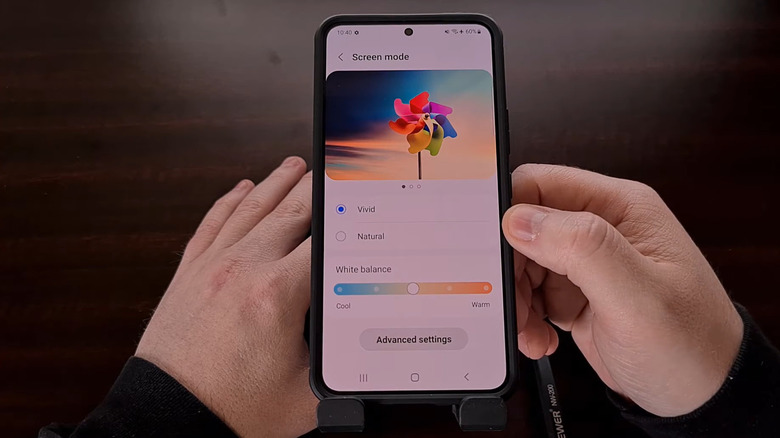
If you want to adjust your phone's color mode, find the Screen Mode option under Samsung's display settings. Selecting Natural Mode is meant to reflect a more realistic color profile, but may look less saturated compared to choosing Vivid Mode, which will switch to a richer, more vibrant display. Moreover, in relatively newer Samsung models like the Galaxy S24 Ultra, there is an option to adjust the vividness by tapping Advanced Settings under the two Screen Mode options. Here, you can modify the RGB and vividness sliders to your preference, but it may throw off color accuracy if not adjusted carefully. If the colors still look off after resetting these sliders, it could be because of some other phone screen problem.
Finally, if you want to look at a screen that feels easier on the eyes, you can activate Eye Comfort Shield and immediately get a warmer filter that limits blue light. After enabling it, tap the setting to choose Adaptive, which changes the screen tone based on the time of day, or Custom, where you can set a schedule and adjust the color temperature yourself. So whether you prefer color accuracy, vibrance, or easier-on-the-eyes visuals, tuning these settings can certainly help create a more comfortable display from your Samsung smartphone.