

You Can Now Choose Which Apps Siri AI Can Access On Your iPhone With iOS 27.2
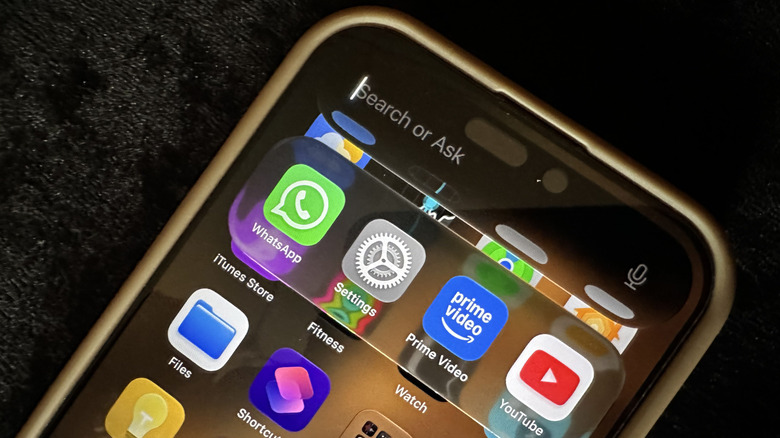
Apple released iOS 27.2 in October 2026 just after releasing its first foldable, the passport-style iPhone Duo, and included in the update is enhanced Siri AI's features to make it more capable. For example, Siri AI has expanded beyond English to converse in Japanese, Korean, Portuguese, and Spanish. Apple also has given its voice assistant the ability to remember past conversations. So, if you asked Siri AI about something in the past week, it will have that context to work off of. But one of the biggest changes is individual control over Siri AI privacy for each app on your device, allowing you to approve or block the service from accessing sensitive data.
Siri AI can search your messages for specific mentions and photos received in the Messages app. It can find an object or person you describe in the Photos app. It can even search your browsing history in Safari, as well as your Reading List items.
It can also pull from third-party apps, which poses a potential privacy problem. This ability can surface sensitive information you might not want the AI to have access to or process. If you already have access to Siri via the public beta, or you want to try it but this privacy issue was stopping you, iOS 27.2 allows you to exclude the apps from Siri's AI.
How to add apps to the Excluded Apps list in Siri AI
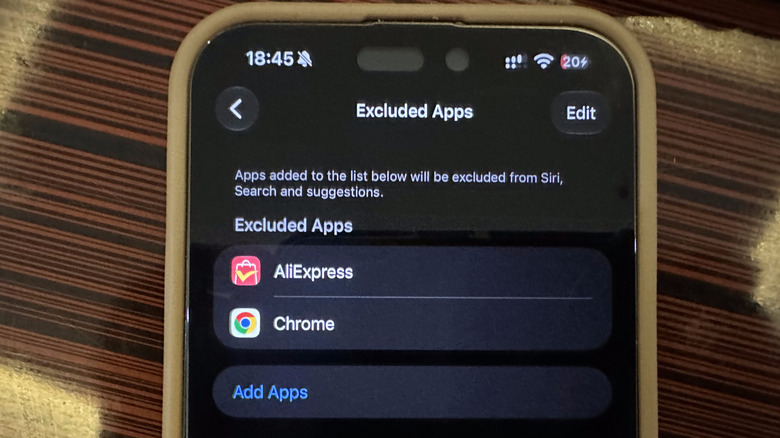
The new feature in the Siri section of the Settings app is called Excluded Apps, and it allows you to completely limit the data, and thus features Siri AI has. For example, settings may affect your ability to draft an email in the Mail app or text someone in WhatsApp with a prompt or voice command. Also, if the app is open, you may be able to ask Siri questions about what is on the screen and instantly get an answer. Excluded apps can also be left out from Search and suggestions. But that's the price of improved privacy these days.
Follow the steps below to exclude apps from Siri AI:
-
Open the Settings app.
-
Tap Siri.
-
Tap Excluded Apps.
-
Tap Add Apps.
-
Select the apps you don't want Siri AI to have access to by tapping them.
-
Tap the checkmark in the top-right corner.
Should you decide that you want Siri, Search, and suggestions to have access to the app again, you can remove it from the list. Here's how to do it:
-
Navigate to the Excluded Apps page in Settings.
-
Tap Edit in the top-right corner.
-
Tap the red circle on the left side of the app you want to remove.
-
Tap Delete on the right side of the app.
-
Tap the checkmark in the top-right corner.