

Your Android Phone Can Install Apps Outside The Play Store – Here's How
Every time you need an Android app for a very specific purpose — like logging your daily walks or creating short vlogs, you probably hop on the Play Store. It is, after all, the easiest way to install apps on your phone. But while Android does recommend using the Play Store for your app downloads, you're not really limited to it.
Your Android device lets you sideload apps outside the Play Store, so you can try apps from open-source projects and independent developers that better fit your needs. Simply download the APK file from GitHub, the developer's website, or any alternative app stores, then proceed with installing it on your Android. There are actually two popular methods you can use for this: installing directly and using Android Debug Bridge (ADB). We'll walk you through the step-by-step process of how to do both and explain the limitations and nuances of each one.
Method 1: Install the APK file directly on your Android phone
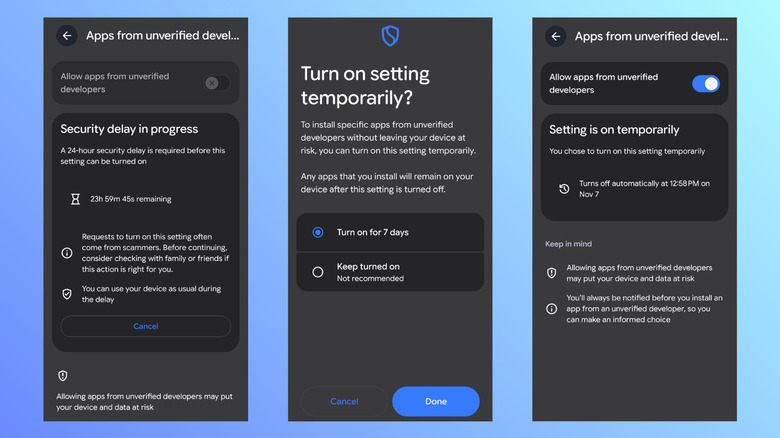
Conveniently, Android lets you install APK files directly on your device. For years, this method used to be as easy as enabling the "Install unknown apps" option in the Settings. But in an effort to prevent scams and make the system safer for users, Google changed how sideloading works on Android. Instead of a basic setting you can readily turn on and off anytime, that option to install unverified apps is now hidden in the Developer Options and locked behind a reboot and a 24-hour security delay. Only after the 24 hours are up can you activate the setting. This security delay won't affect how you use your device, though.
To turn on the setting to allow installation of unknown apps on your Android, here's what you need to do:
- In the Settings app, open About phone.
- Select Software information.
- Tap multiple times on the Build number until you see a message saying, "Developer mode has been turned on."
- Back in the main Settings page, search for and open Developer options.
- Under Apps, choose Apps from unverified developers.
- Toggle on "Allow apps from unverified developers."
- Confirm with your biometrics or PIN.
- When asked whether someone is instructing you to turn on the setting, select No one asked me.
- Reboot your phone.
When you head back to the setting in Developer Options, you'll see the 24-hour countdown displayed. Just wait for the security delay to pass. After 24 hours, hit Continue and confirm that you understand the risks. From here, simply open the APK file and hit Install anyway, and you should be able to access the app on your device.
Method 2: Install APKs via ADB on your computer
If you can't be bothered with waiting 24 hours just to install an app from outside the Play Store, you can use Android Debug Bridge (ADB) instead. ADB also lets you sideload APKs to your Android device, but it isn't affected by the new advanced sideloading flow. That means you can install your choice of unverified apps right away. You do, however, need access to a computer. Follow these steps on how to use ADB to get non-Play Store apps on your Android device:
- Turn on Developer Options from the Settings app if you haven't already.
- Navigate to Developer Options.
- Under Debugging, switch on USB debugging.
- Plug your Android device into your computer via a USB cable.
- Open the Notification Center.
- Select the "Charging this device via USB" notification.
- Change the USB Preferences to File Transfer.
Your phone is now set up for installation. It's time to get your computer ready:
- Download the Android SDK Platform-Tools and the APK file you want to install on your computer.
- Unzip the Android SDK file.
- Launch the Command Prompt (on Windows) or Terminal (on macOS/Linux) app.
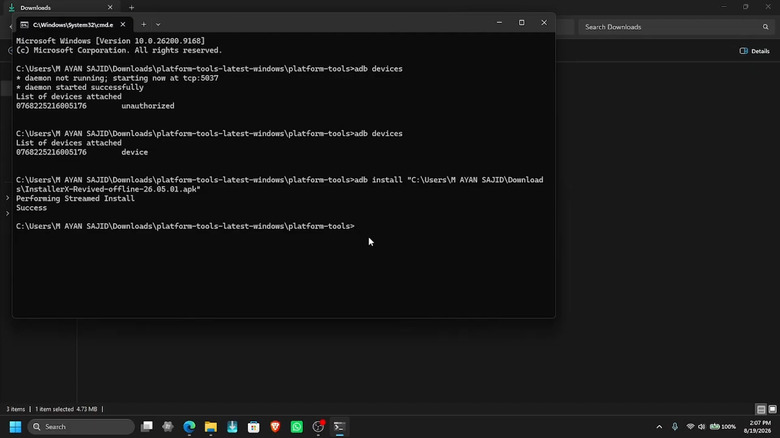
- Go to the extracted Android SDK folder by typing "cd path/to/folder." For instance, if it's in the Downloads folder, type "cd Downloads/platform-tools-latest-windows/platform-tools" (on Windows).
- Run the command "adb devices."
- If you see an unauthorized message, go to your phone and allow USB debugging in the popup.
- Run "adb devices" again. It should now list your phone as "device."
- Drag and drop the APK file to the Command Prompt/Terminal window to automatically paste its path.
- Add "adb install" in front of the APK file path.
- Run the command.
From here, just wait for the Success message to pop up. You should now find the app installed on your Android.