

Don't Download A Separate App To Record Your Voice, Try This Built-In Windows Tool Instead

Windows comes complete with essential apps that you practically use on the daily. There's Notepad for your brain dumps, Snipping Tool for your screenshots and screen recordings, and Calculator for quick math. But beyond these useful built-in programs are more underrated free Windows apps you probably didn't even know existed, one of which is Sound Recorder.
Just as its name suggests, Sound Recorder is designed for capturing your voice and all the sounds around you either through your PC's built-in microphone or an external microphone connected to your computer. The app works much like the voice recorder on your phone, but with the added convenience of being right on your PC. This comes in handy when you need to start recording and already have your PC open — say, during a face-to-face meeting or while in class. Instead of grabbing your phone to record, you can just launch Sound Recorder and record away. The best part is that it's a no-frills app with a very straightforward interface. Here's how to get started with using Sound Recorder.
How to record and manage audio with Sound Recorder on Windows
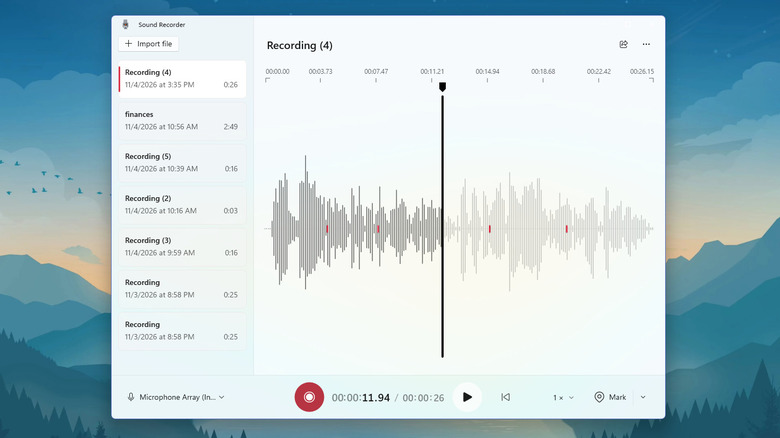
Sound Recorder is already pre-installed on Windows, so it should be readily accessible from the Start menu. If you don't see it or have uninstalled the Windows app previously, go ahead and download it from the Microsoft Store first. Once the app is open, you can get started. First, set the app to use the right microphone. Press the mic icon in the bottom-left and choose the mic you prefer. Then, when you're ready to record, hit the red record button. You can pause and resume the recording anytime during the session. You can also mark important moments, so they're easy to revisit later. When you're finished, simply click the stop button. The recording gets saved automatically in the Documents > Sound Recordings folder on your PC.
Conveniently, Sound Recorder lets you play back the recordings right from the app too. As soon as the recording is saved, you can listen to it immediately. The built-in audio player even offers basic features, such as playback speed adjustment from 0.25x to 4x, file renaming, and markers. Yes, you can still add markers after recording, and both the old and new markers can be viewed by pressing the down arrow next to Mark. These markers are saved and remain available even after you exit the app.
Meanwhile, to change the Sound Recorder settings, you'll need to click the three horizontal dots in the upper right corner and select Settings. From here, there's an option to change the recording format from the default AAC to MP3, WMA, FLAC, or WAV. You can also set the audio quality to Best (has the best quality but largest file size), High (offers a good middle ground), Medium (has the smallest file size), or Auto.
Sound Recorder versus Clipchamp
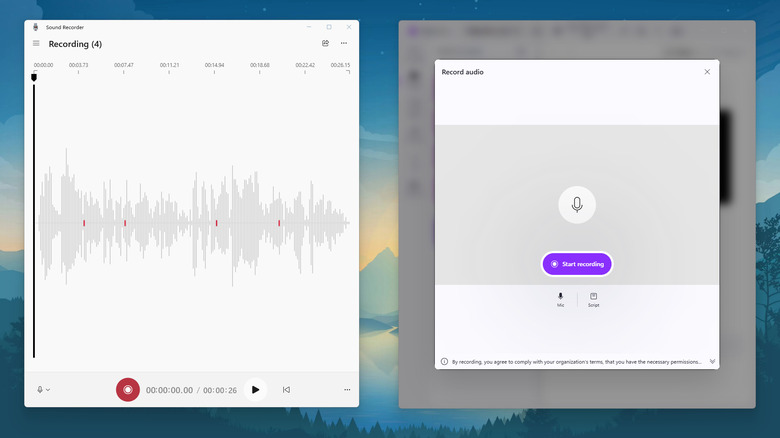
Sound Recorder is the ideal app if you quickly want to record audio and play it back later. If it's too basic for your needs, though, there's another built-in Windows tool you can use instead: Clipchamp. It's actually a lesser-known Microsoft Office 365 feature that's primarily a video editing tool, but with an option to record audio.
Unlike Sound Recorder, Clipchamp is more advanced. It includes a floating teleprompter, where you can paste your script and read it as you record. The text here automatically scrolls as you go, so you can focus on recording. You can also retake the recording and edit it immediately after. Clipchamp's audio editor comes with tools to trim the audio, add a fade-in and fade-out effect, remove background sounds and echoes, and even set the volume to 200%.
But while Clipchamp is more feature-packed than Sound Recorder, it can be quite overwhelming to use. There are just too many irrelevant menus and buttons, so much so that before you can start recording, you'd have to make four clicks inside the app first. Sound Recorder has the recording button immediately on the home screen. As soon as you open the app, all it takes is one click to record. Since Clipchamp is significantly bigger than Sound Recorder at around 60 MB versus 7 MB, it takes slightly longer to load too. That delay can be pretty annoying when you really need to start recording right away. With all that being said, you can always use both apps together: record with Sound Recorder and edit the audio in Clipchamp if the need arises.