

Here's How You Can Turn Your iPad Into An Extra Mac Monitor
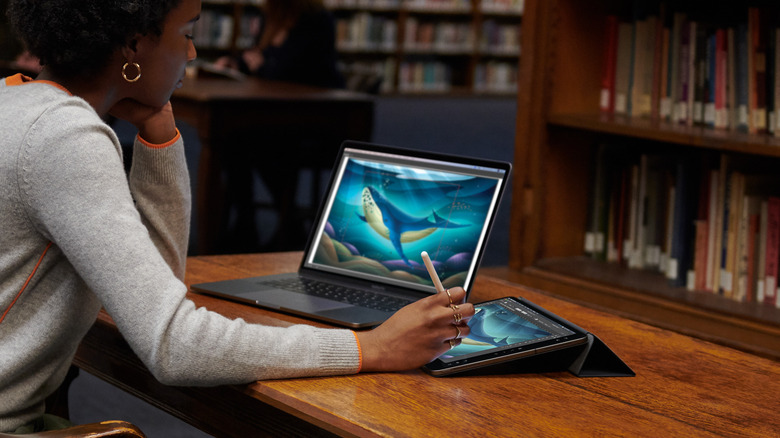
While the Apple ecosystem might feel too closed off on certain fronts, it actually comes with one nifty and convenient perk: seamless connection between your devices. Take the Mac, for instance. Plenty of Mac features work hand in hand with the iPhone, letting you get the most out of both gadgets. For starters, you can mirror your iPhone screen to your Mac. This makes it easy to use your laptop and phone without switching between them. Then you have Continuity Camera, which lets you use your iPhone as your MacBook webcam for higher-quality video recording.
But Mac's continuity features aren't exclusive to just your iPhone. In fact, you can actually pair your Mac with your iPad, too. The best way to do so is to turn your iPad into an external display for your Mac. Yes, you won't need to buy an entirely separate monitor for quick computer tasks; you can just use your iPad instead.
Step 1: Set up your iPad and Mac
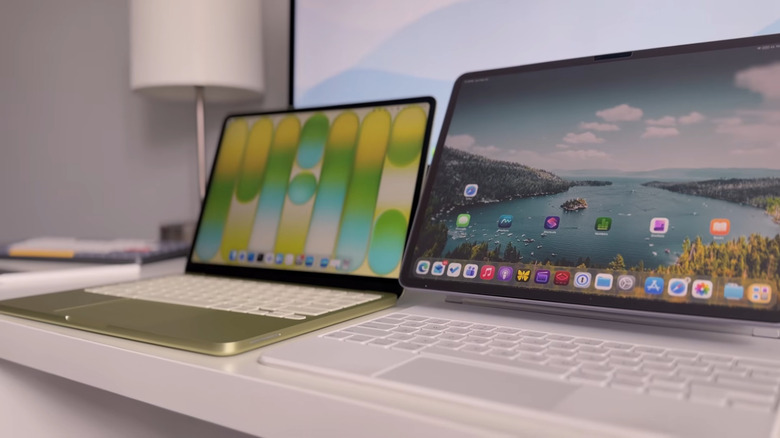
Before you start turning your iPad into an external display for your Mac, make sure it's properly configured. First, check whether you're using a supported device. For your iPad, the only compatible models are iPad Pro (any generation), iPad 6th gen or newer, iPad mini 5th gen or newer, or iPad Air 3rd gen or newer. Meanwhile, your Mac must be a 2015 iMac, 2018 MacBook Air or later, or another Mac model from 2016 onward.
If your devices are supported, you then have to update both to at least iPadOS 13 and macOS Catalina 10.15. Also enable Bluetooth and Wi-Fi on both devices, and make sure you're logged into the same Apple account. Handoff should be turned on for both too. Here's how to do so:
- On your iPad, go to Settings.
- Navigate to General > AirPlay & Continuity.
- Toggle on Handoff if it isn't already on.
- On your Mac, press the Apple menu.
- Click on System Settings.
- Head over to General > AirPlay & Continuity.
- Enable "Allow Handoff between this Mac and your iCloud devices."
Apple also lets you use Sidecar in either wired or wireless mode. The wired connection—which is also one of the best ways to use your iPad's USB-C port—is generally preferred because it's more stable than wireless. To set this up, plug a USB cable between the iPad and Mac, then tap Trust on the pop-up on the iPad. If you prefer a wireless connection, proceed to the next step.
Step 2: Activate Sidecar mode
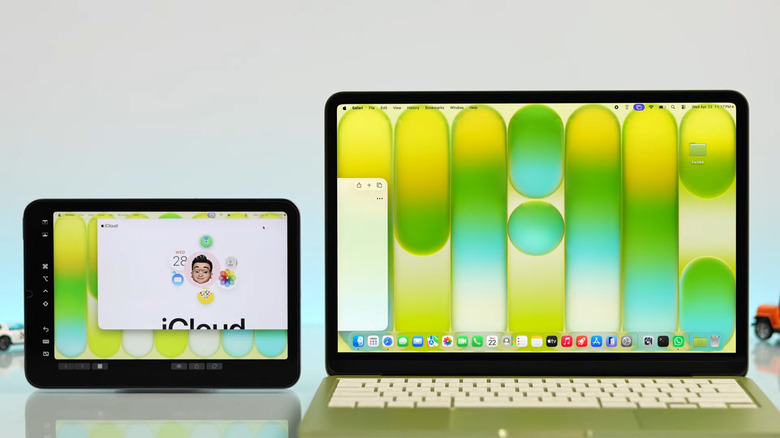
After configuring your iPad and Mac, you're ready to turn the tablet into an extra display for your computer. Follow these steps:
- Open the Control Center on your Mac.
- Press the Screen Mirroring icon (two overlapping rectangles).
- Click on your iPad from the list of available devices.
- To use the iPad as a duplicate screen, choose Mirror Built-in Liquid Retina Display.
- To extend your Mac's display to the iPad instead, select Use As Extended Display.
- To remove the sidebar from the iPad, click on Hide Sidebar.
- To rearrange the screen, go to Displays in the Settings app and tap Arrange at the bottom. Then, drag and drop the iPad screen to the left or right, depending on where it is in real life. Hit Done.
Your iPad should now mirror your Mac's screen or serve as an extended display. If you chose the latter, you can move windows between them with a simple drag and drop. Then, to interact with the Mac windows on your iPad, you can use the touchscreen as you normally would (a feature introduced in iPadOS 27 and macOS 27). If your devices don't support those OS versions, though, you're stuck with just multi-touch gestures on the iPad — scrolling with two fingers, copying/pasting with a three-finger pinch in/out, and undoing/redoing with a three-finger swipe left/right.
To end your Sidecar session, you can exit either on your iPad or Mac. On your iPad, tap the Home Screen button in the sidebar or swipe up. This takes you back to the Home Screen. If you want to return to Sidecar mode, press the blue Sidecar icon in the Dock. To exit Sidecar on your Mac instead, go to Screen Mirroring in the Control Center again and click on your iPad.