

5 Clever Uses For Siri AI In Your iPhone Camera App
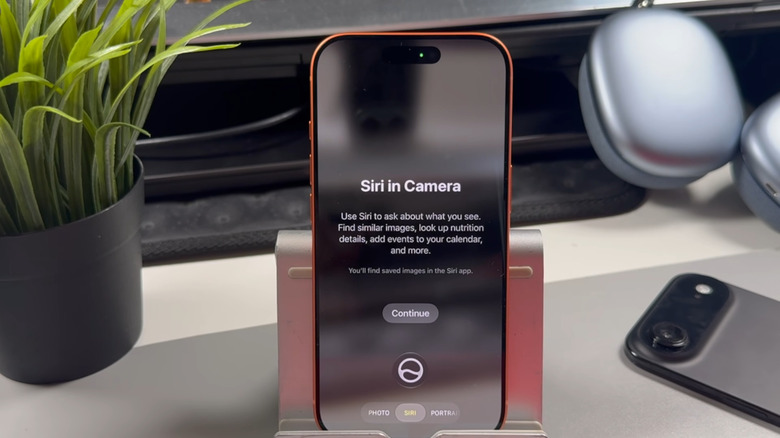
Over the years, the iPhone Camera app has been quite handy for more than just taking pictures. It can scan QR codes, copy text in the frame, and translate text without leaving the app. Then, iOS 27 came along and added another hidden iPhone camera feature you should be using: Siri AI. It's an upgraded version of Siri that can understand what the camera sees and lets you take relevant actions based on the objects, text, or whatever else is in the frame.
Many users find this Siri mode handy for identifying objects they aren't familiar with — say, a neighbor's plant or a piece of electronics. Some use it to learn more about a landmark or establishment nearby, while others use it to find similar clothing online. But those are just the tip of the iceberg. Siri AI in the Camera app can do a lot more. If you want to get the most out of this Camera feature, here are five clever ways to do it.
Transcribe handwritten notes
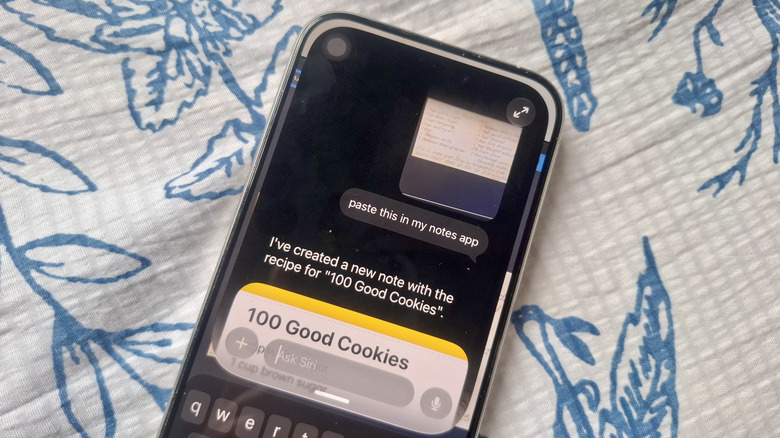
While most of the text you read these days is digital, there are still instances when you'd encounter a handwritten note. Maybe your grandma has a recipe book she passed down to you. Or perhaps your professor prefers writing his lecture on the whiteboard instead of making a slideshow presentation. You might think that you need to manually type out everything just to convert the handwriting to digital, but there's actually an easier way: Siri AI in the Camera app.
Yes, Siri AI can transcribe handwriting for you, so you can easily copy and paste it into your Notes app, a document, or anywhere else you need it. To use this feature, switch to Siri in the Camera app. Then, focus your camera on the handwriting and tap the message icon in the bottom-left. Siri will take a photo and automatically add it to the chatbox, where you can type your request.
If you just want to transcribe the text, say, "Transcribe this." Siri will reply with the transcription, which you can highlight and copy manually. If you would like to use the transcription in another app, you can request that too. For instance, you can ask Siri to add it to a new note. Instead of "Transcribe this," say, "Paste this in my Notes app." Siri will transcribe the handwriting and automatically create the note. You can also directly email the transcription to someone. Say, "Email this to [contact]," and Siri will draft the email with the transcription. All you have to do is press Send.
Get a better idea of a food's nutritional quality
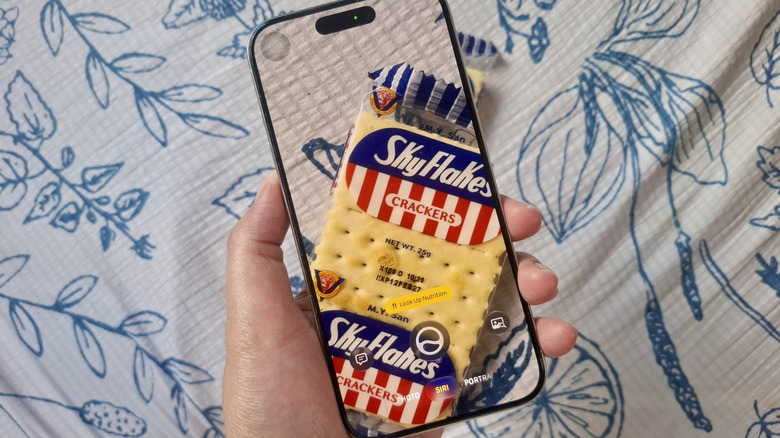
Most grocery store food products come with nutritional information on their packaging. However, you need to know how to read it to understand whether that food is good for you. To keep things simpler, you can always turn to Siri AI. It can assess a product's nutritional value and give you a brief rundown of what makes it a healthy (or harmful) choice.
To start, go to the Siri tab in the Camera app and hover your phone over the product you want to look up. A yellow Look Up Nutrition action button will automatically appear above the shutter. Tap it to open the nutrition panel. Here, you'll see a short description of the product and its nutritional benefits and drawbacks. It also mentions the overall nutritional value, which falls into five categories: Very High, High, OK, Low, and Very Low. Very High means it's either a whole or minimally processed food, and Very Low means it's highly processed and includes ingredients like added sugar and sodium.
Besides overall nutritional value, Siri will also share relevant additional insights about the product. It will show how processed the food is (e.g., Whole Food, Minimally Processed), indicate whether it's a good source of fiber, and flag elevated sodium or added sugar. Conveniently, this Siri AI feature works on both packaged processed foods like chips and canned goods and whole foods, such as wheat bread and bananas. You can even use it on a plate of mixed foods to see whether you're eating a balanced meal.
Get an instant overview of a book
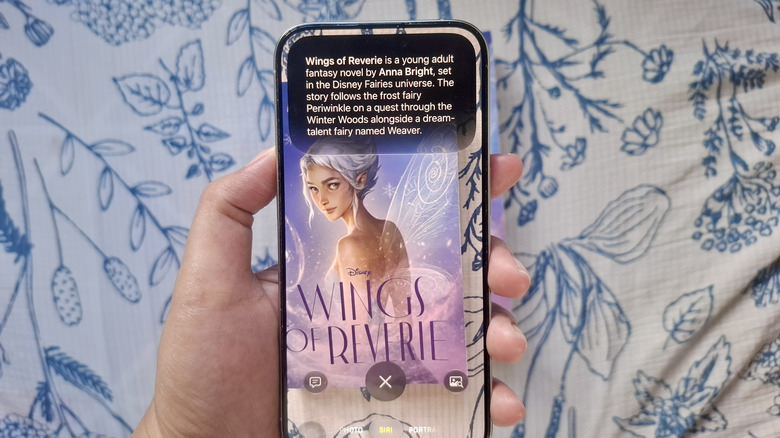
Whenever you encounter an unfamiliar book, you'd normally read the synopsis at the back to see whether it's worth reading. Sometimes, though, the synopsis is still too vague to get a good sense of what the book is about. Sure, you can always look up the book online, but it's much quicker to just use Siri AI in the Camera app.
As soon as you place the book within the camera's view, Siri AI automatically recognizes it and presents a yellow action button with the book's title. If you don't see a button, you can press the shutter instead. This then brings up an overview of the book in the Siri panel at the top. It's usually only two sentences and tells you the main ideas explored in the book.
As with any other Siri requests, you can also pull the panel down to type new, related requests. You can ask Siri what readers thought of the book, who the author is, and where to buy a physical or digital copy. If you're reading on Apple Books, you can even ask Siri to give you a direct link to the book in Apple Books for convenience.
Split the bill
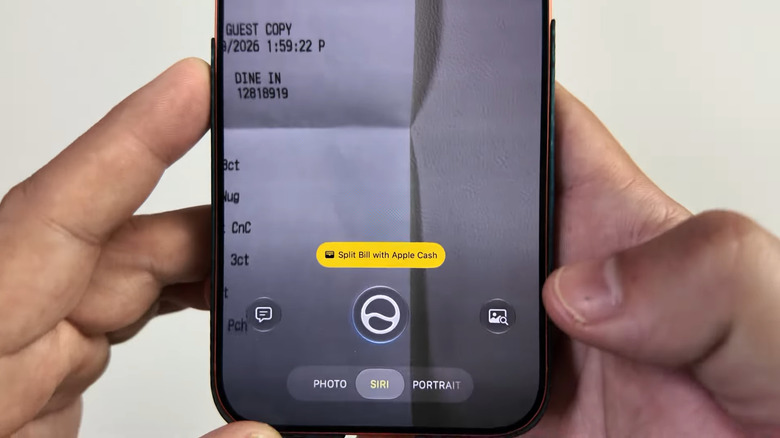
Splitting the bill with your friends and family is almost always time-consuming, especially when you have to go through a particularly long receipt. Fortunately, Siri can now do the math for you and calculate everyone's share for dinner in less than a minute — one of the best iOS 27 features you won't find on Android.
All you have to do is point your camera at the bill and make sure all the items are in the frame. Then, press the "Split Bill with Apple Cash" action button above the shutter. Doing so will automatically redirect you to the Wallet app, with two options: Request and Pay Your Share. Select Request if you're asking your contact for money, and Pay Your Share if you'll be the one sending money to your contact.
Afterward, a list of items from the bill will appear. Mark which ones you want to include in the calculation. You can also adjust the quantity of the food items as needed. Say, your group had three orders of fries, but you only consumed one. You can change the quantity from 3 to 1. If you and your friend shared that one order, you can enter 1/2 instead. A subtotal will appear at the bottom, exclusive of tax and tip. You can opt to add your share of the tip at the bottom as well. When you're ready, hit Request/Pay to proceed.
Interpret unfamiliar symbols
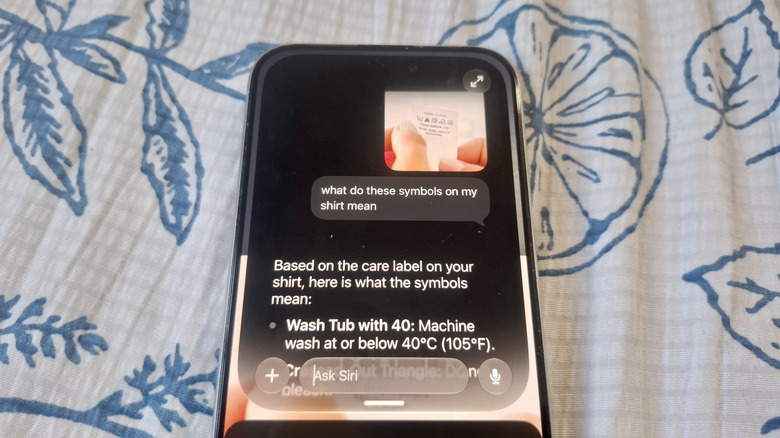
Not everything you own and use regularly comes with text labels. Some use symbols instead, which aren't always obvious. If you'd rather not hop on your browser every time you see an unfamiliar symbol, then Siri AI is your friend. Siri helps you identify icons on appliances, clothing labels, your car dashboard, and even plastic bottles.
If you can't immediately make sense of something, let Siri recognize it. Hold your camera up to the icon and hit the message button in the bottom-left corner. Then, type, "What do these symbols on my [item] mean?" It will be even more helpful if you add the exact make and model (when applicable) for more accurate results. After Siri scans the symbols, it will give you a brief explanation of what each one indicates. Most of the time, it also includes a link to the manual where Siri pulled the information from.