

Your PC Has A Built-In Method For Checking SSD Health - Here's How To Use It

A solid-state drive (SSD) has a limit to its lifespan, measured in terabytes written (TBW). This, alongside factors such as the number of available reserve cells and any hidden data corruption, makes active monitoring an important part of extending your SSD's lifespan.
Many assume drive monitoring requires stubbornly typing in Windows Command Prompt or sifting through pages of raw data in specialized programs. However, you don't need a command-line interface (CLI) or a third-party app to check your drive's health, since Microsoft offers an easier method built into Windows Settings, though it only works for NVMe SSDs.
The easiest way to check your NVMe SSD's health on Windows 11 is through the Disks & Volumes tab. To do so, right-click the Windows icon in the taskbar > click Settings > choose System from the left sidebar. Then go to Storage > Advanced Storage Settings > Disks & Volumes. A drive that's functioning as it should will be labeled "Healthy," and those with any issues will be flagged. You can find more information by clicking "Properties" next to the drive, which opens a page showing the drive's estimated remaining lifespan as a percentage and its current temperature. You can also see the "available spare" as a percentage here, which refers to how much reserved storage the drive has to replace cells that wear out over time.
How to check the health of your SATA SSDs and HDDs
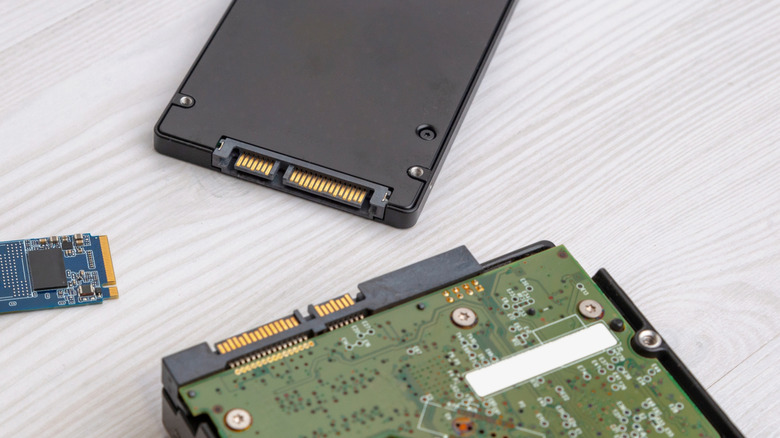
The aforementioned method only works for NVMe drives, but that doesn't mean there aren't other ways to check drive health for SATA SSDs and HDDs. Dedicated programs and command prompts offer the most in-depth evaluations, but Windows 11 also includes a built-in drive error checker that requires no installation or code.
To use the error checker, open File Explorer, right-click on the drive or partition that you'd like to check, and select "Properties" from the expanded list. In the window that opens up, open the Tools tab and click "Check" under "Error checking." This will flag any detected errors related to corrupted data files, and you can then choose to fix them. The same feature can flag bad sectors and physical damage in a drive, though software can't repair these.
The error check process is essentially a visual way of running the "chkdsk" (check disk) command in the command prompt console. However, this interface doesn't provide detailed data, and you can't access the same range of options you would in the command prompt. As such, if you're comfortable with the CLI, using the command prompt is a much better way to check drive health.
Using the terminal or drive health programs

While it may seem daunting at first, the Windows Command Prompt CLI is one of the most reliable ways to get detailed, accurate data about your computer. To open the terminal, press Windows + R to open the Run dialog box, then type "cmd." Inside the Command Prompt window, you can type "chkdsk C:" (replace the C: with the drive you want to test) to run a test, and type "chkdsk C: /r /f" to try to repair faults.
Another great way to get in-depth health details about your drive is to use programs built specifically for checking drive health. Most modern SSDs and HDDs from major drive manufacturers come with first-party programs that make monitoring drive health easy. For example, Samsung offers Samsung Magician, though it cannot be used with HDDs. Seagate's SeaTools utility, on the other hand, provides support for both SSD and HDD monitoring.
While generally good enough, proprietary programs have certain drawbacks. First, they often lock functionalities to their own drives and provide limited usability with drives from other manufacturers. Some may also simplify data to make it easier to understand, which can obscure raw details. Budget drives from unknown brands may also lack proprietary monitoring tools. These reasons are why users commonly recommend free third-party software such as CrystalDiskInfo or HWiNFO, though they can be more confusing to navigate.