

5 Reasons Your Mac Mini Could Be Overheating (And How To Fix It)
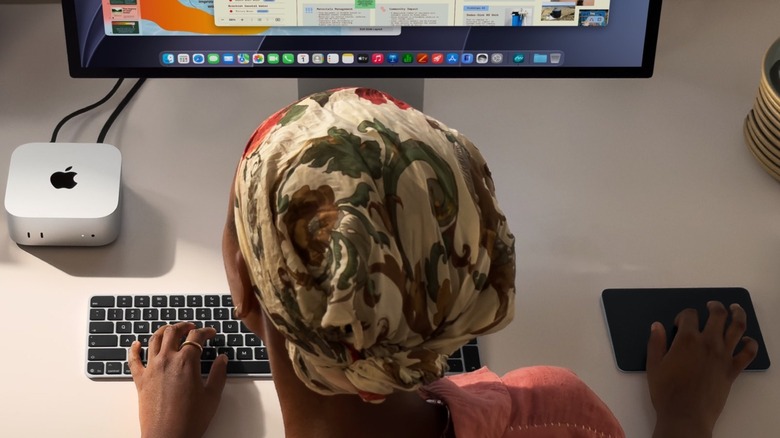
The Mac mini is one of the most interesting CPUs you can buy today. While this machine has evolved from the cheapest Mac you could buy with the previous M4 refresh to a somewhat expensive computer with the current M5 Pro and M6 models and a persistent memory crisis, it's important to know that even higher prices don't mean this computer is immune to overheating. Indeed, even with macOS and Apple Silicon chips being so efficient, there are a few reasons why your Mac mini could be overheating, including blocked vents, dust buildup inside the chassis, or heavy sustained workloads.
Still, for most situations, it's possible to fix the overheating issue, or at least ensure the Mac mini runs a bit cooler and more safely. In this article, we'll cover the most practical, everyday reasons why a Mac mini could overheat in a real-world scenario, as well as possible solutions. These are things that could be happening in your home, at the office, or even at the coffee shop if you take your Mac mini setup on the road.
It's important to note that if you have a brand new Mac mini, like the M6 and M5 Pro versions, and your computer has been overheating even without one of the listed reasons below, you should contact Apple Support. Frequent or sustained overheating could be an indication of faulty hardware rather than something you can fix yourself.
Blocked vents
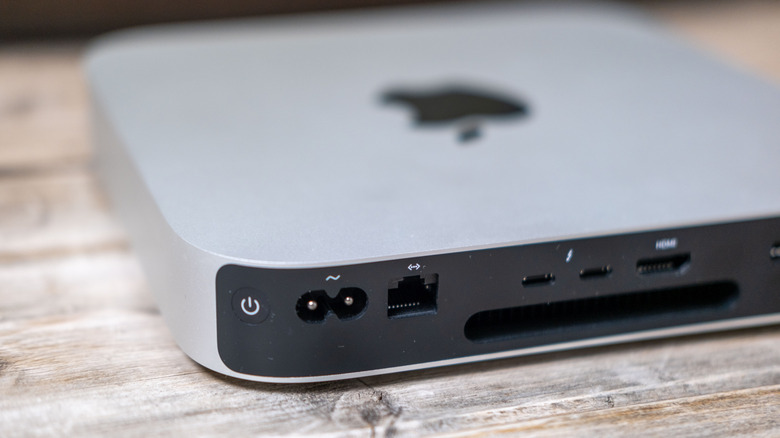
One of the most common reasons why your Mac mini could be overheating is simply its placement. Since the small form factor also houses powerful chips, Apple created a thermal architecture that guides air to different levels of the system, with the venting done through the bottom of the device. The Mac mini needs space to breathe in the cold air and breathe out the hot air from its working processor through its fans. That said, when you set up a desk, it's tempting to tuck the tiny computer away into a tight aesthetic corner, slide it underneath a monitor stand, or rest it right on top of a thick, plush desk mat. All of those placements can be bad news for ventilation, though, and your physical workstation setup could be preventing the Mac mini from efficiently circulating the air throughout its components.
Fortunately, solving this issue is the easiest thing ever. All you need to do is give room for your Mac mini to breathe. Lift it off any soft, insulating surfaces and move it onto a hard, flat, and conductive surface like wood, glass, or metal. Giving this device around four to six inches of completely open clearance behind the rear vents is a good idea, too, so the exhausted heat can escape freely into the room instead of bouncing off a wall or getting trapped inside a media console. You should also avoid hiding your Mac mini inside an enclosed cabinet or desk cubby and instead bring it out into the open air. Don't be shy about it: let it shine on your desk!
Dust inside the chassis

A brand new M6 Mac mini might not already have collected much dust inside its chassis, but this could be an issue for a two-year-old M4 Mac mini, an M1 model, or even an Intel predecessor. After all, even if you have a spotless desk, the Mac mini also kind of acts like a miniature vacuum cleaner, as whenever the internal fan spins up to pull cool air through that bottom intake ring, it's not just drawing air, but also microscopic dust particles, stray pet hairs, textile fibers from your clothes, and so on. With that, month after month, these particles start to accumulate, forming a fuzzy blanket directly against the vent ports of your Mac and also wrapping around the fan blades. This can eventually become a thermal insulation that traps heat even when the fan spins at maximum speed.
Fixing this problem can be trickier than adjusting the box placement. First, you need to ensure your Mac mini is completely turned off, and then you should unplug all the cables. With a flashlight, you should shine it into the rear exhaust ports and around the bottom base ring to see how much dust it has inside. If not much, you can use something like compressed air to deliver short, controlled bursts into the exhaust vent. A pro tip is to slide a thin toothpick or paperclip gently through the grille to hold the fan blades still. For a more complex case, you might have to disassemble the Mac or engage a professional to do the cleaning.
Heavy sustained workloads
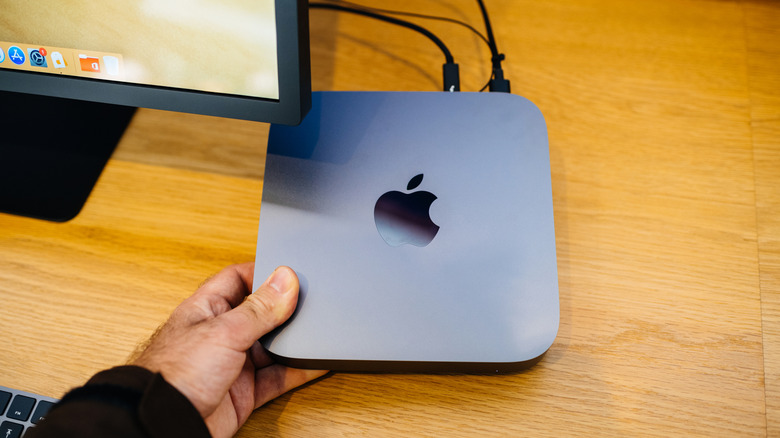
A Mac mini can overheat for reasons other than just blocked vents or a lot of dust. After all, many people use this computer as a network-attached storage (NAS) server or to run a local large language model (LLM) that can really take the processor to its limit. While this little aluminum box is a marvel of modern engineering, it might overheat if you regularly subject it to heavy sustained workloads. For example, when you use the Mac mini to render complex 4K or 8K video timelines in editing software, compile gigantic codebases, run local artificial intelligence models, or play graphically demanding games for hours, the CPU and GPU draw massive amounts of power. That causes the processor to generate heat faster than the compact aluminum can hold.
Managing heavy workloads is all about being careful of how to distribute your system's power. For example, before diving deep into an intensive project, you could take a second to close out idle browser tabs, background helper apps, and even forgotten utilities that could be drawing on available processing power. If you have a very intense workflow with different tasks happening all at once, you could try to break those massive tasks down into smaller batches or even lower the temperature of the room — which is another reason why the Mac mini could be overheating. If upgrading to an M5 Ultra Mac Studio is not a possibility, another workaround could be setting up an external desk fan nearby to help air move across the Mac mini.
High ambient room temperature or direct sunlight
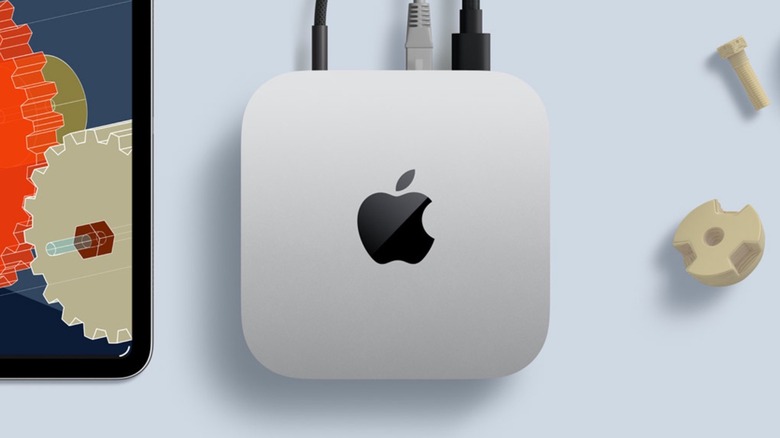
Speaking of room conditions, Apple says the perfect temperature range to run the Mac mini is between 50 degrees and 95 degrees Fahrenheit (between 10 and 35 degrees Celsius), with 5% to 90% non-condensing humidity. These conditions may be harder to maintain in the summer, which can cause your computer to overheat, as can placing it in direct sunlight while you're also trying to perform demanding tasks. The Mac mini is designed to work as an active structural heatsink, pulling heat away from the internal logic board and radiating it out into the surrounding air through passive conduction. The opposite can happen, though, as the sun or a warm environment can make the aluminum chassis work against you and transform the computer into a personal oven.
The best way to prevent overheating through a high ambient room temperature or direct sunlight is to relocate the Mac mini away from direct sunlight, heating vents, and other heat-emitting electronics, and to keep your room cool overall. If you live in a warmer climate or don't have air conditioning, the best option is to have a small desk fan running in the room to circulate the air, which can make a massive difference in keeping the computer cool. After all, if you're able to lower the ambient temperature of your immediate workspace, the aluminum will have a better chance to dissipate internal heat and keep your system safely away from its dangerous thermal limits.
Failing fan
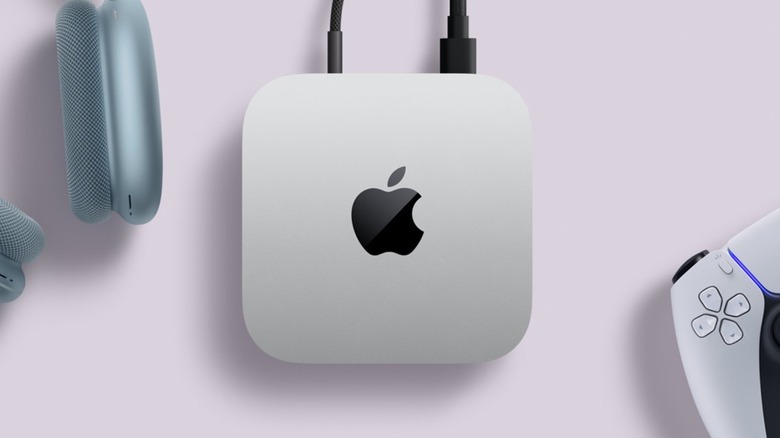
Unlike the MacBook Neo or MacBook Air, the Mac mini features a fan for a reason: it needs to spin and cool down your computer, especially during intense activities. There's nothing wrong with the Mac mini turning on its fans while you have several browser tabs open or if you're editing a video or using a local AI model. It's good that this is happening, as it shows that the computer is doing its best to ensure everything runs cool. However, after years of continuous spinning, fan bearings can wear down and get dirty, which can lead to performance degradation. When the fan fails completely, you lose your primary active defense against heat, and the internal temperatures can skyrocket within just a couple of minutes.
To tackle this fan issue, you first need to diagnose if it's actually spinning. If you don't hear the fan close to the rear exhaust grille while launching a heavy application or during a demanding session, or if you hear a harsh grinding, clicking, or rattling noise, it's possible that your fan is in trouble. Sometimes, a gentle blast of compressed air can dislodge whatever was in the way, but sometimes the motor has burned out. In that case, the best way is to contact Apple support or an authorized service provider to get a new, healthy fan, which can immediately restore active airflow and make your Mac mini work as good as new, setting it up to perform for more years to come.
Methodology
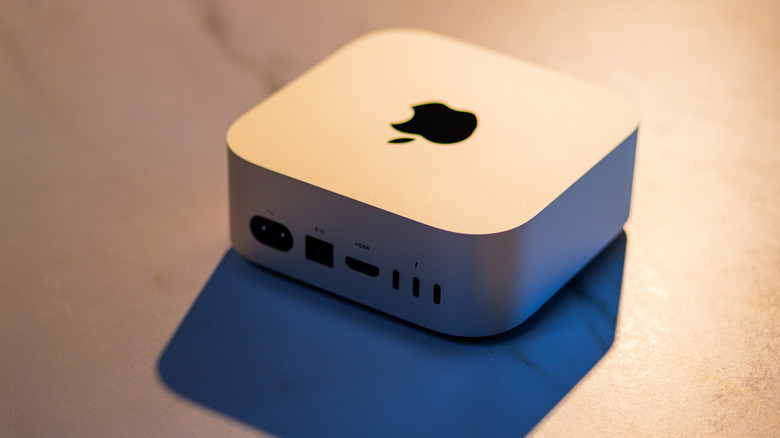
In choosing these topics, we focused on finding the most grounded, practical, and everyday reasons a Mac mini can overheat. They range from something as simple as computer placement to more complicated causes like a heavy, sustained workflow or even faulty hardware, such as when the fan stops working, which could definitely be the villain for the Mac mini overheating.
By focusing on these areas, we've built a roadmap that addresses physical placement mistakes and natural wear-and-tear of the Mac mini, giving you straightforward, actionable ways to keep your machine running cool and smooth. While there are signs when you should upgrade your old Mac, you should first take care of the basics, such as applying macOS updates in a timely fashion. You might also look into adding hardware that can improve your Mac's performance.
If you have checked for these most common issues that might cause your Mac mini to overheat and the machine is still presenting issues, you might consider updating the software, factory resetting the computer, or, ultimately, talking to Apple Support to get a deeper analysis of what's going on with your machine. However, if you still have an Intel-based Mac mini, the best recommendation may be to upgrade to one of the more efficient Apple Silicon models.