

You Can Use Your Old Laptop To Block Ads On Every Device In Your House

We may receive a commission on purchases made from links.
Have an old laptop collecting dust? Instead of letting its computing power go to waste, you can put it to good use blocking unwanted content on your wireless devices at home. Just install an AdGuard Home server on it, connect your router to it, and you'll have whole-home protection against ads, trackers, phishing scams, and other content you don't want to see.
So how does AdGuard Home work? It gives you a private DNS service operating in your own home that handles all your devices' DNS requests. When it recognizes a request from your phone or laptop to load an ad, a tracker, or known phishing website, it discards the request and returns an empty response, meaning no unwanted content gets loaded. It can be configured to block requests for adult websites, too. This is a service already offered in the form of AdGuard's public DNS servers and its paid, configurable DNS service that AdGuard hosts for you. The key difference is that AdGuard Home is both free and completely managed by you, the common laptop owner.
You could also do this on a Raspberry Pi, a NAS, or another specialized computer, but there are unique benefits to using an old laptop. For one, you probably have a usable operating system already installed, and for another, the built-in monitor and keyboard make configuration and maintenance easy. Plus, the laptop's battery can act as a sort of built-in UPS to protect you from power outages.
What to check for before using your laptop to block ads
You can install AdGuard Home on just about any laptop, but since it'll be doing sensitive work handling network traffic, it needs to be one whose operating system is still getting security updates. If your old laptop still has Windows 7 on it, for example, you'll want to either upgrade to Windows 11, or if that's not possible, replace it with a Linux distribution. On a Chromebook, you'll need to configure the ChromeOS Linux development environment to work around its DNS port restrictions or replace ChromeOS with Ubuntu or another Linux distro.
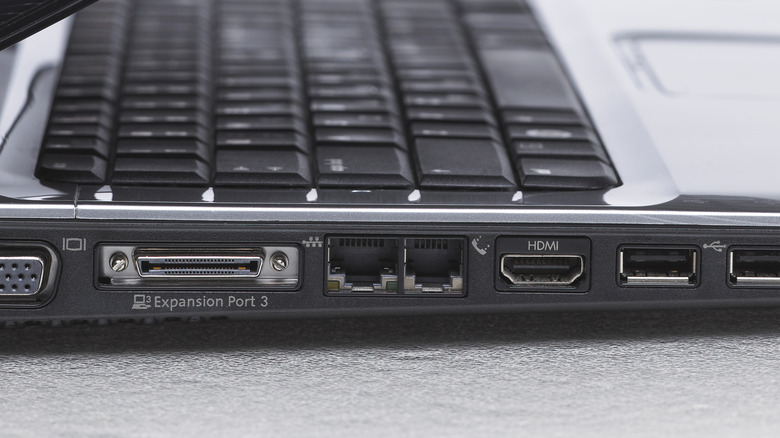
Also, you should set up your laptop next to your router and connect the two directly with an Ethernet cable rather than over Wi-Fi. Since your devices will rely on your laptop for DNS lookups, you want the laptop's connection to the network to be as reliable as possible, and Wi-Fi just can't beat the reliability of wired connections. If your laptop has no network port, a simple workaround is a purchase like TP-Link's USB-to-Ethernet 2-in-1 adapter. Those kinds of adapters are usually plug-and-play and work with any operating system.
How to install AdGuard Home and start blocking annoyances
To get AdGuard Home set up on your old laptop, first download the binary files for the latest release from GitHub. Choose the right download for your platform: If your laptop runs Windows, you probably want the file ending with "windows_amd64.zip." Similarly, you'd want "linux_amd64.tar.gz" for Linux. If you have a macOS computer, you'll want the "darwin_amd64.zip" for an Intel-based MacBook or "darwin_arm64.zip" for Apple M1 or higher.
Once you've downloaded it and unzipped the archive, follow the "Getting started" guide in AdGuard's documentation. Don't get overwhelmed by the technical aspects; the three most important steps you need to make sure you cover are these:
- Ensure AdGuard Home has administrative privileges and is allowed through any firewalls on your laptop.
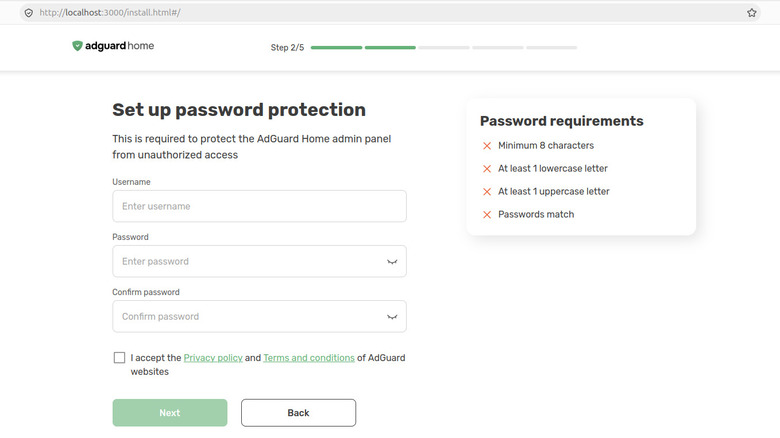
- Set a strong admin password and write it down, along with the address for the web interface. You'll need this for configuring and updating your AdGuard Home server in the future.
- Assign your laptop a static IP address instead of a DHCP one. You can do this in your laptop's network settings or through your router.
The setup wizard will walk you through all of these steps, but it's important you don't skip them. When you're done, you'll need to choose between connecting your router to your AdGuard Home server, or if you don't want whole-home protection for some reason, setting it up for individual devices. Then, log into the dashboard with your admin account, and you'll see live updates of the ads, trackers, and phishing attempts being blocked.