

6 Clever Uses For NotebookLM That Can Save You Hours At Work
Google has infused Gemini into every corner of its product ecosystem. You get on-device Gemini Nano perks on Android phones, and can access them via a sidebar across the workspace suite of apps. I use it extensively in Gmail and Sheets, and have even connected it to my WhatsApp for communication chores. One AI tool that has flown under the radar but is brimming with powerful productivity features is NotebookLM. Google initially offered it as an experimental tool, but in 2025 a mobile app was released.
I've been using NotebookLM since its testing days, and slowly it's become the most frequently used AI tool for me. My daily use involves pushing it for journalism research, planning for my cafe business, and brainstorming innovative ideas for my weekend class sessions at a nearby elementary school. But how is it different from Gemini, especially when some of the core capabilities overlap? Well, Gemini predominantly does its job as a chat interface, while NotebookLM saves all your progress as a digital diary or notebook.
There are already plenty of tools available that can convert your notes and files into a variety of formats, including audio, video, and visuals such as flash cards. One would think that NotebookLM's core appeal is to students and researchers, but there are plenty of niche and fun ways to push it and ease your workflow — or just make your hobbies and indulgences more convenient.
Clearing a book backlog
Over the years, I have amassed an extensive catalog of ebooks, essays, magazines, and free books sourced from mobile apps. I keep adding new titles to my library, and naturally, I have a massive backlog of reading materials that I haven't been able to finish. My traveling habits don't offer me enough time to fully indulge, and then there are reading materials that just take a lot of time to really pick your attention. At the end of the day, fatigue creeps in and you lose interest.
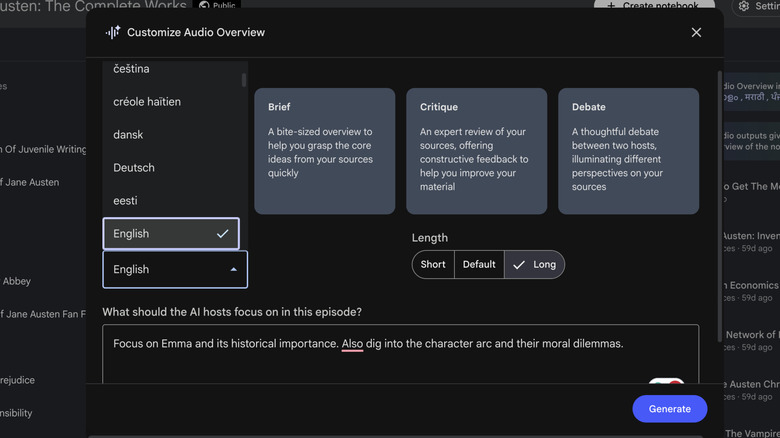
This is where NotebookLM has proved to be a massive help. I simply upload the book or essay I want to read and use the audio overview feature in NotebookLM to generate a two-way interactive podcast based on the material. You can pick between three levels of runtime, depending on how deep you want to go and the amount of time at your disposal. These audio overviews have virtual hosts that don't sound like robots, so the listening experience feels quite natural.
What I love the most is that when you generate an audio podcast, you can describe exactly what areas you want to focus on which dictates the overall content and theme. It's not an audiobook, per se, but sounds more like a literary discussion between two adults. My favorite part of using audio overviews as a polyglot is turning materials from English into my native languages, Arabic and Urdu. Doing so adds a whole new level of depth, familiarity, and ease in grasping the soul of the material. NotebookLM has even turned old documents into something worth listening to.
Mastering your culinary skills
I have spent the majority of my educational and professional life away from home. Eating out was a constant mental exercise between high expenses and poor diet, while the hostel dining menu often gave me agony. Out of sheer frustration, I learned cooking, making it a part of my daily routine. Routine soon turned into a passion, and now I help run two small cafes where I manage recipe development and menu curation. But learning a new recipe is hard, especially with the sheer amount of learning material available online.
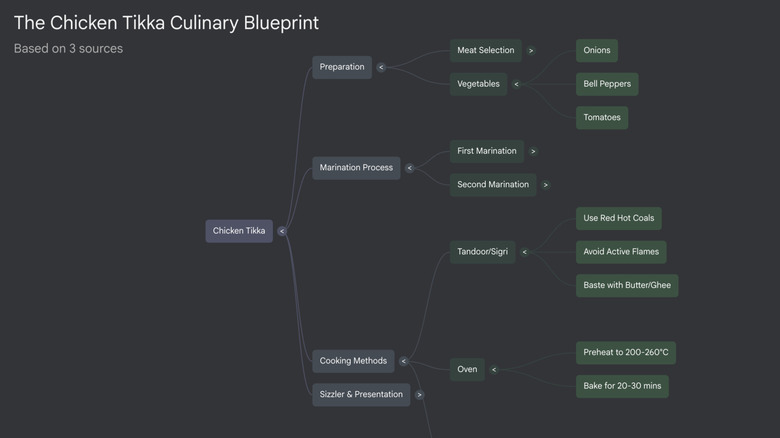
To ease the process, I pick four to five YouTube videos and cooking articles and feed them to NotebookLM. I start by creating an audio podcast that explains the role of each ingredient in the recipe and provides a quick overview of the prep work. Next, I turn the recipes into mind maps where each stage is branched out as a tag. In the rushed atmosphere of a restaurant kitchen, mind maps offer the quickest and easiest way to go through a recipe.
For delicacies that require a more detailed approach, one-page infographics and multi-page slide decks are the best route. These two formats turn all your source articles and videos into a beautiful presentation with imagery and well-formatted instructions. I often download and share these images with my guests and family remembers. More importantly, the deck that I've created using NotebookLM makes it far easier for me revisit a recipe or begin a fresh one without sinking an hour or so into online research. I tried using ChatGPT for cooking assistance, but NotebookLM is far more rewarding.
Turning tasks into a persistent support channel
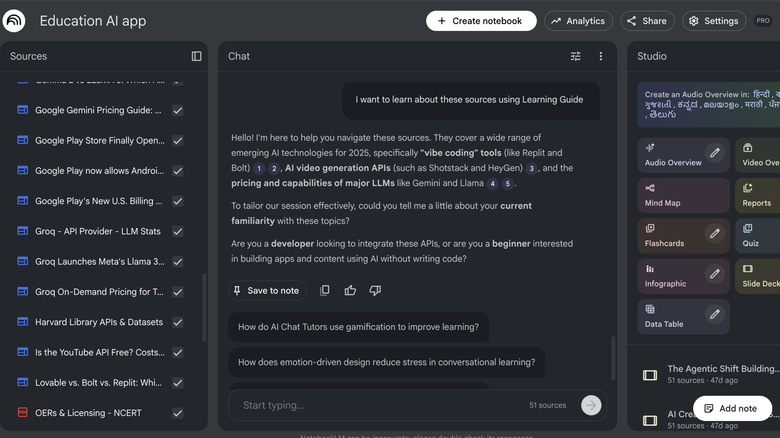
Learning a new skill is hard, but what's even harder is memorizing and implementing. I recently found myself diving into the world of AI-powered coding to create a few basic apps. While the agentic coding part was easy, it was the steps such as API callbacks, Apple's design guidelines, cloud hosting, and payment architecture that really left me stranded. I knew it was impossible for me to one-shot these steps without a deep understanding of each topic, despite collecting all the help guides and developer documentations. Thankfully, NotebookLM's guided learning mode rescued me.
I started by uploading all the tutorial articles and videos as well as the latest app development guidelines issued by Apple. Once the source materials were ready, I switched to the guided learning mode where the AI ingests all the content and then answers all your queries in a step-by-step manner. Whether it was researching and selecting the AI model with the lowest token cost to implementing the right payment gateway, guided mode helped me at each step of app development with detailed answers to all my questions and with proper source attribution.
This approach made it far easier for me to find the answers specific to my requirement at any particular stage of my project instead of poring over multi-page documents and long videos to find the useful bits. Simply put, guided learning mode helps you avoid the proverbial "needle in the haystack" situation when it comes to finding information. This approach also works well with deep research work, such as research papers, corporate releases, and academic material for students.
Deep research with interactivity
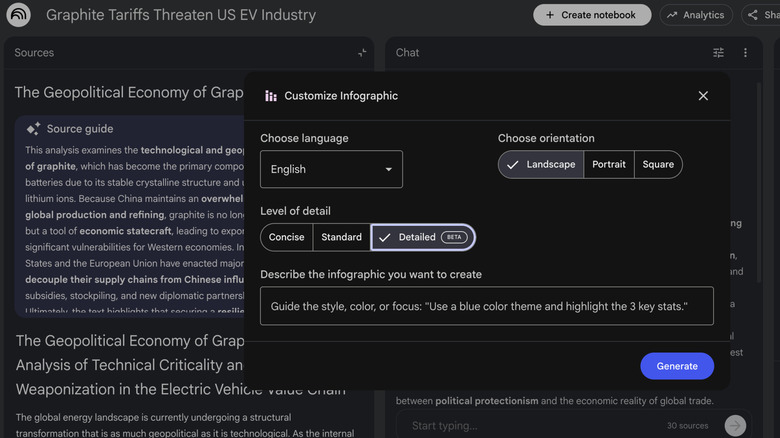
Deep Research is one of the most powerful Google Gemini AI features. One of the core reasons why it's more helpful compared to a regular AI chat is that you can dictate the exact source where information is pulled from, direct what kind of data is needed, and even upload your own material. It is pretty intensive from a computational point of view, but the results are rewarding. Unfortunately, Gemini limits you to back and forth queries and basic document conversions. NotebookLM, on the other hand, offers far more flexibility.
To get started, you can create customized infographics in NotebookLM that will only feature information you want to depict in a visual format while also letting you pick the highlights, colors, and the overall styling. You can even select between landscape, portrait, or square format, depending on your preference. In addition to audio and video overviews in NotebookLM, mind maps, customizable flash cards, data tables and quizzes — all of which can be created with a single click — you can also reformat all of the deep research material into reports.
The reports feature is particularly powerful and convenient. By default, you get presets such as briefing format, study guide, blog post, and strategic policy framework. If you want to create a report with a specific set of instructions, you can tap the "create your own" option to make custom reports. From creating detailed project reports for availing government benefits to creating a weekly business report, the built-in reports feature transforms all my research material into an easily digestible format. I highly recommend trying it in NotebookLM instead of Gemini.
Leveling up your social media game

Sharing photos on social media is old school, but retro filters are in vogue right now. If you can stitch your memories into a cinematic reel with a good background score, you are sure to grab some eyeballs. But touching up photos, editing them in a video software, applying effects, and exporting them is no easy task. The hardware at hand often becomes a bottleneck behind a paywall.
NotebookLM offers a hassle-free route to jazzing up your images. Earlier this month, I went to a concert and clicked a few foggy pictures with motion blur. Instead of ramping up the contrast and black levels, a process that often takes a toll on the overall quality, I passed the images through NotebookLM and instructed the slide deck agent to give them a cinematic reel effect. What turned out was a series of images with beautiful light flair effects, creative framing, and fun color toning. It's somewhat similar to conversational editing in Photos.
But that's not all. When I first uploaded the images to NotebookLM, the AI generated a brief description of the overall mood and scenery depicted in the pictures. I had a brief chat brainstorming the right creative edits to stitch them into a short clip. Once I zeroed down on the right set of ideas, I simply hit the video overview button and got a beautiful, four minute video clip. I imported it, muted the audio, and applied one of the licensed tunes available on Instagram. I often have friends requesting me to do something similar for their clicks.
Speed up and do more with extensions
So far, I've highlighted all the ways NotebookLM can be used in clever and unexpected ways. But there are a few external tools that sped up your NotebookLM work and add an extra dash of convenience. At the top of my list is the Kortex-NotebookLM extension. It's a Chrome extension that works well with other Chromium-based browsers, as well, such as ChatGPT Atlas. Now, what sets this one apart is that it saves you the hassle of collecting all the research material, such as Youtube videos, web pages, PDFs, and local imports. Instead, it offers a one-click route to importing whatever content you are viewing, into the specified NotebookLM gallery. All you need to do is tap on the extension icon in the URL bar, and hit the "Import to Notebook button."
Aside from web links, it can also save snapshots of a page as an image, which comes in handy if you're reading a paywalled article and NotebookLM can't crawl the contents of such paid articles. Furthermore, it offers a dedicated dashboard to m manage all your notebooks, merge them, bulk import source material, and more. I particularly love the tab import feature, which lets you quickly import active tabs and also set up automation rules for notebooks, such as organizing them based on topic, cleaning audio podcasts after listening sessions, and more.
YouTube to NotebookLM is yet another extension that is immensely useful. With this utility, you can not only import individual YouTube videos with a single-click, but also entire playlists as the source material. It can also help extract summaries, timestamps, and supports the paid NotebookLM features, as well. If you rely on learning from YouTube, this is one of the most useful Chrome extensions to boost your productivity.