

5 Clever Uses For Your PC's Ethernet Port (Other Than Plugging In Your Router)
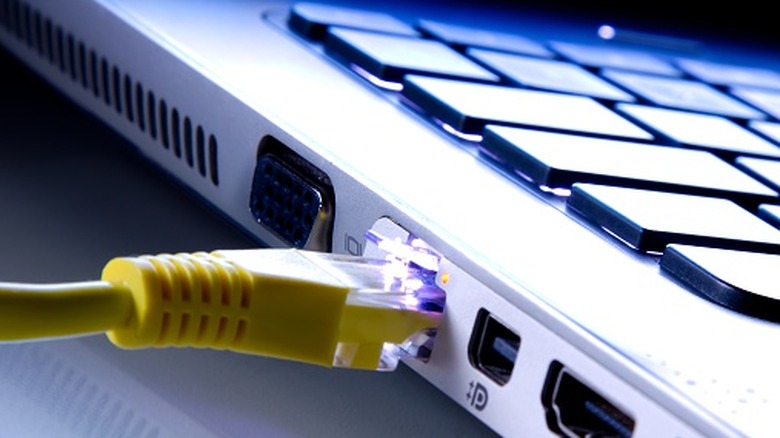
Many of us think of Ethernet ports as a way to connect the computer to the internet. While that's the primary use, it's not the only one. You could use the Ethernet port on your PC to provide internet connectivity to another device. Apart from that, the port can be used to transfer large files between PCs within minutes, connect to old, non-wireless printers, and set up a dedicated LAN for gaming.
At a time when we are fast-moving towards wireless connections, Ethernet still has some major benefits, and it's these that we intend to take advantage of. Ethernet is often faster, more stable, and less prone to interference. Additionally, it can be used to transmit signals over longer distances, especially when wireless connections lose reliability. The best part about smartly using your PC's Ethernet port is that it doesn't require costly purchases or too much effort. You will need a few Ethernet cables and some quick tweaks to the system settings, where applicable.
Faster file transfer between PCs

One of the most practical uses of an Ethernet cable is to transfer files between two computers. This way, you don't have to rely on the internet for file transfers, and the transfer speed remains faster and more stable. Also, it eliminates the need for a flash drive or external storage drive, saving you a few bucks.
To transfer files between the two PCs, connect them using an Ethernet cable. Now, on both PCs, open the network adapter settings, head to properties, and assign IP addresses in the same range to both PCs. For instance, you can use 192.168.1.100 as the IP address on one system and 192.168.1.101 on the other, with the subnet mask on both as 255.255.255.0. After that, enable network discovery on private and public networks, and for All networks, turn on Public folder sharing and disable Password protected sharing.
Once you have performed these steps on both computers, configure the permissions for the shared folder on the host system, and allow the other device full control so that it can both copy and edit the files. This setup allows you to quickly share large files between computers without hogging the network resources. Apart from that, if you frequently transfer files between the two systems, a dedicated Ethernet-based connection will help reduce wear on your flash drive.
Secure and private NAS
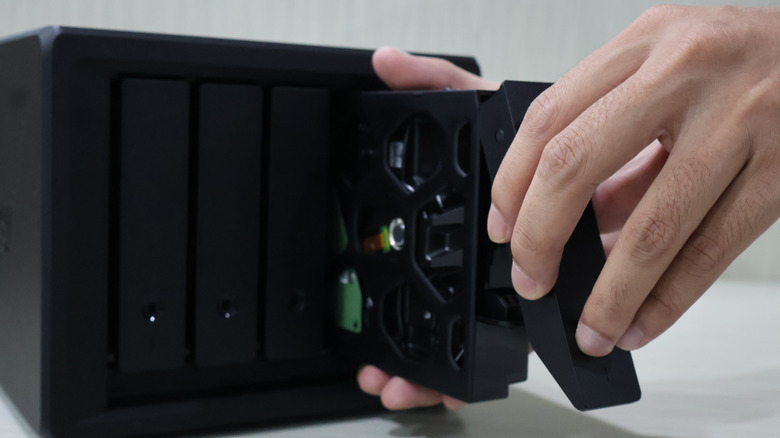
If you have ever used a Network Attached Storage (NAS), you will know how easy it makes file sharing across devices on the same wireless network. But you could also connect the same NAS to the PC using an Ethernet cable. This creates a secure and private connection between your PC and the NAS, improving speed and keeping your data off the network. This comes in handy if you are the only person using the NAS and there's only one computer accessing it. The performance improves, too, in some cases, since you are no longer bound by the router's capabilities.
Setting up a direct NAS connection to the PC is relatively easy. You just need to assign a static IP address on both devices, something like 192.168.0.1 on the PC and 192.168.0.2 on the NAS. Then, map the NAS and use the new IP address to access the files on the NAS from your system. Although if you are willing to compromise on performance or want device-wide access, it's best to upgrade the router or get a network switch.
Easy internet sharing with other PCs
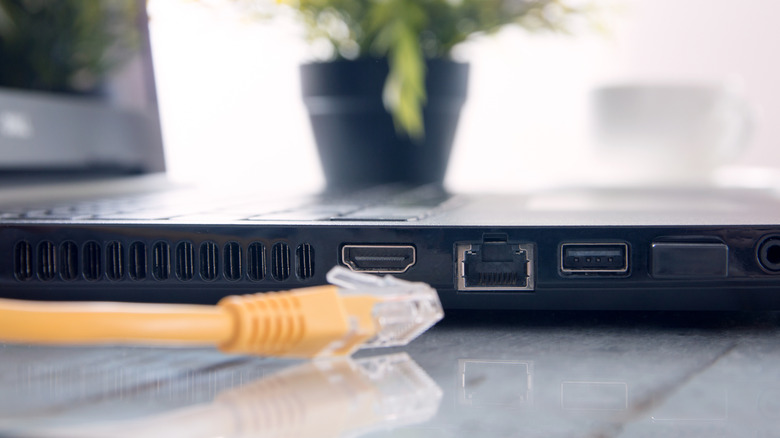
There are often situations where one of your computers has internet access while another doesn't. This is where that Ethernet port and cable come into the picture, allowing you to share the internet between the two systems. This is possibly the simplest application of that unused Ethernet port on your computer.
All you need to do is connect the computers using the Ethernet cable. Then, head into the Network Connections window on the one that has internet access, open the active wireless adapter's properties, navigate to the Sharing tab, check the "Allow other network users to connect through this computer's internet connection" option, choose the port you are allowing this for, and save the changes. The computer connected via the Ethernet cable should receive internet access right away.
This works great in hotels or office setups where internet connectivity is limited to one device. And since the connection is wired, instead of a hotspot, the speed is much better.
Connect directly to old printers
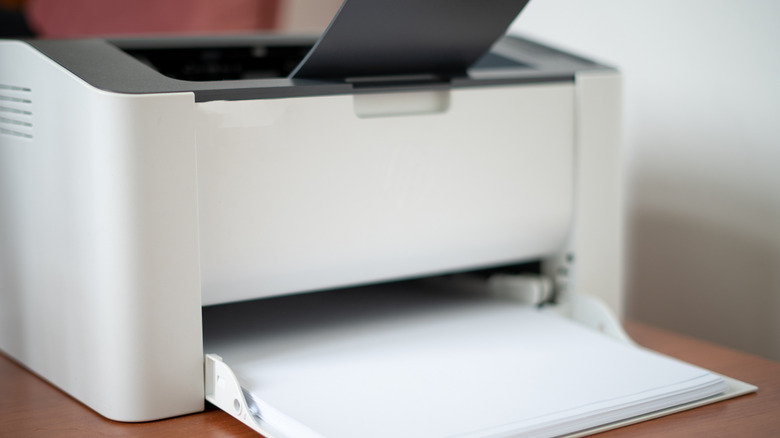
If you have a printer that doesn't support wireless connectivity or struggles with Wi-Fi connections, an Ethernet connection works great. The best part is that this allows you to keep using old printers. The setup is fairly easy and will take less than a few minutes.
First, use the printer's network settings to assign a static IP address like 192.168.1.100. Similarly, in the network adapter settings on your computer, assign the 192.168.1.101 IP address. You can then use the printer's newly configured IP address to manually add it to the PC via settings. Make sure you also install the printer's driver for the best experience.
Once set up, the computer-printer pair should be fairly reliable, quickly sending print jobs from one to another. Since the connection is wired, you are likely to run into fewer issues. Apart from that, this negates the need to replace a fully functional printer simply because it doesn't support wireless connectivity.
Set up LAN for lag-free gaming
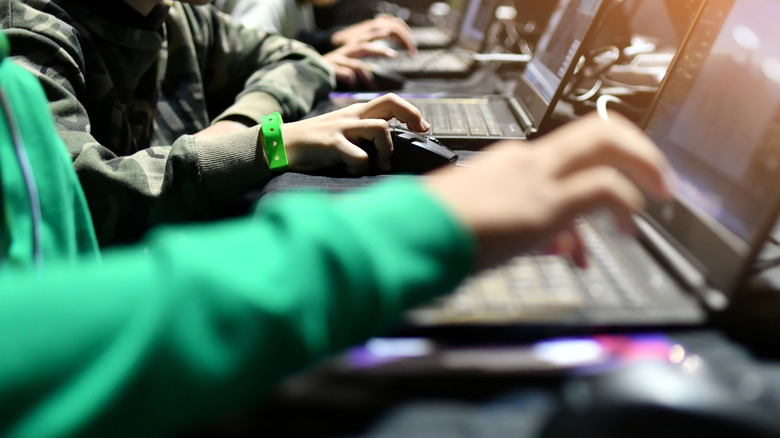
Gamers know the importance of lag-free gaming, and setting up a dedicated LAN can help achieve that in smaller setups where everyone is in the same room, even on a slow internet connection. This will help minimize latency and packet loss, which significantly improves the gaming experience. To do this, you will need a few Ethernet cables and a network switch. A decent 5-port network switch typically costs around $30. Before you proceed, make sure to check whether the game you are playing supports LAN gameplay. Many do, but some that rely on internet-based services and launchers, or require constant internet connectivity for anti-cheats and authentication, like "Diablo" and "Valorant," don't support LAN gameplay.
To set up a LAN gaming party, plug the network switch into a power source and then connect it to the router using an Ethernet cable. Use the remaining Ethernet ports on the network switch to connect the computers. Now, allow the game through the firewall on every device, as it might conflict with the setup. If someone doesn't have the game, you can quickly transfer the game files using the steps outlined earlier.
Keep in mind that this setup doesn't necessarily need a router. If you have a router, it will help automatically assign the IP address to every system, making it slightly easier for you. Without a router, you will have to manually assign a static IP, but the network will remain completely offline.