

Turn Your Amazon Fire TV Stick Into A Retro Gaming Console With This Free App
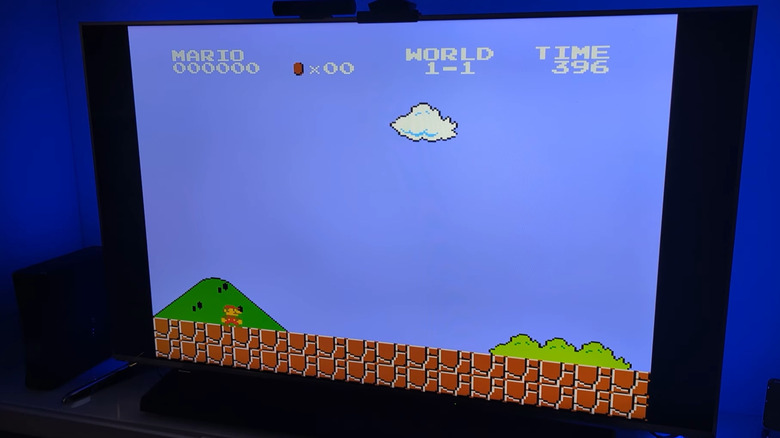
If you're a fan of old video games and have an Amazon Fire TV Stick, you could play '90's classics on your TV with RetroArch, an open-source app. The entire setup shouldn't take more than 30 minutes, and once you are done, retro games like "Super Mario All-Stars," "Battlezone," and "Ms. Pac-Man" are a tap away. The best part is that RetroArch is completely free and includes emulators from almost every gaming system, including PlayStation, Super Nintendo, Sega, and more.
RetroArch works across operating systems, be it Windows, macOS, Android, or iOS. It also features a wide range of configurations to streamline gameplay and even supports gaming controllers. So, in addition to your Amazon Fire TV Stick remote, you can use a Bluetooth gaming controller for a seamless, console-like experience. Additionally, you can host a gaming session, simply watch one, or livestream gameplay on platforms like Twitch or YouTube.
With RetroArch, you can turn any old TV into a retro gaming console. All you need is an Amazon Fire TV Stick and a few other accessories, though most other streaming sticks are also compatible.
Installing RetroArch on your Amazon Fire TV Stick
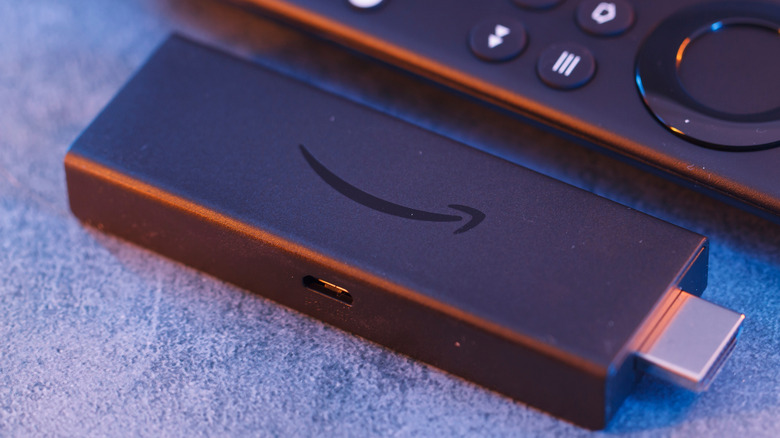
Before you proceed, you'll need a Micro USB OTG adapter, a 32GB flash drive, and a Bluetooth gaming controller. If possible, use a USB 2.0 flash drive over a USB 3.0 drive since the latter draws more power. Then, follow these steps:
- Format the flash drive to FAT32. That's the file system for flash drives Amazon Fire TV Stick supports.
- Create a new Games directory on the flash drive, then create separate folders for every gaming system, and move your game's ROM files to their respective folders, depending on the gaming system. You can pull these files off physical copies of games or find them online — we recommended to go with games you own due to legal and security risks.
- Connect your Bluetooth controller to the Amazon Fire TV Stick.
- Plug the flash drive and the power cord into the Fire TV Stick using the Micro USB OTG adapter. If you see a message to format the drive, select No.
- Open the Amazon App Store, search for RetroArch, and install it. If you don't see the app, sideload it onto the Fire TV Stick.
- When you run RetroArch, it will ask for permissions to read and write external storage.
- After RetroArch loads, press the Up button on your controller so that your game controller is active instead of the remote.
- Inside the Main Menu in RetroArch, go to Online Updater, scroll down to the bottom, and tap the Update option for each of the files.
- Go to Core Downloader at the top, and install the cores depending on the gaming systems you plan to play on.
- Configure the other app and controller settings, if needed. For basic gameplay, you don't necessarily need to do that.
- Navigate to Import Content, pick Scan Directory, choose Storage, select the flash drive, and go to the ROM library, select a folder, and scan the directory.
You should now see the directory, along with all the games, listed on the left pane of RetroArch's home screen.
Optimizing RetroArch
After scanning the directory and loading the games, you're only half done. You still need to select which emulator to use. For the best gaming experience, configure the various built-in settings as well. To pick the emulator for a playlist, go to Settings, navigate to Playlists, select Manage Playlists, and pick the one you just loaded. Now, under Default Core, select one of the installed cores for that playlist. For instance, if you are playing MAME games, select the MAME 2003-Plus core. You should now be able to play games inside the configured playlist. Do the same for other gaming systems.
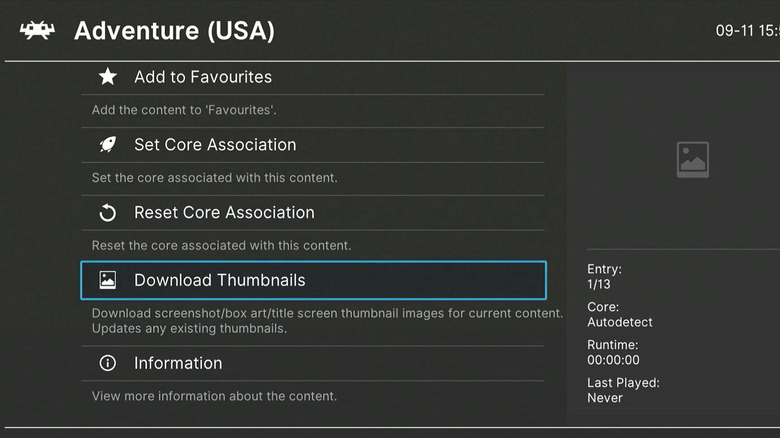
You have so far got the basic RetroArch setup. But you still don't see thumbnails for installed games and have not configured any of the gameplay-related settings. For thumbnails, simply select the game from the playlist, scroll down, and choose Download Thumbnails. It should instantly fetch the relevant thumbnail. To do that automatically, you can turn on On-Demand Thumbnail Downloads from the playlist's settings. Keep in mind this impacts performance.
Moving on to game-specific settings, you can manually set core associations if you want a particular retro game to run on a different core. Similarly, you can adjust the display settings for a more retro-like experience. The possibilities are endless, but even with the basic setup, you can enjoy all your favorite retro games on an Amazon Fire TV Stick and repurpose any old TV. Because retro games feel much better on older CRT display.