

11 Free Apps You Should Always Install First On Your New Gaming PC
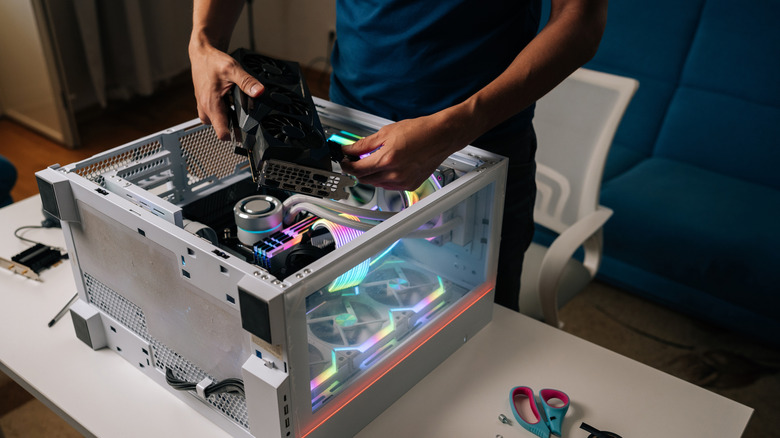
With the components of a gaming PC skyrocketing to reach absurd price levels, many people want to upgrade as soon as possible before the AI domino effect makes it downright impossible to find cheap upgrades that turn your PC into a gaming setup. As substantial as this investment may be, the inherent satisfaction of booting up a brand-new gaming PC and checking out its performance firsthand is unbeatable. Seeing your RAM, graphics card, SSD, CPU, and other critical components work together to let you enjoy an absolute beast of a machine more than justifies the cost of procuring all these parts in the eyes of many.
However, in the excitement of booting up your new gaming PC, don't forget to download some critical software that will help your system become an optimal gaming machine. From clients that let you download games to troubleshooting software that helps you stay on top of your PC's performance and identify any problem points, there is a litany of applications that will make your gaming PC far more suited to its task. In case you don't want to shell out too much cash for paid programs, then start out with these free apps to cover all the bases first. Chances are that you may not even need to spend a dime on anything other than the latest AAA and indie releases — the games themselves — after downloading these programs.
Steam
It would be impossible to talk about the best free programs that are a must-have on a new gaming PC without mentioning Steam, the GOAT of gaming clients that puts every other company to shame. Sure, the platform's game library is staggeringly massive, the attempts to foster a gaming community are excellent, and the reviews have become legendary for users injecting a dose of humor into their critical commentaries ... but what really makes Steam such an excellent platform is how consumer-friendly it is. The biggest indication of this is the amazing pricing and deep sales that are a regular sight, with people getting some of the best games for a pittance as compared to other flagship platforms from Sony and Microsoft. This reason alone makes people choose PC gaming over consoles.
It also helps that Steam has one of the best customer support systems on the market, despite the inability to connect to a customer support executive directly. Their refund policy puts customers first and asks no questions if you decide to get a refund within two weeks of your purchase, or if you've only clocked in two hours of game time. Cloud saves ensure that you can play on multiple systems without losing progress, while Steam Workshop is a convenient way to download mods without resorting to third-party platforms. Most game-specific forums have answers to all the questions you have, and Big Picture mode helps you enjoy the console experience on your PC if you prefer using a controller and a bigger screen for your gaming endeavors. With all these perks, it's easy to see why most people will raise an eyebrow or two if you say that you have a gaming PC but haven't installed Steam on it.
Epic Games Launcher
Don't worry — we aren't going to list out every gaming client one by one. Once you download Steam, there isn't really a reason to download other clients like Ubisoft Connect or the EA app, unless required by a game from these publishers. Navigating their UIs is cumbersome, and constantly having to log into these platforms can be annoying. Sometimes, these launchers straight-up prevent players from opening their games due to failed authentication or other issues. While an argument can be made that the Epic Games Store falls within the same umbrella, there's one major factor that separates it from the rest of the pack.
In a bid to make the Epic Games Launcher appealing to people who don't play Fortnite, the company has used its funds to enact a free monthly games program. As long as you open the platform every month, you can potentially snag an amazing deal and get your hands on a game that you've had your eyes on for a while ... for free! Epic doesn't skimp out on these offerings, either — some notable games they've given away for free include Total War: Three Kingdoms, Chivalry 2, Disco Elysium, The Callisto Protocol, Bloodstained: Ritual of the Night, and Hogwarts Legacy. The lack of a proper community and a barebones library are definitely pain points preventing this service from reaching higher levels of use, but people who install this gaming client solely to download games for free won't care about this too much.
Discord
It's amazing to see how Discord has become an enduring facet of pop culture, despite starting out as a team messaging app for gaming. With almost 700 million registered users, it's easily the most popular multimedia messaging platform around. With support for audio, text, and video calling, the sense of community on Discord is genuinely impressive. There's a reason why even console manufacturers have gone out of their way to integrate native support for Discord in their proprietary hardware: They also want to enjoy a slice of the pie that PC gamers have been feasting on for a long, long time.
Once you get used to the app's slightly complicated interface – although, to be fair, Discord's March update gave it a massive glow-up — you can join one of several servers and enjoy being a part of a growing community as you foster friendships with people from all over the world. This facet of Discord has helped it evolve from a mere gaming app into a popular messaging client that even non-gamers can have fun with, although its focus on video gaming is undeniable. You can enjoy high-quality audio chats as you cooperate with — or play against — your friends across several multiplayer games and have a blast together.
DS4Windows
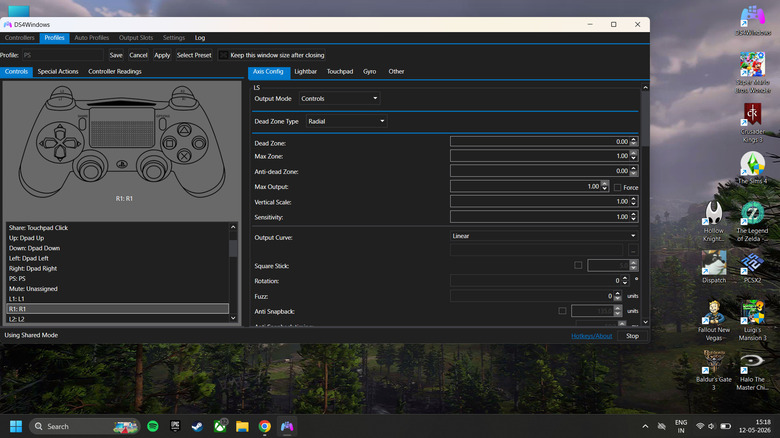
With Steam Input becoming more and more accepted for most modern titles, most people feel that using third-party software to connect controllers to your PC has become redundant. Xbox controllers have native support for Windows as is, and your PlayStation controller can be interpreted by Steam Input to make it compatible with numerous games.
However, there are outliers that you should definitely take into account. What if you're playing an older game on Steam that may not support your PlayStation controller, or you're using a different gaming client altogether to run a game? Other times, Steam Input may be messing with your controller instead of making things more convenient for you. There's also the issue of emulated games to take into account, where you must definitely use a controller for the optimal experience. If you don't have an Xbox controller or a third-party controller with support for XInput, you're fresh out of luck in this department.
This is where third-party software like DS4Windows comes into the picture. It serves as a convenient way to connect your PlayStation controller to your PC and play games with full controller support. With the release of the DualSense, this software evolved to support both generations of controllers. It lets you set up different profiles for your controllers, which means you can use different mappings for specific games and even change the color of the lightbar accordingly. It has some minor bugs, but it's hard to complain too much, given that you can use this software for the grand total of nothing.
A good GPU utility tool
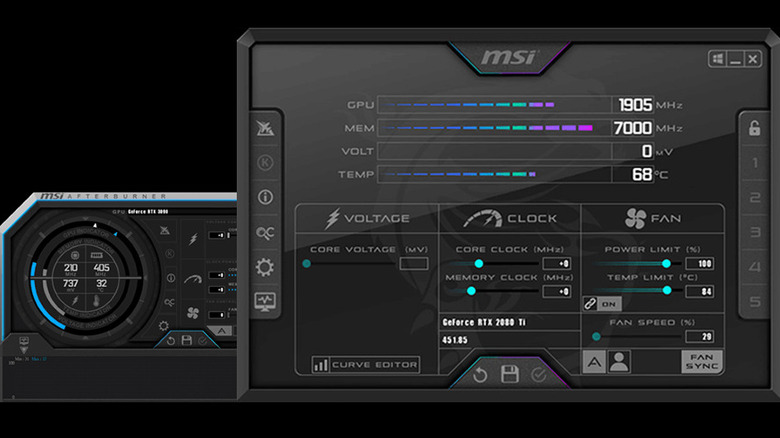
People who want to fine-tune their GPU's performance on a brand new gaming PC can download one of several GPU utility tools to achieve the same. Several free software offerings can help you in this area, with MSI Afterburner being a notable mention here. Don't let the name dissuade you from downloading this software, since Afterburner is also compatible with non-MSI graphics cards. Overall, it's an excellent tool that lets you monitor the real-time metrics of your graphics card. If you want to enhance your GPU's performance beyond its preordained limits, you can adjust the fan speed and overclock your graphics card to improve performance. Just make sure that you're not going overboard in this department, since excessive overclocking can harm your GPU in the long run. If you also have the habit of using RivaTuner, then MSI Afterburner syncs with this program for a convenient in-game overlay that is useful for precise GPU monitoring.
Now, while MSI Afterburner is definitely a reliable GPU utility, there are other alternatives you might also want to consider. ASUS GPU Tweak III is a similar tool for overclocking that lets you set up profiles to run with specific games while giving you access to other metrics. Again, this tool is compatible with all GPUs, even though it's ASUS' proprietary software. If you want a GPU-specific utility tool, then use AMD Adrenalin for — as you'd expect — AMD graphics cards, and EVGA Precision X1 if you have an NVIDIA GPU installed in your machine.
The emulator (or emulators) of your choice
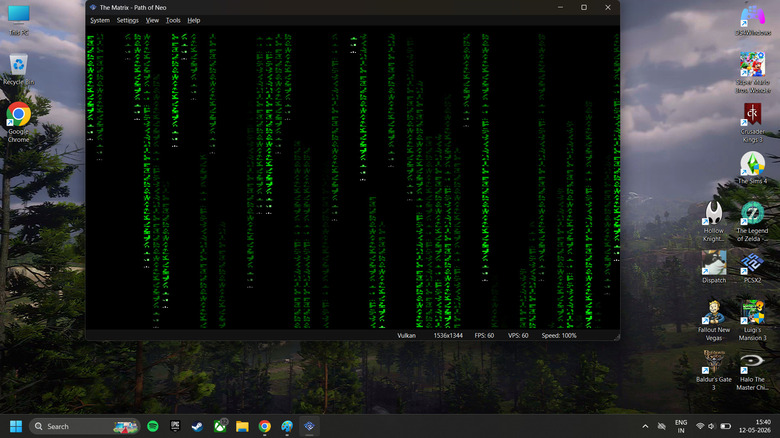
Who said gaming needs to be restricted to PC-only titles on your system? The magic of emulation lets you play classics from previous console generations on your gaming system, which is a godsend if you missed out on some great old-school games that have either subpar PC ports or remained console exclusives. If you manage to snag a copy of an old-school classic like Ico, the original God of War trilogy, Castlevania: Symphony of the Night, or Super Mario Galaxy 2, but don't have a console to play it on, emulators can save the day.
If you want to play games from multiple consoles, a one-stop solution would be to download EmuDeck. Not only does this let you download pretty much every emulation software under the sun, but it also features additional bells and whistles to make your gaming experience smoother. These include auto saves, cloud storage, and a way to compress ROM files to make them take up less space on your hard drive. Despite what the name suggests, EmuDeck isn't restricted to the Steam Deck — you can also install it on your PC.
However, if you just want to play a game on a specific platform, then downloading that emulator individually is usually faster and lets you personalize the experience for the game in question. RetroArch is the go-to for most retro consoles, including the Atari 2600 and the Nintendo Entertainment System. It also includes OpenLara, a game engine made specifically to run old-school Tomb Raider games with a fresh coat of paint. Other emulators include the legendary PCSX2 for PlayStation 2 emulation, Dolphin for the Wii and GameCube, and PPSSPP to run PlayStation Portable games.
HWiNFO
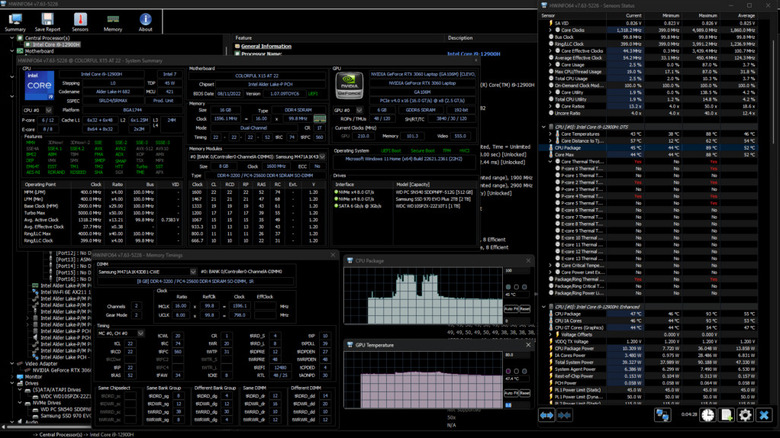
If you want to download a free real-time monitoring tool for your CPU, then you'll find two popular tools for this — HWiNFO and HWMonitor. The general consensus is that the latter is fine if you only want to peruse basic stats, but it lacks accuracy. This isn't a problem with HWiNFO, which provides more details and is far more accurate at depicting the same. There's a reason why NASA uses this program to monitor their hardware. It provides deep and detailed insights into both virtual and physical memory usage, CPU utilization metrics (including per core usage data), thermal stats, fan speeds, and relevant GPU data.
It helps that HWiNFO is also updated regularly to make the user experience easier. A notable example of this is when overlay data was added in a February 2024 update, helping it become a useful real-time data monitoring tool that made it far more convenient to use. It's easily one of the best system monitoring tools, and one that will help you get the most out of your gaming PC.
Ninite
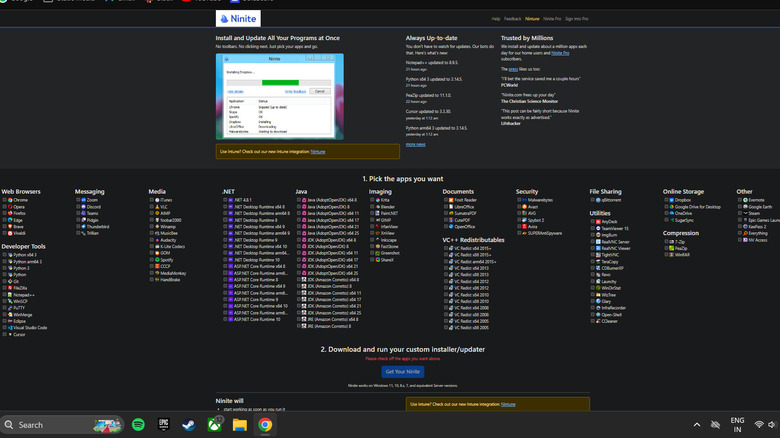
Any PC enthusiast knows how grating it can be to set up a new gaming PC. You'll need to download a bunch of apps individually (including some on this list), which can get annoying after a point, as you usually end up spending a ton of time searching for the applications you need on your new system. Thankfully, there's an easy way to do away with this cumbersome approach, courtesy of Ninite. This all-in-one installer gives you a checklist with pretty much every popular program that is commonplace across most PCs. This includes both Steam and the Epic Games Launcher, the browser of your choice, Spotify, qBittorrent, Discord, VLC, MalwareBytes, WinDirStat, and 7-Zip.
Once you choose the programs on the Ninite website, you'll download your custom Ninite program that will automatically install all these programs with a single click. It's so convenient that Microsoft decided to launch a similar service 16 years after Ninite made its debut. However, unlike Ninite, Microsoft's multi-app install functionality is limited to the Microsoft Store, meaning that Ninite is still your go-to if you want to set up your PC quickly with all the software you could possibly need. The best part is that this convenience is completely free of cost.
Lively Wallpaper
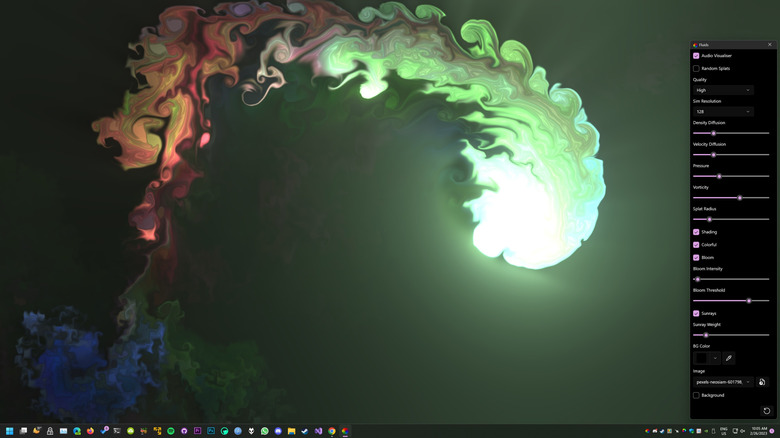
Most people with gaming PCs are familiar with Wallpaper Engine, an excellent tool that you can grab from either Steam, the Humble Store, or Green Man Gaming for $4.99. As convenient as this software is for browsing a wealth of live wallpapers and applying them to your desktop, most people won't want to shell out five bucks for it. Thankfully, there's a free, open-source alternative you can download in its stead. Lively Wallpaper works similarly to Wallpaper Engine and is the perfect free tool to make your gaming PC look prettier.
However, there's one major catch you should be aware of. Unlike Wallpaper Engine, there's no option on the program itself where you can search for and download the live wallpaper of your choice. Although this may make the program slightly challenging for beginners, the flip side is that Lively Wallpaper is far more malleable when it comes to setting the wallpaper you want. For starters, you can input the URL of a website to turn it into your desktop wallpaper, which is a feature that Wallpaper Engine lacks. Lively Wallpaper's subreddit, DeviantArt page, and GitHub repository also have viable wallpaper options. Finally, if you want to use a video that will play on loop as your wallpaper, you can upload the clip (or long) of your choice to Lively Wallpaper to customize your desktop as you see fit.
WinDirStat
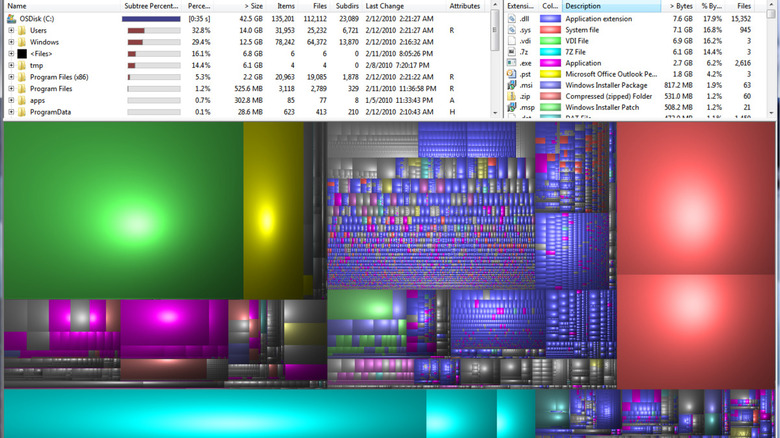
Games have become so space-intensive that it's hard to find a AAA release that doesn't occupy upwards of 100 gigabytes on your SSD ... or HDD, if you don't mind subjecting yourself to criminally high load times. This makes it important to clean up your PC's storage from time to time to make space for these behemoth-sized games. The problem here is that you'll have to individually check the file size of different folders to see how much space they occupy, which can get a bit grating after a point.
Instead of going through this time-consuming ordeal, a better alternative is to download WinDirStat. It stands for Windows Directory Statistics and does precisely what this name suggests, showing a treemap that visually depicts the amount of space occupied on your hard drive. This helps you identify the biggest space-hogging culprits and take measures to either uninstall these programs altogether or figure out a way to reduce how much space they occupy. One essential gaming PC tip you should know is that your SSD should have enough free space to maintain high write speeds and ensure this component's longevity. This is where WinDirStat can help you manage your SSD's health while also freeing up the drive for the next AAA game on your list.
3DMark

Some AAA games have built-in benchmarks you can run to see your PC's performance. However, it's impractical to keep these games and start them up whenever you need to see how powerful your PC is, especially if your system is new. Why would you download a massive game like Cyberpunk 2077 or Red Dead Redemption 2 only to run a benchmark? Instead, a dedicated benchmark tool is far more capable of getting the job done, and 3DMark is a notable mention in this regard.
This app has multiple benchmark tests for low-end, mid-range, and state-of-the-art PCs, letting you gauge ray-tracing performance, average frames per second (FPS), GPU temperatures, and clock speeds. It also provides you with a 3DMark score that you can compare to other systems with similar configurations, so that you can see if there's an area you need to troubleshoot. The free version of this program comes with seven benchmarking tests — Solar Bay, Solar Bay Extreme, Steel Nomad, Steel Nomad Light, Time Spy, Night Raid, and Fire Strike. These are more than enough to gauge your system's performance and make 3DMark one of the most robust benchmarking tools you can install on your new gaming PC.