

5 Easy Ways To Make Your Router More Secure
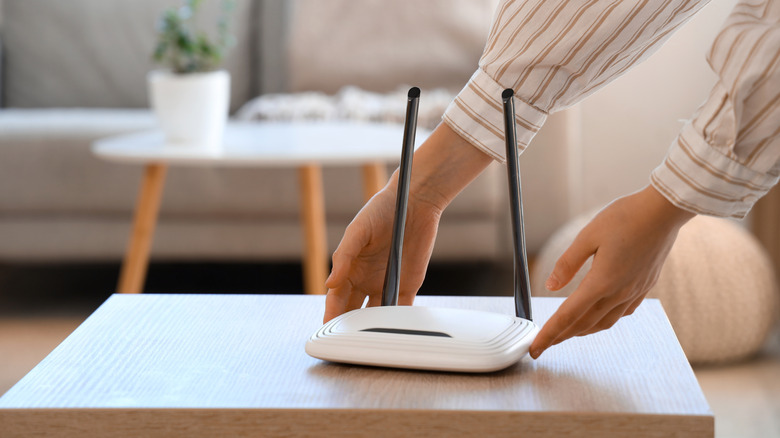
When you set up a router, you're not just bringing the internet into your home. That small networking device can be a gateway for nefarious individuals to access your digital life if you don't take the necessary steps to protect it. Being a device with software and firmware on it, hackers can utilize several ever-evolving methods to hack it. They look for weaknesses like default passwords, outdated firmware, and weak encryption to gain access and turn your life upside down. Luckily, you're not defenseless.
You might think cybercriminals don't target routers all that much, but they do. According to a report by the cybersecurity company DexPose, among the cyber attackers that target IoT devices, 75% of them are aimed at routers (Netgear is the most targeted). When hackers take over the routers, they infect them with malware, allowing them to spy on you, recruit the device into a botnet, and use your connection for fraud and cyber attacks.
You don't need to be a security expert to strengthen your router's security. You should change the default Wi-Fi password when setting it up, but you need to go beyond by getting to know a few important settings. For instance, you need to change your default SSID and admin password. You also need to enable things like MAC address filtering, disable Universal Plug and Play (UPnP), and ensure the router is using a strong security protocol.
Enable automatic updates and MAC address filtering
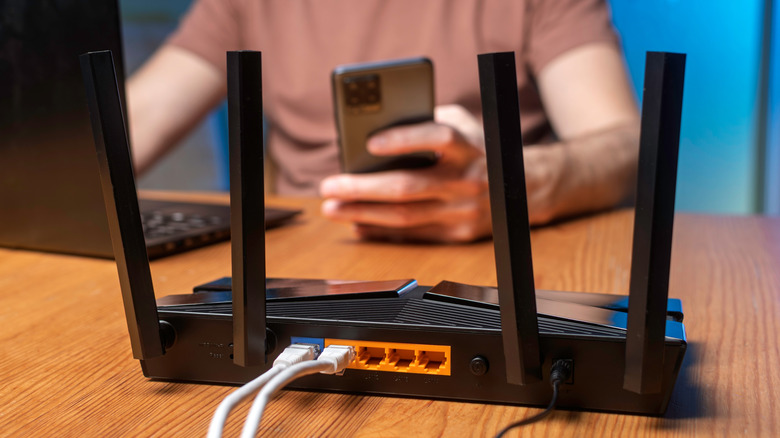
One of the best ways to ensure that your router always has the latest security features and patches is to update it regularly. For most modern routers, you can enable automatic updates so you don't have to actively monitor them. This can help if you sometimes forget or you're away, which can leave your router vulnerable. When a hacker figures out the model you're using and the firmware version, they'll look for an existing exploit to take it over and install malware or steal sensitive information.
Here are the general steps to enable automatic updates on routers:
-
Log in to your router's app or admin panel.
-
Click "Administrative" or "Advanced."
-
Enable "Auto Firmware Update."
-
Set when it should update.
-
Save and exit.
Another thing you can do is enable media access control (MAC) address filtering. Every network and internet-enabled device has a MAC address, a unique identifier assigned to its network interface card (NIC). If you enable the "Whitelist" filter mode, you will have to enter the MAC addresses of all the devices that are allowed to connect to the router. If you choose "Blacklist," any device whose MAC address is on that list will be denied access.
To enable MAC address filtering, you have to do the following in the settings or admin panel:
-
Click "Wi-Fi Settings," "Tools," or "Advanced."
-
Enable "MAC Filtering."
-
Choose a filter mode.
-
Enter the MAC address you want to allow or block.
-
Save and exit.
Change your default SSID and admin password.
Your router has a Service Set Identifier (SSID), which is basically the name of the Wi-Fi network. It's what shows up in your list of Wi-Fi connections when your device is searching for them. If you're still using the default one, hackers can use it to figure out the brand and model of your router and target its specific vulnerabilities. Changing it is the easiest way to hide this information. But don't use something personal like "John Doe home Wi-Fi," as this can reveal your name to the hackers who might launch a phishing attack if they're that determined.
To change the SSID of your router, you typically have to do the following:
-
In the router's settings or admin panel, select "Wi-Fi Settings" or "Wireless Settings."
-
Look for the SSID field and change it to something impersonal. If you don't see it immediately, look for it in the "Wireless Settings" section or submenu option.
-
If you don't want to broadcast the SSID at all, tick the "Hide" option.
-
Save and exit.
Even if you change the SSID, a hacker might still be able to find out what router you have. In that case, they might try to hijack it using the default username and password. This is one of the simplest router settings that people often forget to change. It is easy to figure out because it is public knowledge, especially for routers that have it printed on the back and underneath.
Create a guest Wi-Fi

Before you buy a router, especially if it's a cheap one, it's essential to ensure that it allows you to create a guest network. It's a simple toggle in settings that creates a separate network when flipped, with a different SSID and password for guests to access. This is important because people are usually the weakest link in every security system and can render many of the steps you took so far useless.
With a guest network in place, if a guest slips up and unwittingly divulges the password to a hacker, they will not have access to the main network. This protects your personal information by rendering Man-in-the-Middle (MitM) attacks useless since the hacker won't see your actual traffic (guests are still in trouble, though). It also protects your connected devices, such as phones, tablets, cameras, and baby monitors. Furthermore, if the guest's device is infected with malware, the guest network will act as an effective containment zone that prevents a network-wide infection.
Follow the steps below to create a guest network:
-
Access the router's settings in the app or admin panel.
-
Look for "Wireless Settings," "Wi-Fi Settings," or "Network Settings."
-
Enable "Guest Network."
-
Set up the credentials for the guest network.
-
Save and exit.
When an outsider you trust wants to use your Wi-Fi, just give them those credentials. On some routers, you can set bandwidth and speed limits to ensure that guests don't slow down the network.
Disable UPnP
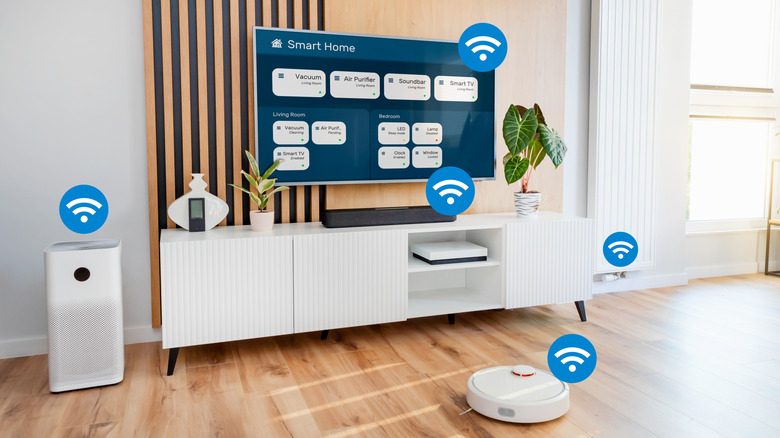
UPnP is a protocol that allows the devices on your local network to automatically communicate with each other. For instance, if you set up a media server on your home network, it will use UPnP to tell the router to open a port for it so it can send and receive traffic. You don't have to go into any settings and configure any port forwarding yourself. When you're away, you can access that server through that open port using your computer or phone, so you can watch your favorite movies and TV shows.
The problem with UPnP is that it's not secure. Once a device gains access to your network, it will be able to communicate with other connected devices. If that device belongs to a hacker, they can turn the others against you. You might not need to disable UPnP if you have taken the necessary steps to prevent unauthorized access to your network. But if you want a little bit of extra security (at the cost of losing convenience), you can easily disable it.
Follow the steps below:
-
Log in to your router's app or admin panel.
-
Click "Wi-Fi Settings," "Tools," or "Advanced."
-
Look for a "UPnP Settings" section, tab, or menu item (located in the sidebar).
-
Toggle off or uncheck "Enable UPnP" or "UPnP Status."
-
Save and exit.
Ensure the router is using the WPA3 protocol
Routers have several security protocols that protect them from unauthorized access, with the Wi-Fi Protected Access 3 (WPA3) being the current and most secure standard. It prevents hackers from taking over your router remotely because it has stronger password encryption and protection against brute force attacks than previous standards, such as WPA2 and Wired Equivalent Privacy (WEP). If the router was manufactured after 2020, it should have WPA3.
You can check by doing the following:
-
Log in to your router's app or admin panel.
-
You'll likely find this option under "Wi-Fi Settings," but you can also check under "Network Settings," "Tools," and "Advanced."
-
Look for the "Security" dropdown and see the protocol it's using.
-
If it's not "WPA3," click the dropdown and select the protocol (if it's available).
-
Save and exit.
If you can't find "WPA3" from the list, try manually updating your router and see if it shows up. If not, the minimum protocol the router should use is "WPA2." If your router doesn't allow you to check the security protocol, contact the manufacturer's customer support and ask about your model. If it's using WEP or WPA, and there are no further firmware updates coming to address this, you should replace that router.